What is Webuzo?
Webuzo is a control panel. A control panel is a web page where you manage your hosting. Webuzo is a third-party tool, so your plan may or may not include it. Ask Hostvento support if you are not sure. Menu names can differ a bit between versions.
The three types
- Addon domain: a separate domain with its own website, hosted in the same account. Like a second shop in the same mall.
- Subdomain: a front part added to your main domain, such as
blog.yourdomain.com. It can hold its own site. - Parked domain: an extra name that shows the same site as your main domain. Like a second sign on the same shop.
Add an addon domain
- Log in to Webuzo. Your login details are in your welcome email.
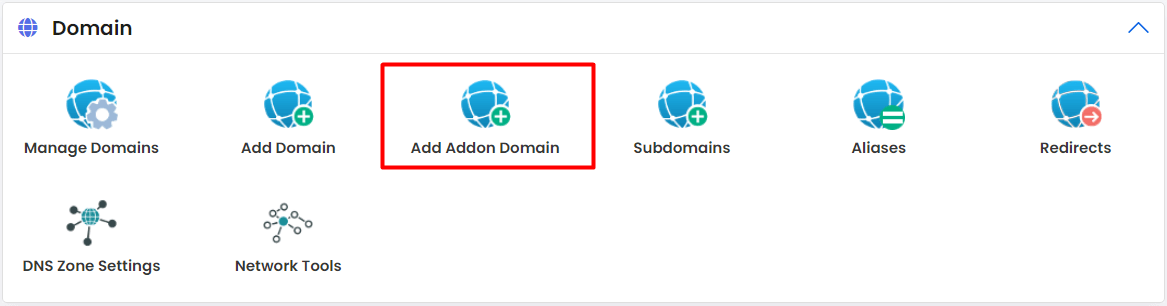
- Open Domain Management, then Domains.
- Click Add Domain.
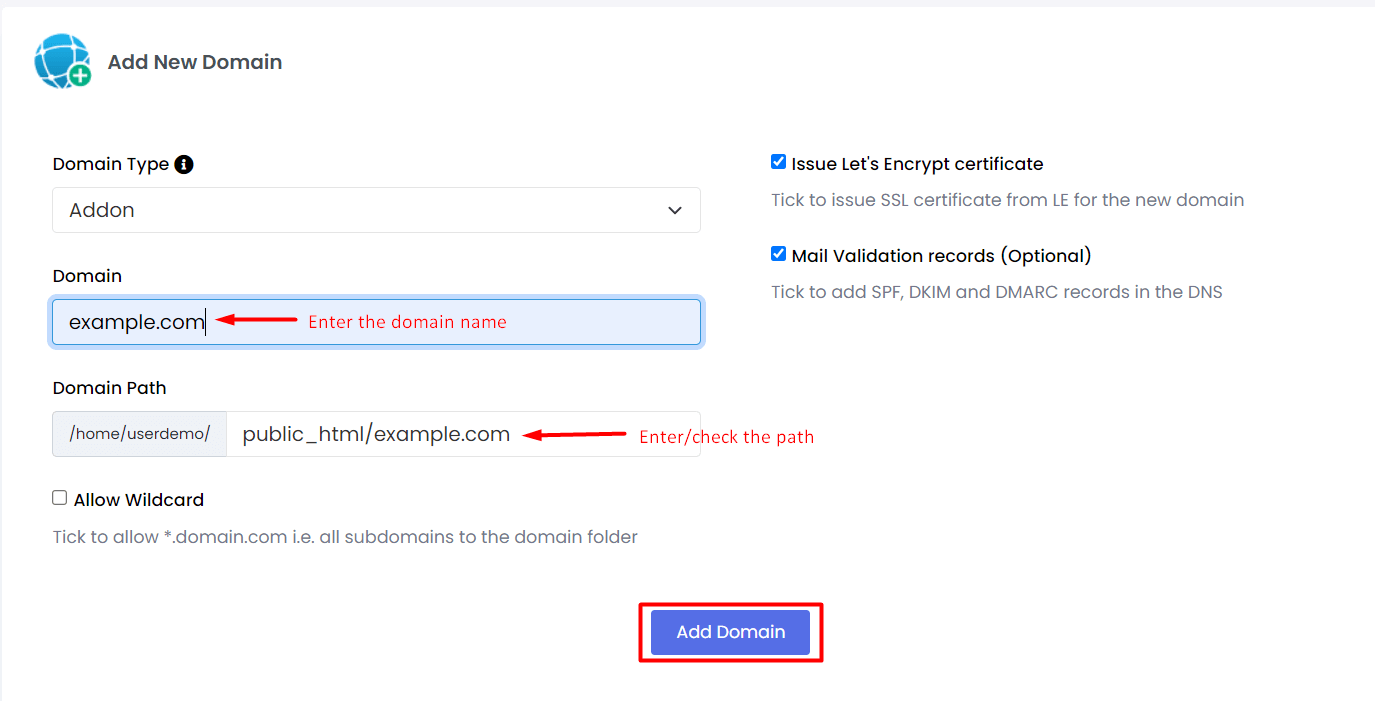
- Type the new domain name, for example
newsite.com. - Choose the folder. Webuzo suggests one inside your main web folder. You can accept it.
- Click Add Domain.
Then set the new domain's DNS to point to your hosting. DNS is like a phone book for the internet. Use the nameservers from your welcome email, or ask support.
Add a subdomain
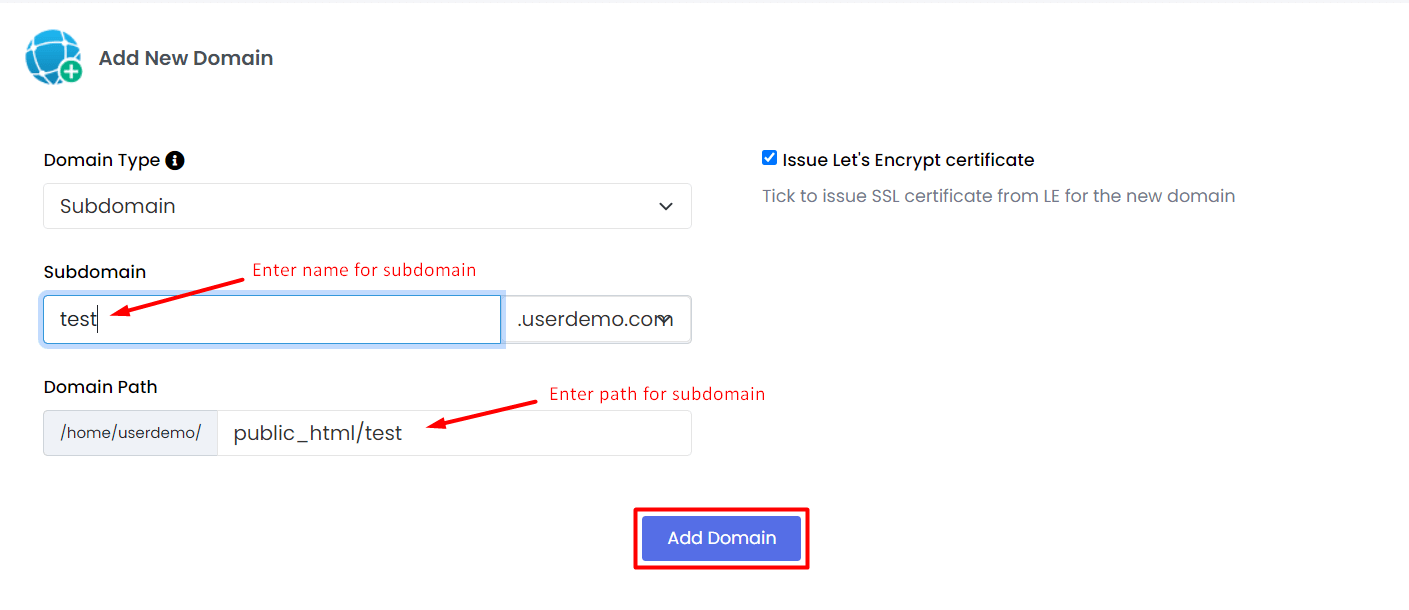
- In Webuzo, open Domain Management and then Subdomains.
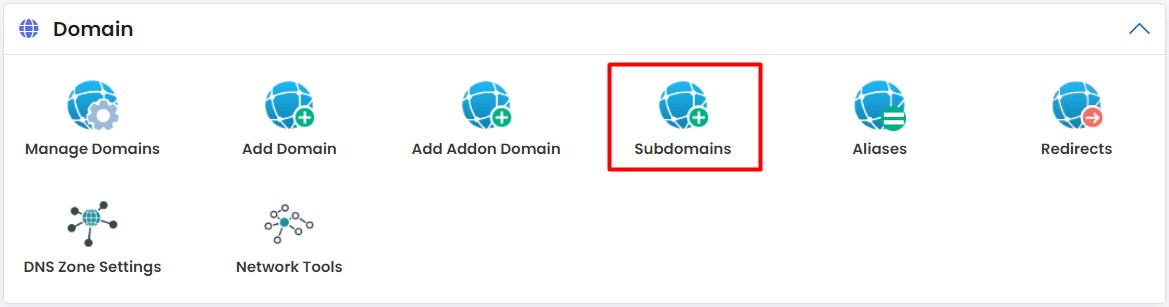
- Type the subdomain name, such as
blog. - Pick the main domain from the list.
- Check the folder it will use.
- Click Add Subdomain.
Add a parked domain
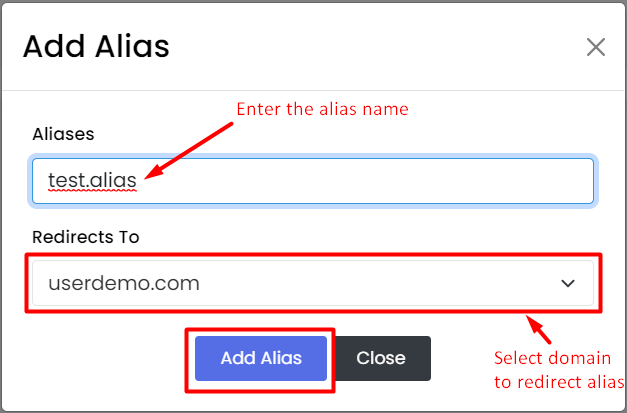
- Open Domain Management and then Parked Domains, or the matching option.
- Type the extra domain name.
- Choose which main domain it should mirror.
- Click Add Domain or Park Domain.
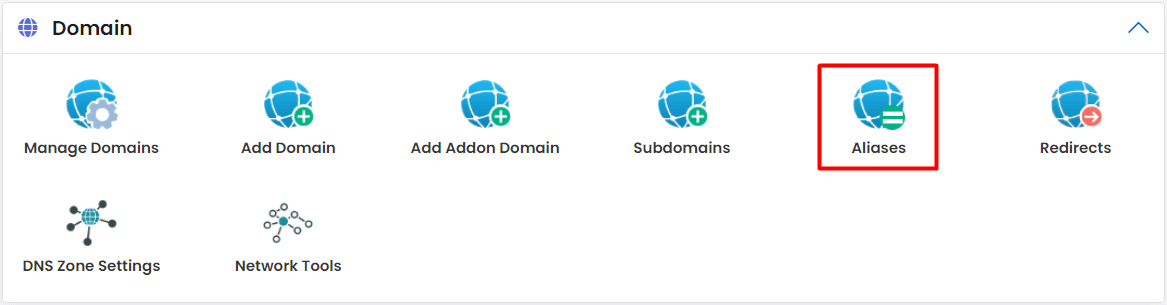

Tip: Some Webuzo versions combine these pages. If you cannot find one, use the search box in Webuzo or ask Hostvento support.
Check that it works
- Wait for DNS changes. It can take a few hours.
- Upload a simple
index.htmlfile to the folder. - Open the domain in your browser.
Your plan may limit how many domains you can add. Ask support if you hit an error.
Quick recap
- Addon domain: a different domain with its own site.
- Subdomain: a part of your main domain, like
blog.yourdomain.com. - Parked domain: an extra name showing the same site.
- Add each one under Domain Management in Webuzo.