

What do these words mean?
An IP address is the number address of a computer on the internet. It is like the street number of a house. Your server has at least one. You can add more, for example to give a site its own address or to use a separate SSL certificate.
WHM is Web Host Manager. It is the server-level panel for cPanel servers. Only the server owner, or a reseller with the right rights, can use it. This guide needs root access. Root is the main administrator account of a server. VPS and dedicated server customers have it.
Warning: Wrong network settings can cut off your server. Take a backup and keep your access method ready. Do not add an IP address that your provider has not given you.
Before you start
- Get the new IP address from your provider. You cannot invent one. Ask Hostvento support to assign it, and check whether your plan allows more.
- Ask for the subnet mask too. It is a number that goes with the IP address, such as
255.255.255.0.
Steps
- Log in to WHM as root.
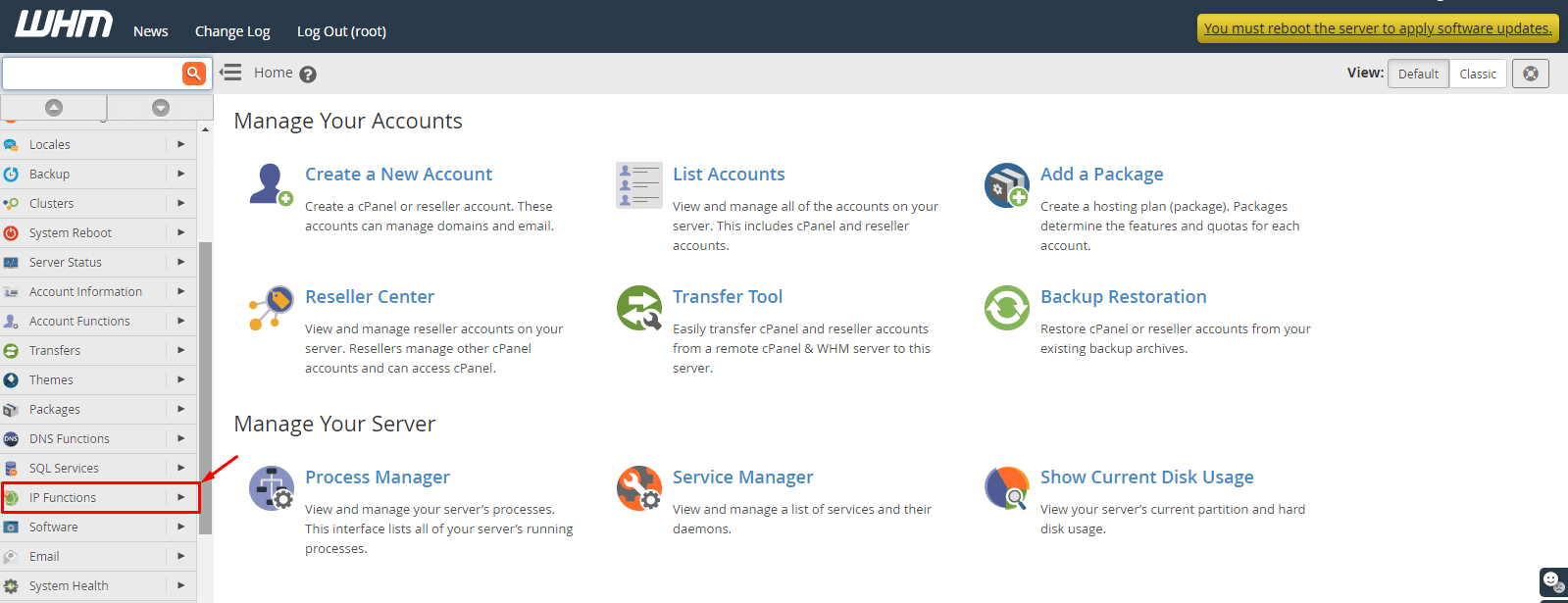
- Type IP Functions in the search box on the left.
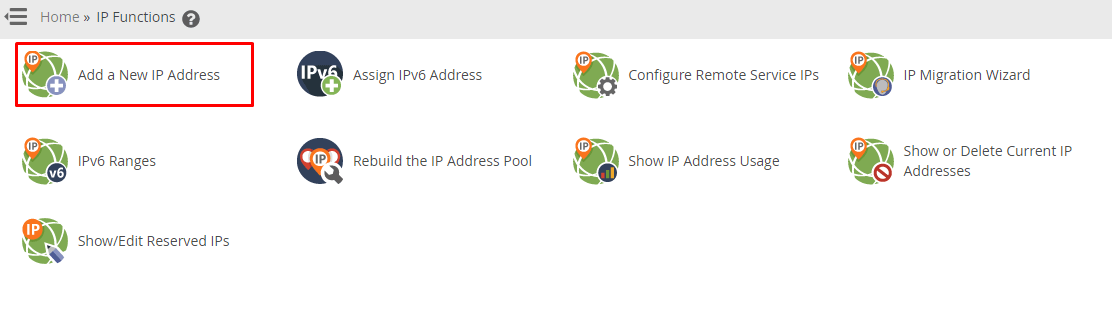
- Click Add a New IP Address.
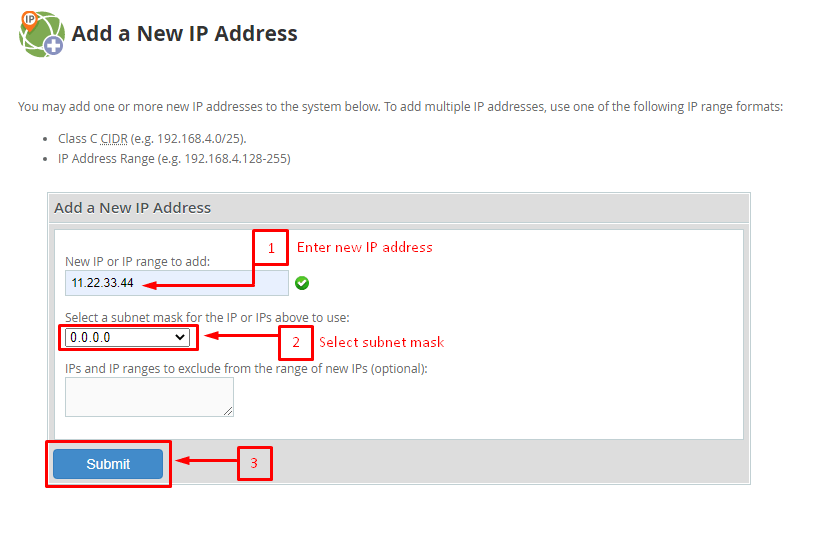
- In New IP or IP range to add, type the address.
- In Subnet Mask, type the mask your provider gave you.
- Pick the setting for Configured Interface if shown. Leave the default if you are not sure.
- Click Submit.
- Wait for the success message.
Check the new address
- Go to IP Functions and then Show or Delete Current IP Addresses.
- Look for your new address in the list.
- Use the same page to check which accounts use it.
Give an account the new IP
- Search for Change Site's IP Address in WHM.
- Choose the account or domain.
- Pick the new address.
- Click Change.
After that, update your DNS A record so the domain points to the new IP address, if the DNS lives elsewhere.
If it fails
- Check for typos.
- Make sure the address is routed to your server. Ask support to confirm.
- Check that the address is not used already.
Quick recap
- You need root access and an IP from your provider.
- In WHM, open IP Functions and click Add a New IP Address.
- Enter the address and subnet mask, then click Submit.
- Assign it to an account and update your DNS.