

What is a CNAME record?
DNS is like a phone book for the internet. It turns names into numbers. A CNAME record is a nickname in that phone book. It says: "this name is just another name for that name".
For example, you can make shop.yourdomain.com a nickname for a store service's address. A CNAME must point to another name, never straight to an IP address.
Know the difference. cPanel is for hosting account owners. WHM is for server owners and resellers with root-level access.
Add a CNAME in cPanel
- Log in to cPanel.
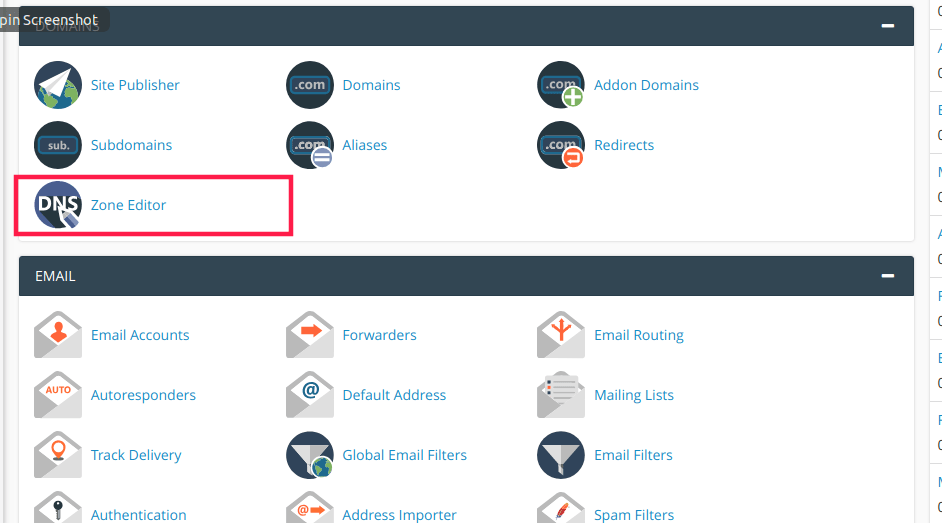
- Under Domains, click Zone Editor.
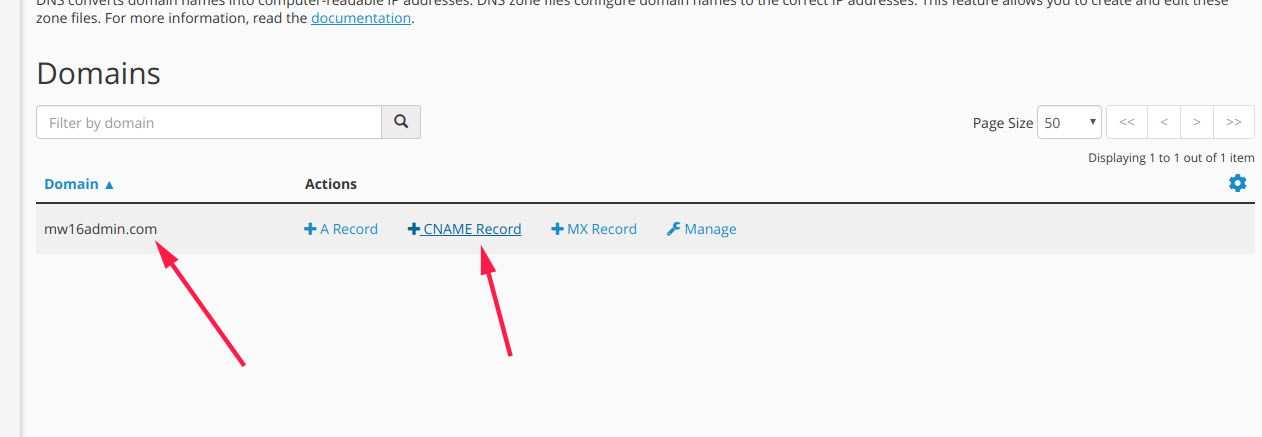
- Find your domain and click Manage.
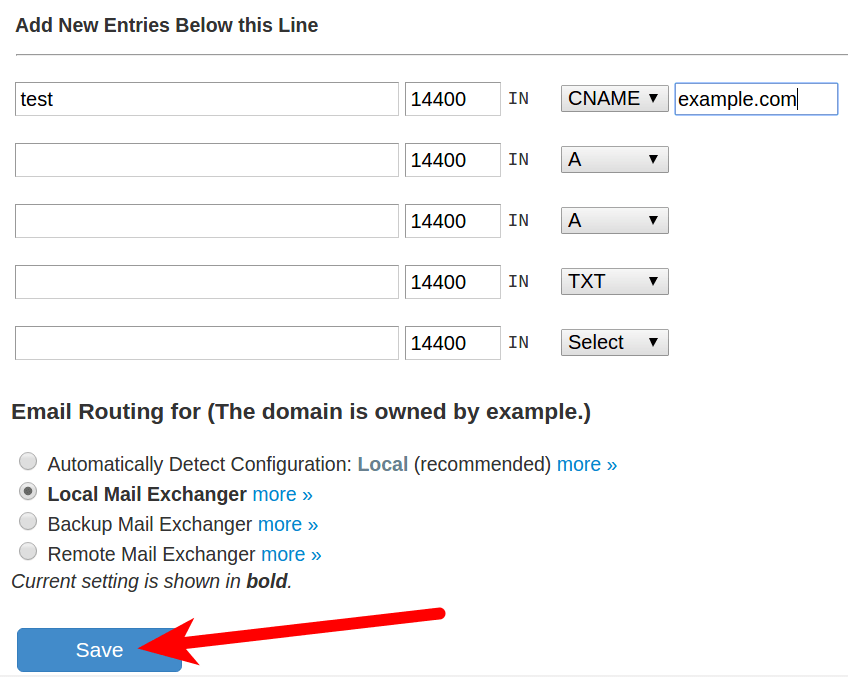
- Click Add Record, then choose Add CNAME Record.
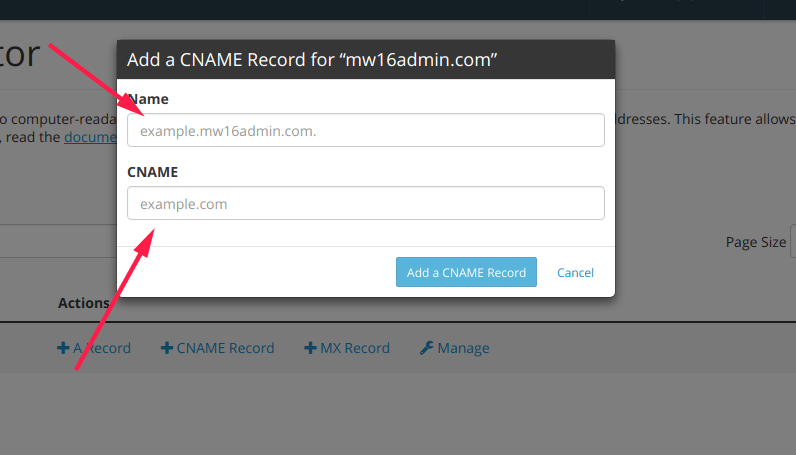
- In Name, type the nickname, such as
shop. cPanel completes it with your domain. - In Record, type the target name you are pointing to.
- Click Add CNAME Record.
Add a CNAME in WHM
- Log in to WHM.
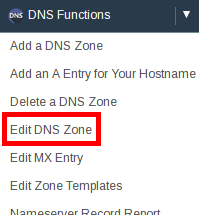
- Search for DNS Zone Manager in the left menu and open it.
- Find the domain and click Manage.
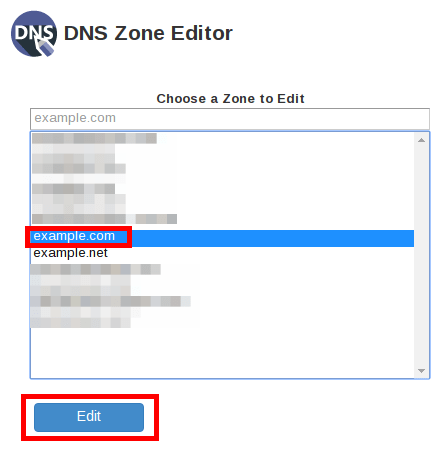
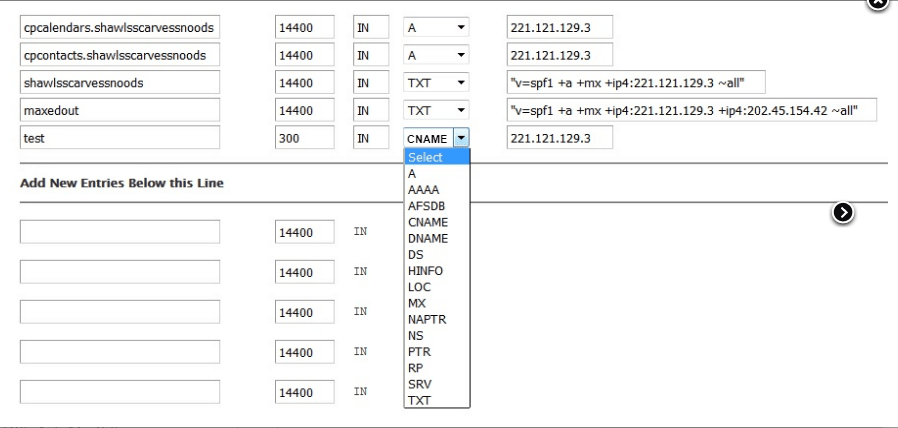
- Click Add Record and pick CNAME.
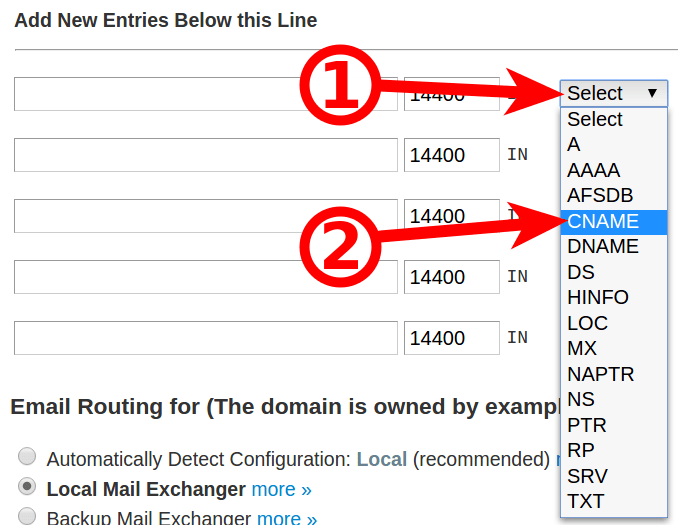
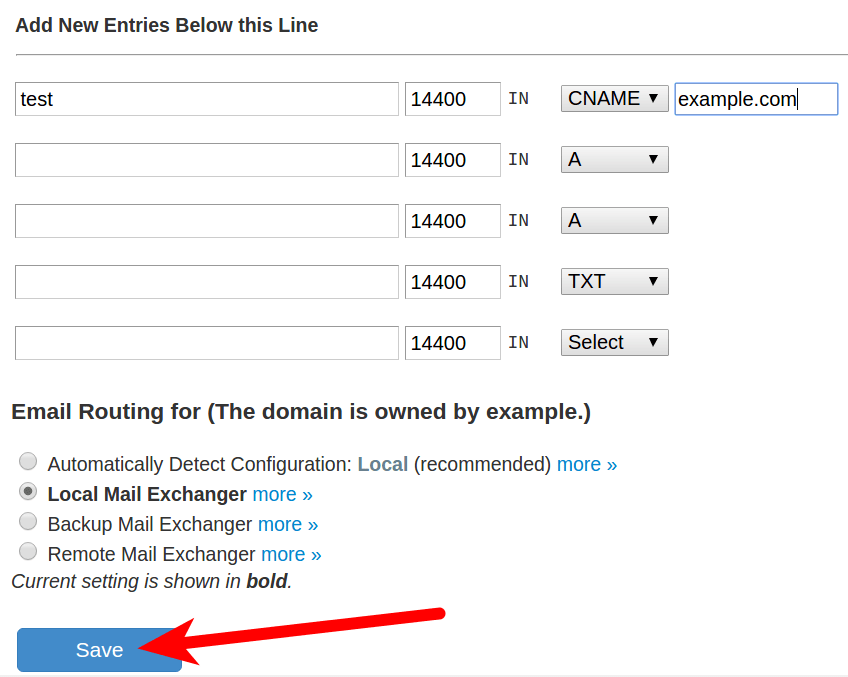
- Fill in the name and the target.
- Save the record.
Delete a CNAME
Warning: Deleting a record can break a website or service that uses it. Copy the old record into a note first.
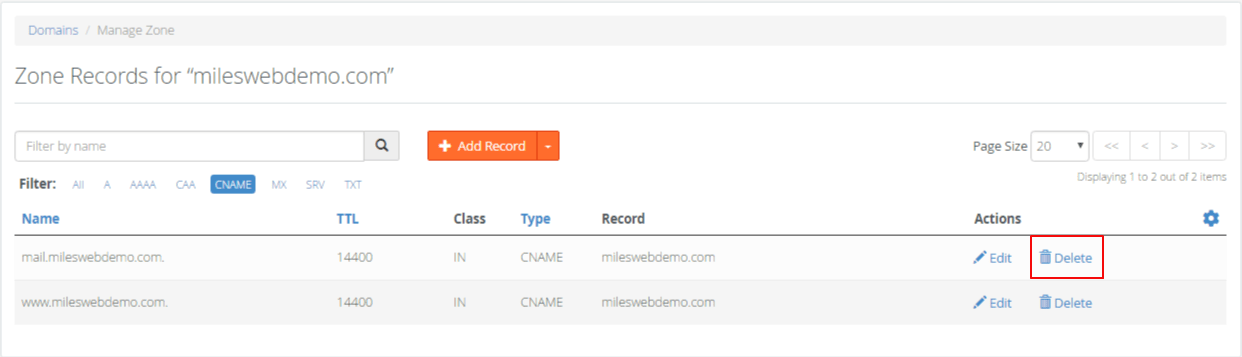
- Open Zone Editor in cPanel, or DNS Zone Manager in WHM.
- Click Manage beside your domain.

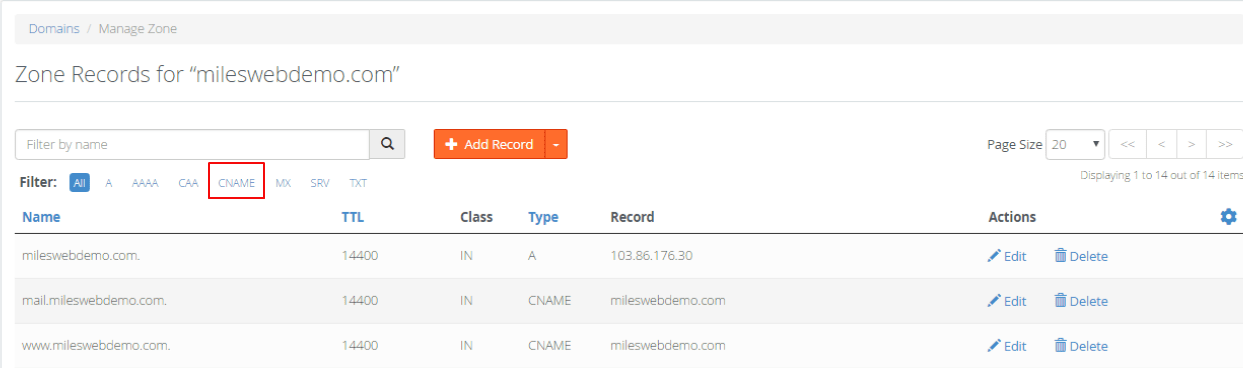
- Find the CNAME in the list. The type column says CNAME.
- Click Delete on that row.
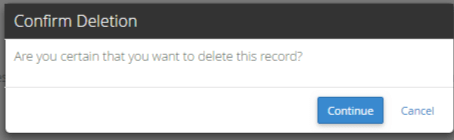
- Confirm when asked.
Good to know
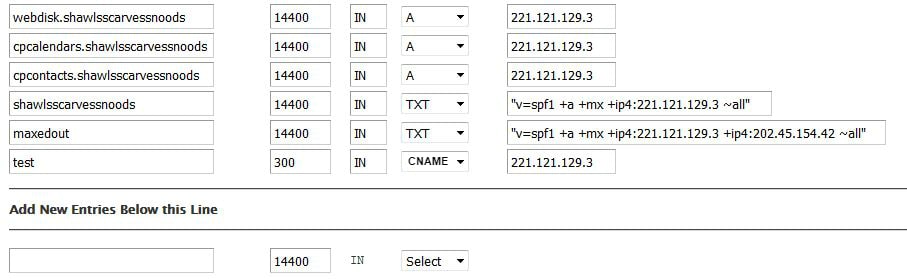
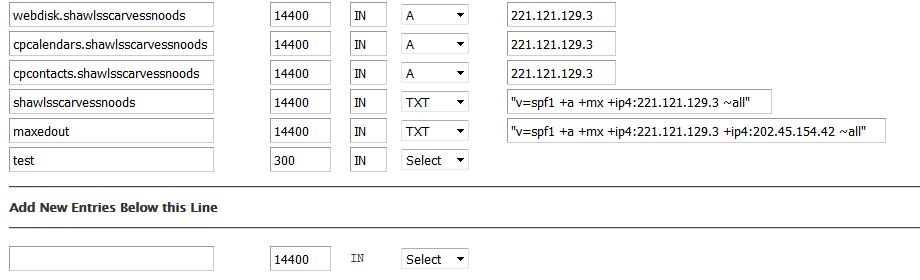
- You cannot add a CNAME on a name that already has another record, like an A record. Remove the old one first.
- A CNAME on the bare domain (
yourdomain.com) is usually not allowed. - Changes may take from minutes to a few hours to spread.
- These edits only work if your domain uses this server's DNS. If your DNS is elsewhere, edit it there.
Need help? Open a support ticket.
Quick recap
- A CNAME is a nickname that points a name to another name.
- Use Zone Editor in cPanel or DNS Zone Manager in WHM.
- Add or delete from the Manage page of the domain.
- Be careful before deleting, and allow time for changes to spread.