

What is this error?
Active Directory is a Microsoft system that keeps a list of users and computers in an office network. A domain controller is the server that runs it. Think of it as the security desk of a building. If your computer cannot find the desk, it cannot check your badge.
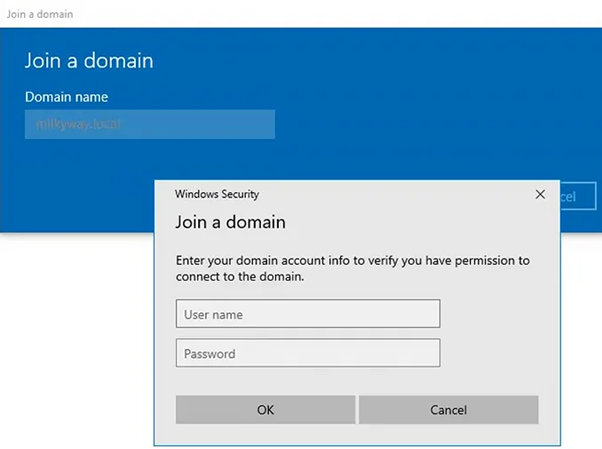
The error usually shows up when you try to join a computer to a domain, or log in to one.
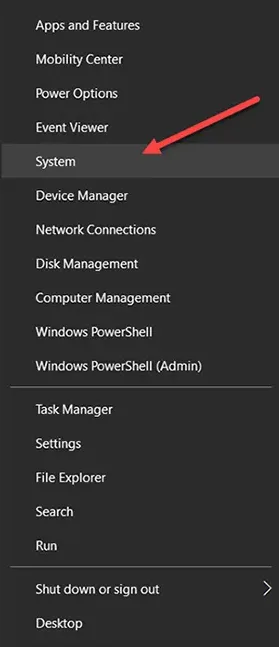
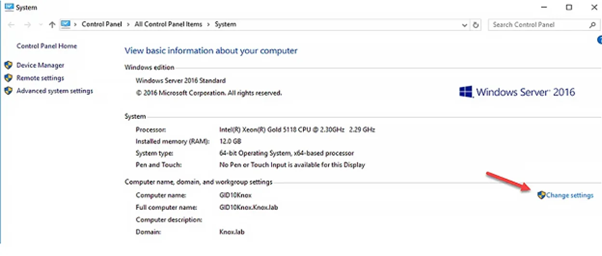
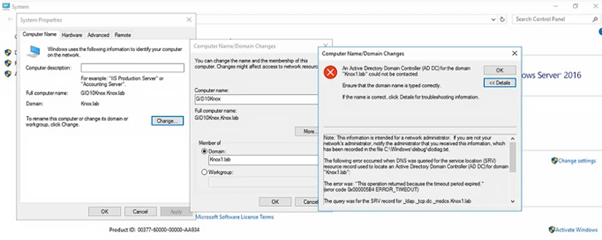
Common causes
- Your computer uses the wrong DNS server.
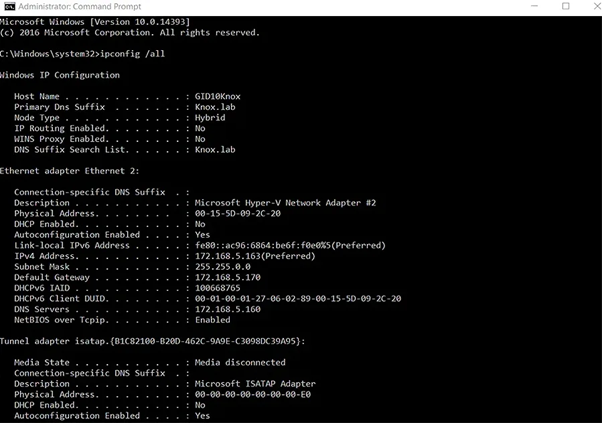
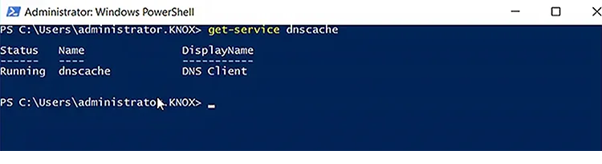
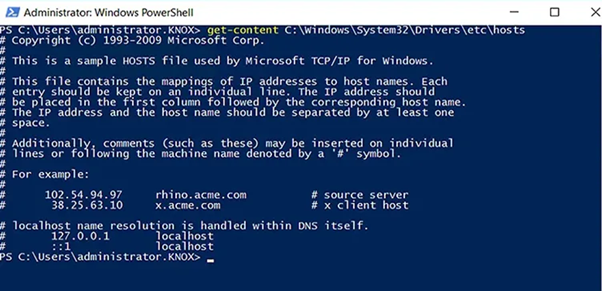

- The domain controller is switched off or has no network.
- The domain name is typed wrongly.
- A firewall blocks the connection.
- The clock on your computer is far from the server's clock.
Steps
- Check that your network cable or Wi-Fi works. Open a website to test.
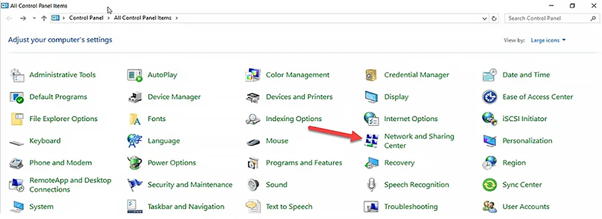
- Press Windows key + R, type
ncpa.cpland press Enter.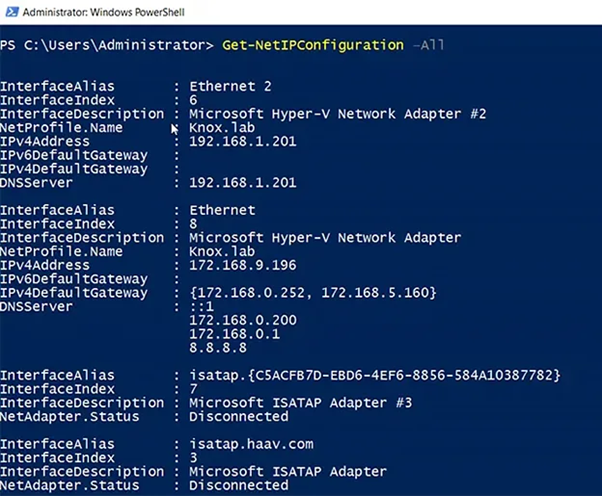
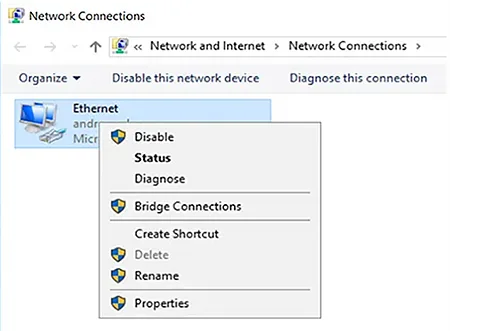
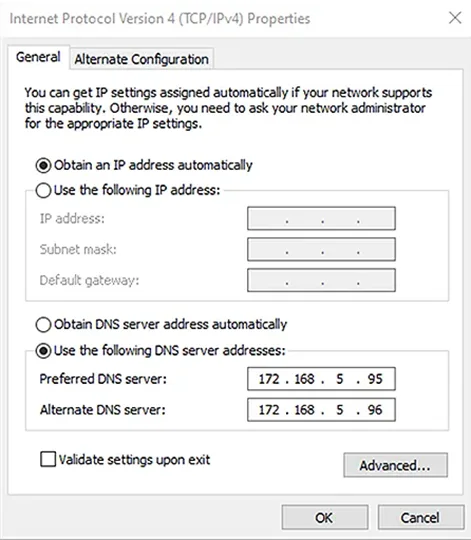
- Right-click your network connection and choose Properties.
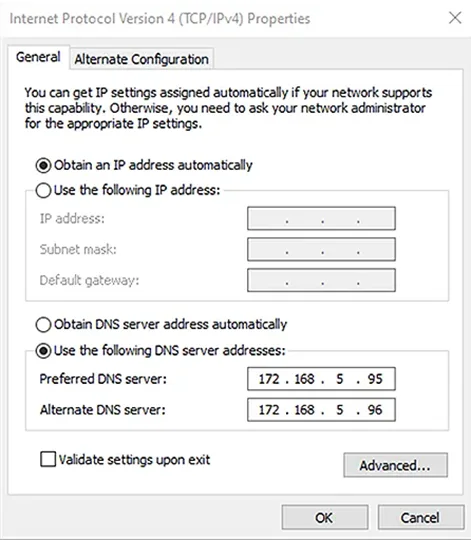
- Select Internet Protocol Version 4 (TCP/IPv4) and click Properties.
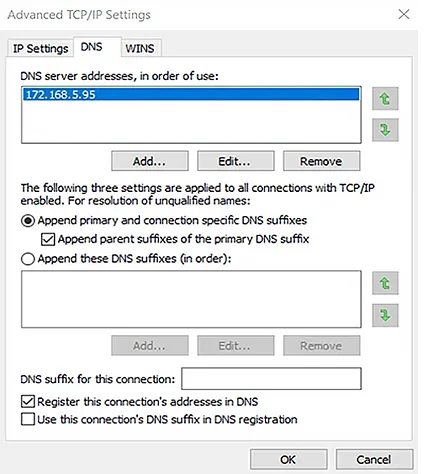
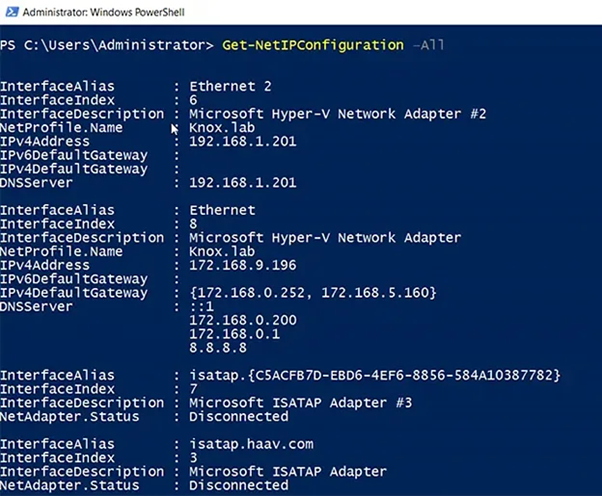
- Set Preferred DNS server to the IP address of your domain controller. Do not use a public DNS here. Public DNS cannot find your private domain.
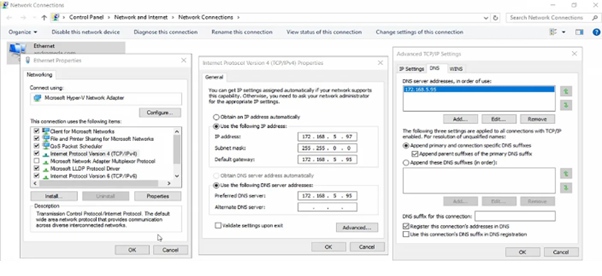
- Click OK.
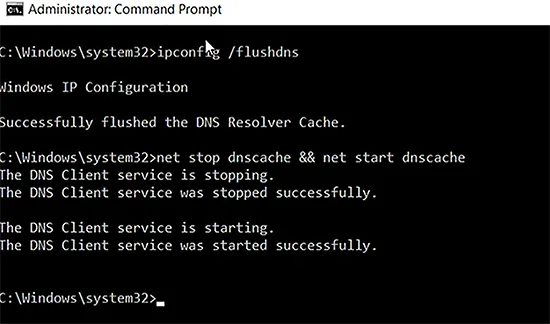
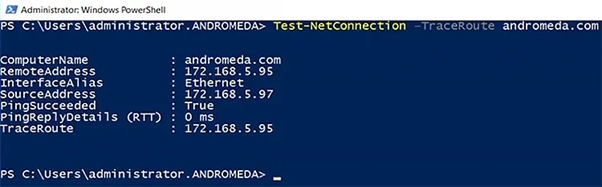
- Open Command Prompt and clear the old DNS memory:
ipconfig /flushdnsThis command clears saved DNS answers on your computer.
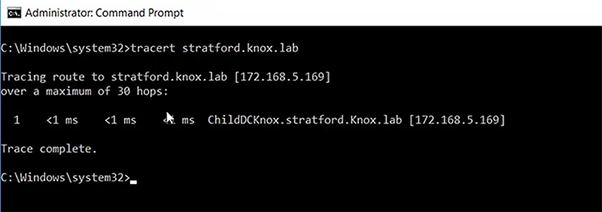
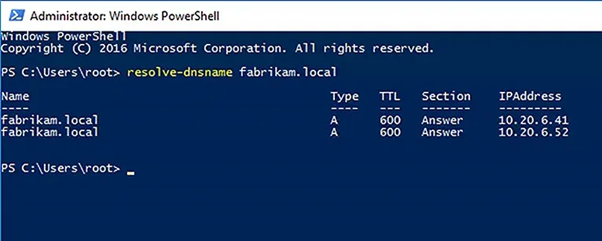
- Test that the domain name is found:
nslookup yourdomain.localUse your real domain name. It should return the IP of the domain controller.
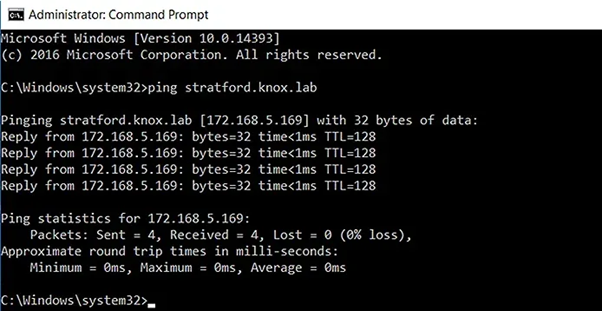
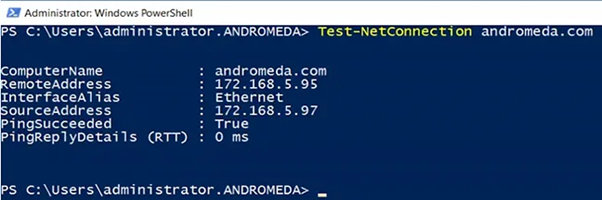
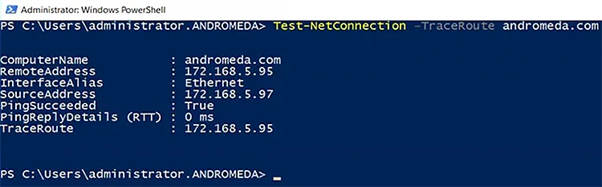
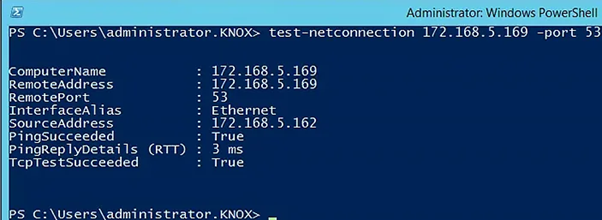
- Test the connection to the server:
ping 192.168.1.10Replace the number with your domain controller's IP. This checks if the server answers.
- Check the date and time on your computer. Fix them if they are wrong.
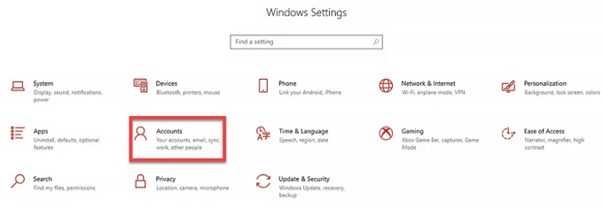
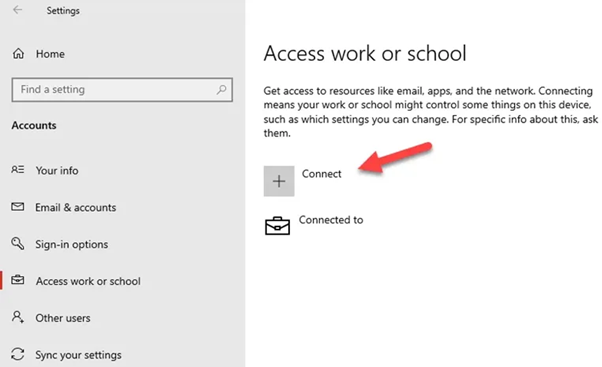
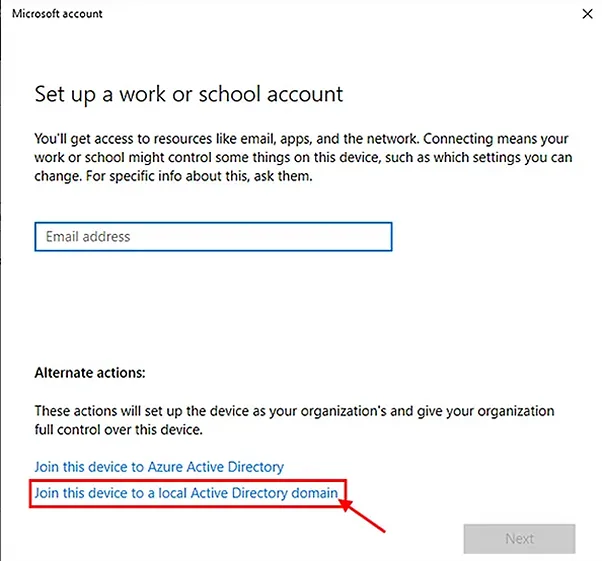
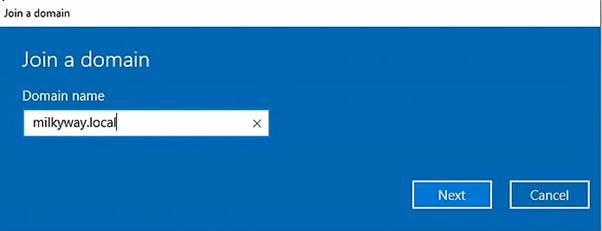
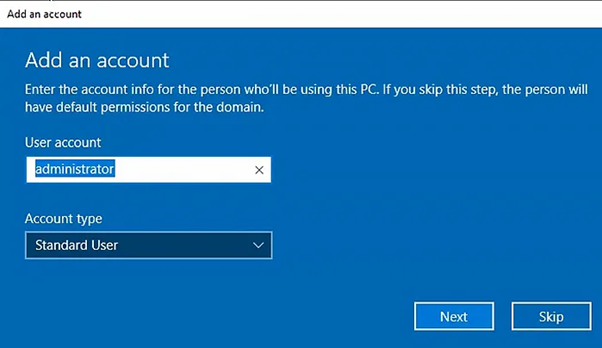
- Try to join the domain again.
Tip: If you run a Windows VPS with Hostvento, ask support whether a firewall on your plan blocks the ports Active Directory needs.
Careful: do not remove a computer from a domain without a local admin password. You could be locked out.
Quick recap
- The error means your PC cannot find the domain controller.
- The most common cause is a wrong DNS server.
- Point DNS to the domain controller, then flush DNS.
- Use
nslookupandpingto test. - Check the firewall and the computer clock.