

What is a redirect?
A redirect is like a "we have moved" sign on a shop door. It sends people to the new address without them doing anything.
Permanent and temporary redirects
- Permanent (301): The page has moved for good. Search engines move their records to the new address.
- Temporary (302): The page is away for a short time. Search engines keep the old address.
Pick 301 if you changed your domain or page address for good. Pick 302 for short jobs, like a sale page or maintenance.
Which part of the site to redirect
You can redirect a whole domain, or one folder or page. You can also choose how www is handled.
Steps
- Log in to your client area and open cPanel.
- Find the Domains section and click Redirects.
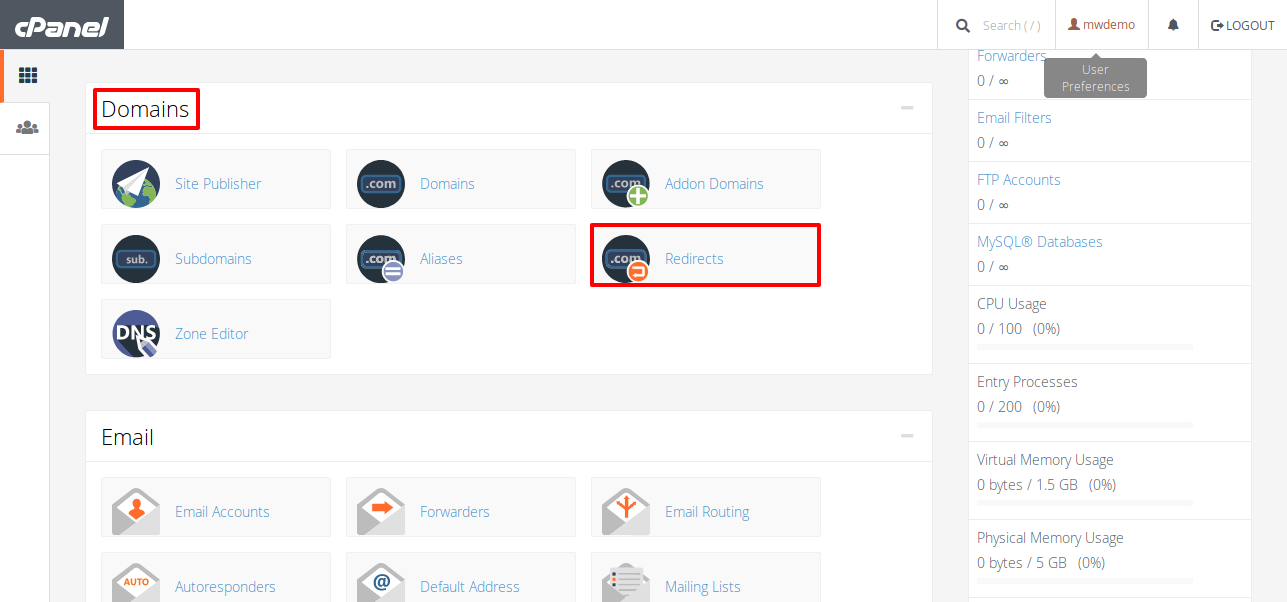
- Under Type, choose Permanent (301) or Temporary (302).
- In the domain list, pick the domain to redirect.
- In the box after the slash, type the page or folder. Leave it empty to redirect the whole domain.
- In Redirects to, type the full new address. Include
https://. - Under www. redirection, choose how to treat addresses with and without www. The default choice is fine for most sites.
- Tick Wild Card Redirect only if every page under the old address should go to the new one.
- Click Add.
- Open the old address in a new browser window to test it.
How to remove a redirect
- Go back to Redirects.
- Scroll to the list at the bottom.
- Click Delete next to the redirect.
Tip: Browsers remember 301 redirects. If a test looks wrong, try a private window or clear the browser cache.
Careful: a bad redirect can lock visitors out of your site. Make sure you do not redirect your site to itself. That makes a loop.
Quick recap
- Use 301 for permanent moves and 302 for short ones.
- Open Domains then Redirects in cPanel.
- Type the full new address with
https://. - Test in a private window.