

What is a document root?
The document root is the folder on your hosting account where a website's files live. When someone visits the domain, the server opens this folder. Think of it as the front room of a house. Visitors only see what is in that room.
An addon domain is an extra website on your account. A subdomain is a front part added to your domain, like blog.example.com. Each one has its own document root.
Before you start
Careful: changing the root can make the site look empty or broken. Take a backup first. Also make sure the new folder holds the right website files.
Steps
- Log in to your client area and open cPanel.
- Open File Manager if the new folder does not exist yet. Create it and upload your files.
- Go back to the cPanel home page. Click Domains.

- Find the addon domain or subdomain in the list.

- Click Manage next to it.
- Look for the Document Root setting. Click Change.
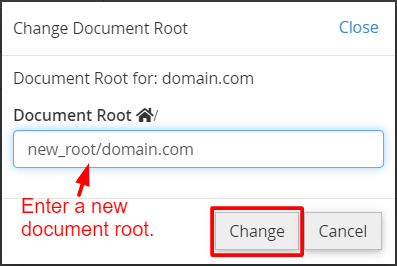
- Type the new folder path. It is written from your home folder, like
public_html/newsite. - Click Update.
- Visit the domain in a new tab to check it.
On older cPanel versions, there is no Change button. Open Addon Domains or Subdomains. The document root is shown in the list, and you can edit it there.

Good to know
- The old folder and its files are not deleted. They just stop being used for that domain.
- Do not set an addon domain's root to a folder outside your home folder.
- If the site shows an error after the change, put the old path back.
Tip: Keeping each site in its own folder, like
public_html/site2, makes your account easy to understand.Quick recap
- The document root is the folder a domain shows.

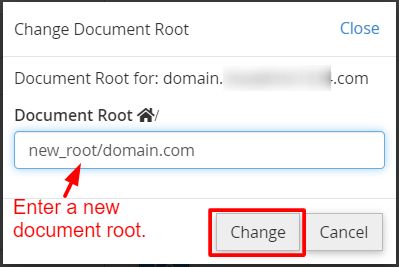
- Change it from Domains then Manage in cPanel.
- Back up first and check the new folder.
- Visit the site to confirm it works.