

What is a hostname?
A hostname is the name of your server, such as server.example.com. It works like a name tag. Other computers and mail servers use it to identify yours.
WHM is the Web Host Manager. It is the admin panel used to manage a whole server. cPanel is the panel each website owner uses.
Before you start
- Choose a hostname that is a fully qualified domain name, for example
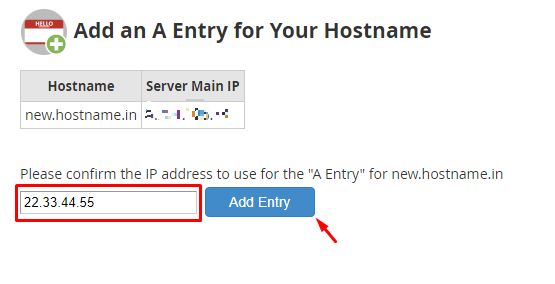
server.yourdomain.com. It should be a subdomain, not your main website address. - Create an A record for this name in DNS. It must point to your server's main IP address. An A record links a name to an IP address.
- Take a backup. Changing the hostname can affect mail and licenses.
Steps
- Log in to WHM as root. The address is usually your server IP followed by
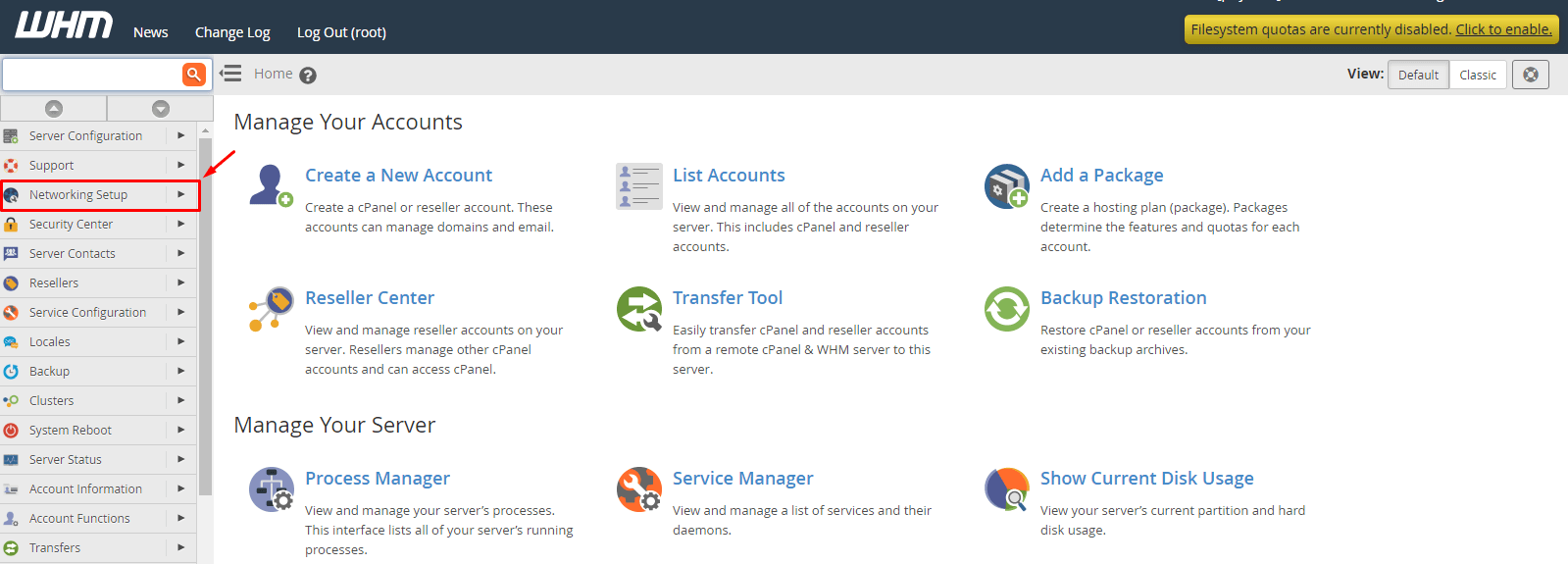
:2087. - In the search box at the top left, type Change Hostname.
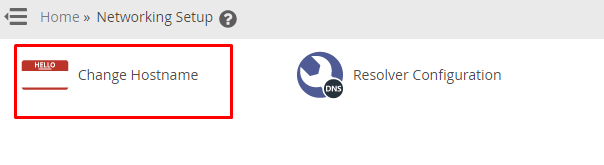
- Click Change Hostname under Networking Setup.
- Type the new hostname in the box.
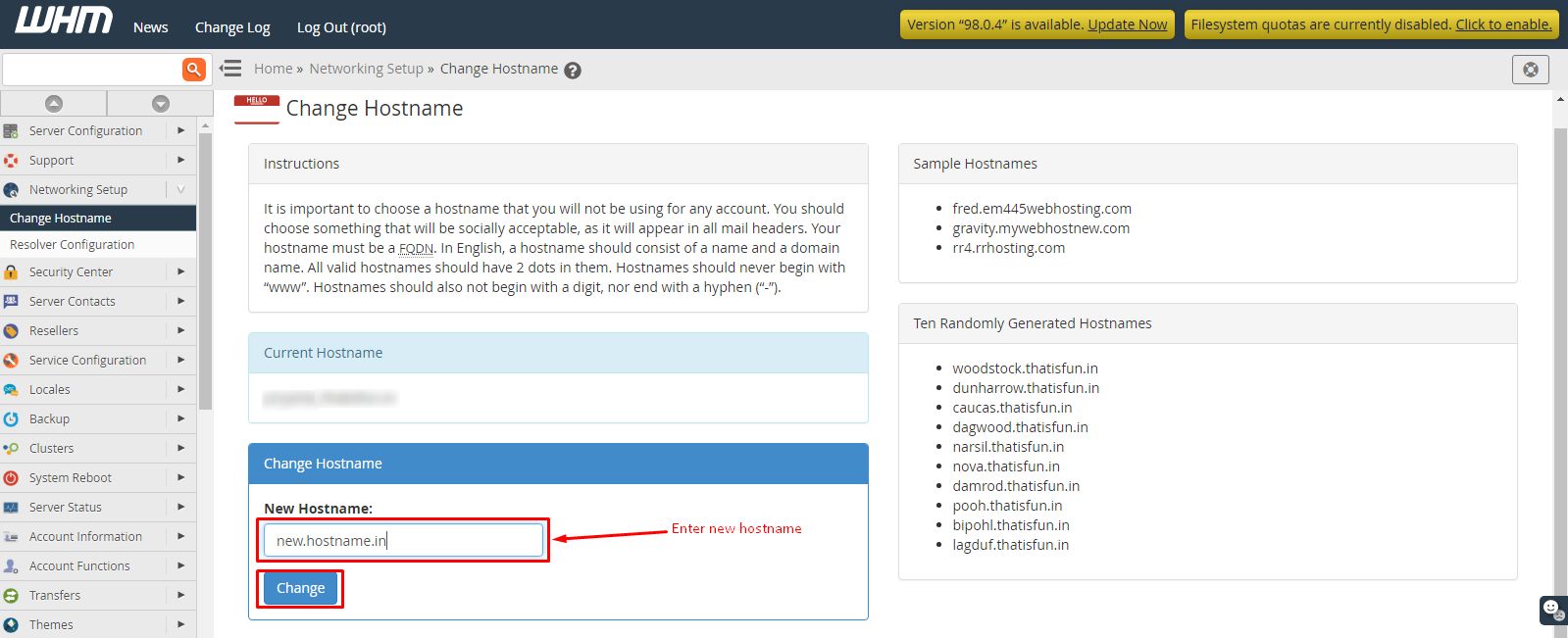
- Click Change.
- Wait while WHM updates the settings.
- Open Basic WebHost Manager Setup and check the hostname is shown correctly.
Check it from the command line
If you use SSH, you can confirm the change:
hostnameThis prints the current hostname of the server.

After the change
- Check that the A record works.
- Ask Hostvento support if you need the reverse DNS (PTR record) for the IP updated to match. This helps your emails reach inboxes.
- If you use an SSL certificate for the hostname, issue a new one. In WHM, search for Manage Service SSL Certificates.
Tip: Do not use the same name as a website that lives on the server. Use a name like
server or host in front.Quick recap
- You need root access to WHM.
- Create the A record first.
- Use Change Hostname under Networking Setup.
- Check reverse DNS and SSL afterward.