

What is an IP address?
An IP address is a number that tells computers where your server is. It is like a house number on a street. A server can have more than one IP address. Each website on it can use a different one.
WHM is the Web Host Manager, the admin panel for the whole server.
Why change it?
- You want a site to have its own, dedicated IP address.
- You need to move a site away from an IP that is blocked or has a bad name.
- You are fixing a setup mistake.
Before you start
- The new IP address must already be added to your server. Ask Hostvento support if you need extra IPs.
- Take a backup of the account first.
- If the domain's DNS is at another company, you must update its A record by hand later.
Steps
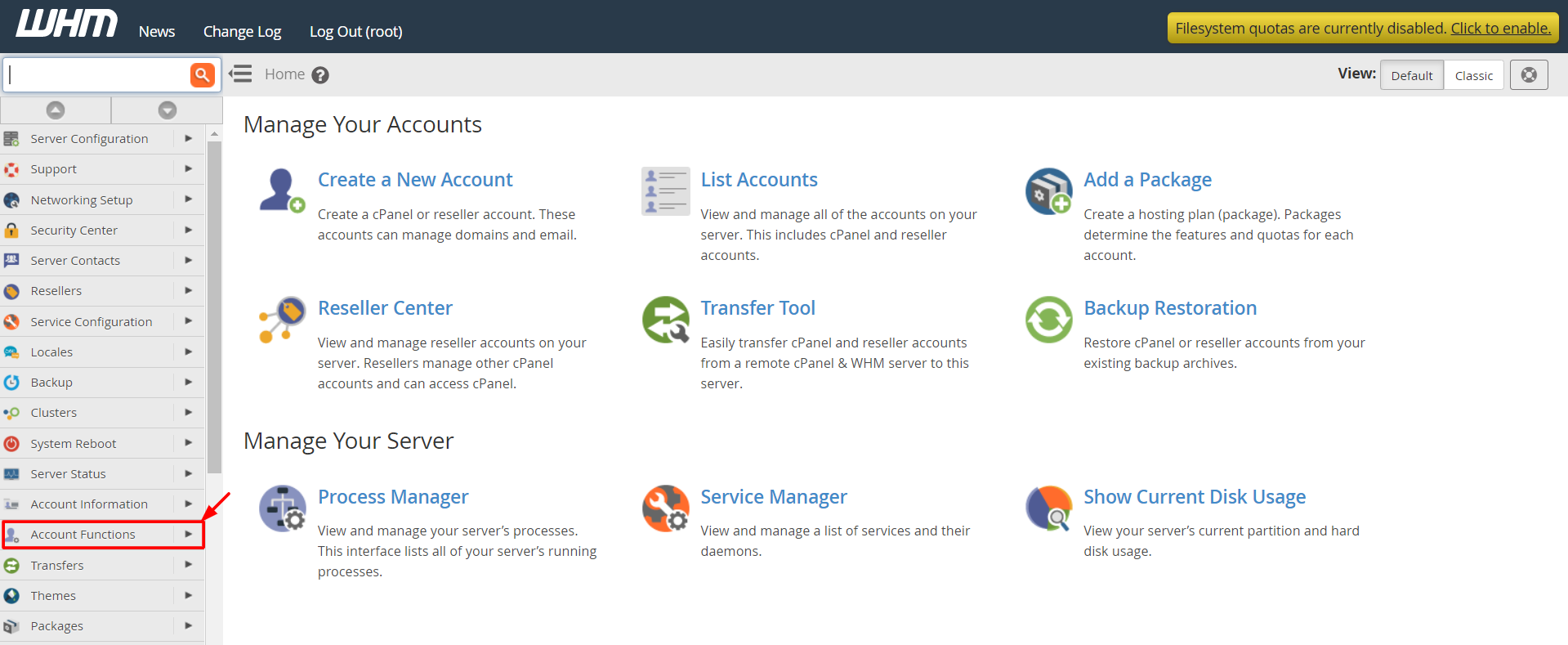
- Log in to WHM as root.
- In the search box, type Change Site's IP Address.
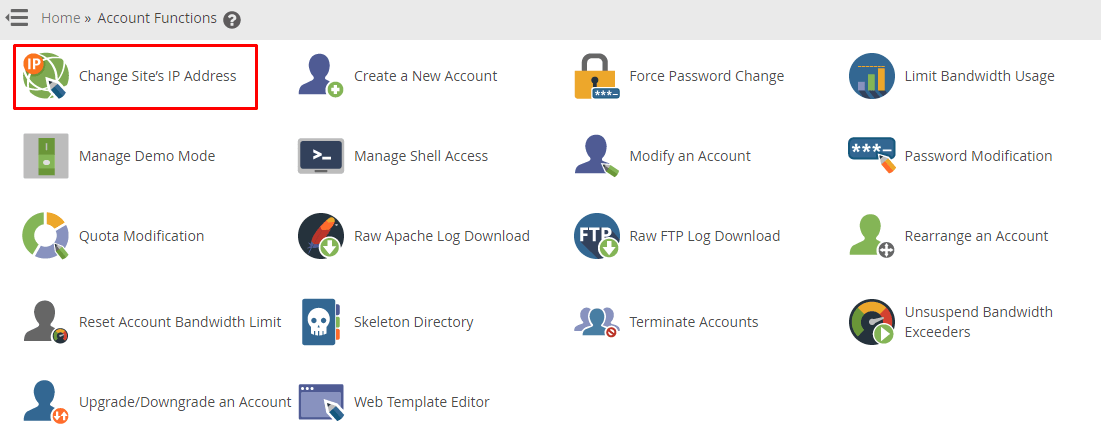
- Click Change Site's IP Address under IP Functions.
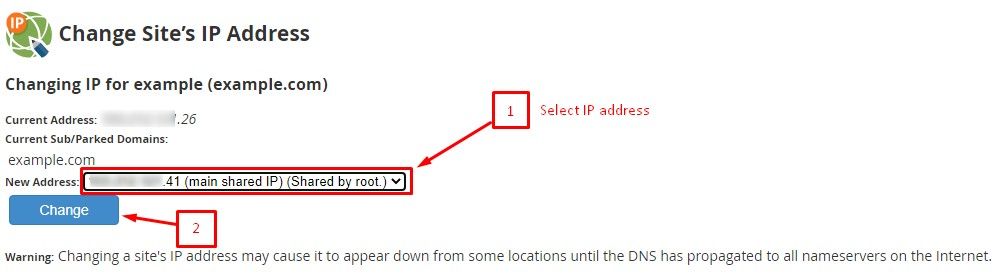
- Pick the account or domain from the User list.
- Choose the new address from the New IP Address list.
- Click Change.
- Wait for the success message.
After the change
- WHM updates the DNS zone if it hosts the DNS. Open the DNS zone to confirm the A record shows the new IP.
- If another company holds your DNS, edit the A record there.
- Wait for DNS changes to spread. This can take a few hours.
- If the site uses SSL, check that the padlock still works. A site with its own IP may need its certificate checked.
Careful: if you point the site to an IP that is not on your server, it will go offline.
Tip: Visit the site from a different network after the change to be sure it works.
Quick recap
- You need root access and a free IP on your server.
- Use Change Site's IP Address under IP Functions.
- Check the DNS A record afterward.
- Back up first.