

What is an IP address?
An IP address is a number that tells computers where your server is. It is like a house number. WHM is the Web Host Manager. It is the admin panel for the whole server.
Why change many at once?
You may be moving a server to a new network. Or you may be giving sites new IPs after buying a block of addresses. Doing each account by hand takes too long.
Before you start
- Back up all the accounts you plan to change.
- Make sure the new IP addresses are added to the server.
- Know where each domain's DNS lives. If it is outside the server, you must edit A records there later.
Steps
- Log in to WHM as root.
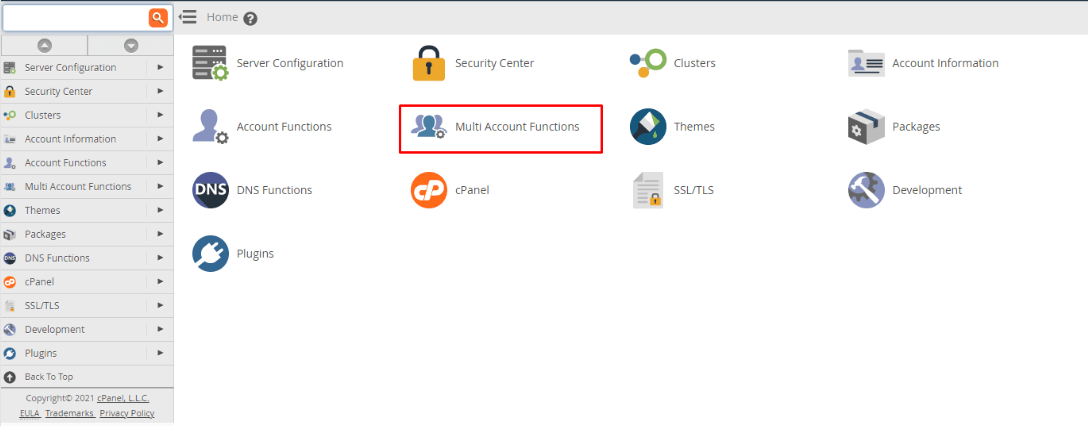
- In the search box, type IP.
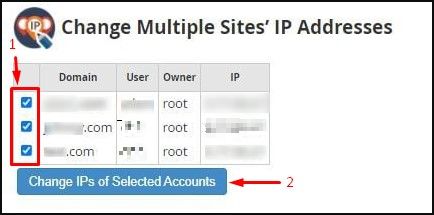
- Open the tool for changing many IP addresses. It is under IP Functions and is often named Change Multiple Sites' IP Addresses. If your WHM version labels it differently, look in the same menu for a similar name.

- Select the accounts you want to change. You can pick one or many.
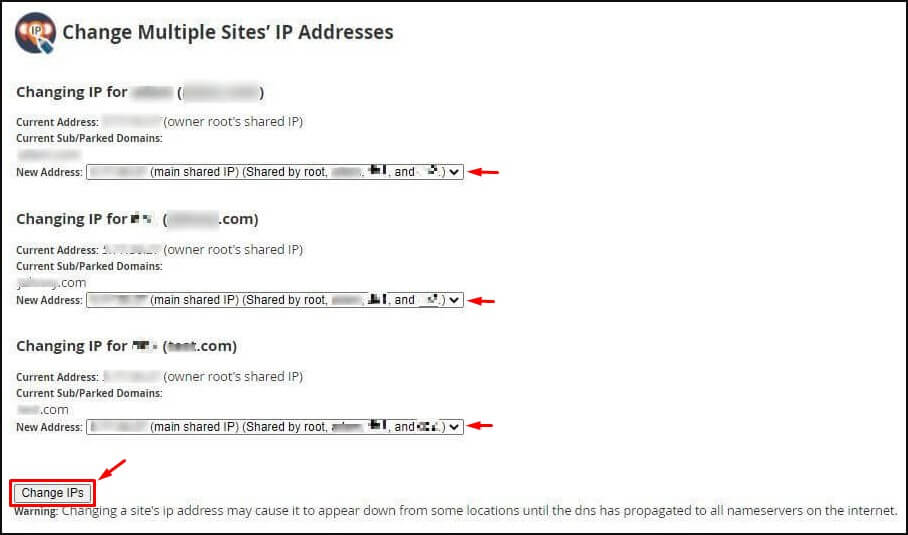
- Choose the new IP address from the list.
- Click the button to apply the change.
- Wait until WHM shows the result for each account.
If your WHM has no such tool
You can change accounts one by one with Change Site's IP Address in the same menu. Do this for each account.
After the change
- Open Edit DNS Zone for a few domains. Check the A record shows the new IP.
- Update A records at outside DNS hosts.
- Wait a few hours for DNS to spread.
- Visit a few sites to make sure they load.
Careful: pointing a site at an IP that the server does not own takes it offline.
Tip: Test with one account first. If it works, do the rest.
Quick recap
- Root access is needed.
- Use the IP tools under IP Functions in WHM.
- Back up and test one account first.
- Check DNS A records after the change.