

What is an addon domain?
An addon domain is an extra website on your hosting account. It has its own folder and its own address, like mysecondsite.com. A redirect sends visitors from one address to another. It is like a "we have moved" sign.
Why does an addon domain redirect?
Sometimes an addon domain sends visitors to your main domain by accident. This happens when a redirect rule is saved in cPanel, or in the .htaccess file. The .htaccess file is a small settings file for your website. A rule in the main site's .htaccess can affect the addon site too.
Turn a redirect off
- Log in to your client area and open cPanel.
- Click Domains.
- Find your addon domain. Check the Redirects To column. If an address is shown, a redirect is on.
- Click Manage next to the domain.
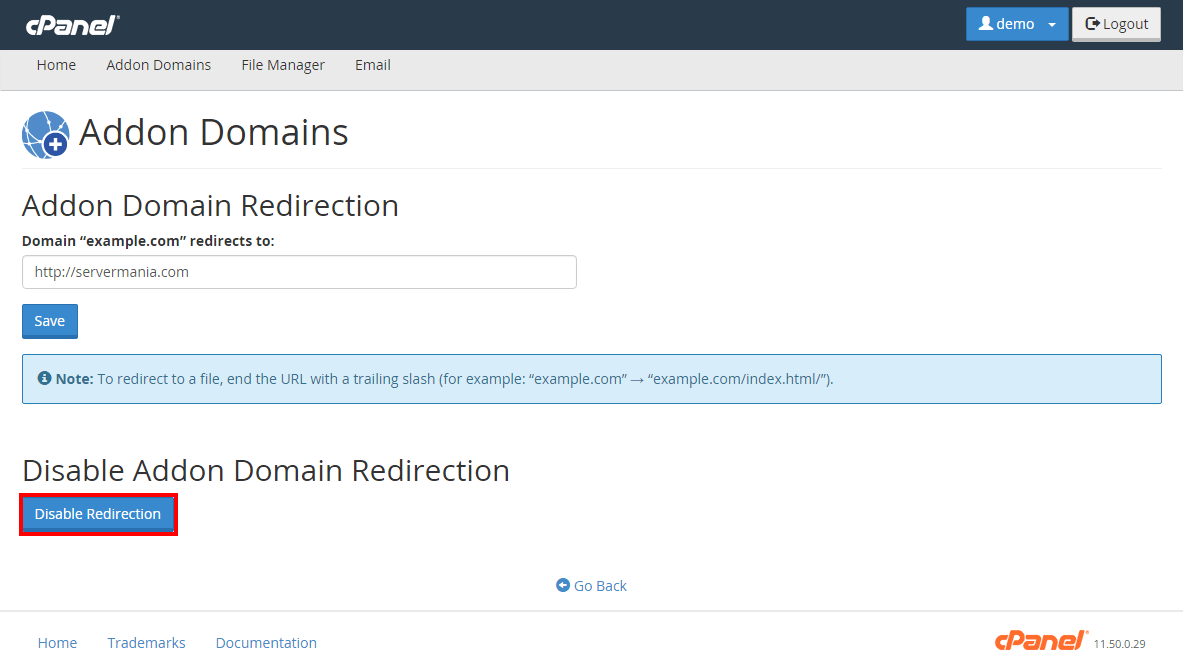
- Under the redirection part, click Remove Redirect or turn the setting off.
- Open the addon domain in a private window to test.
On older cPanel versions, open Addon Domains and click the link under Redirects To. Then choose to disable the redirection.
Turn a redirect on
- Go to Domains in cPanel and click Manage next to the addon domain.

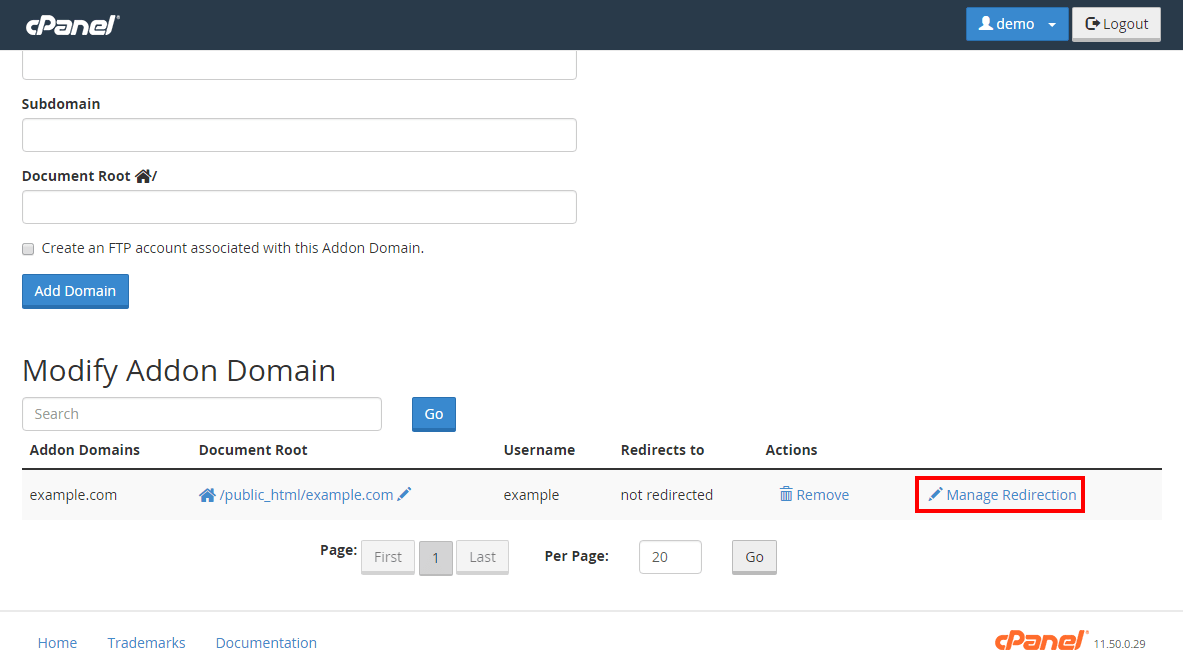
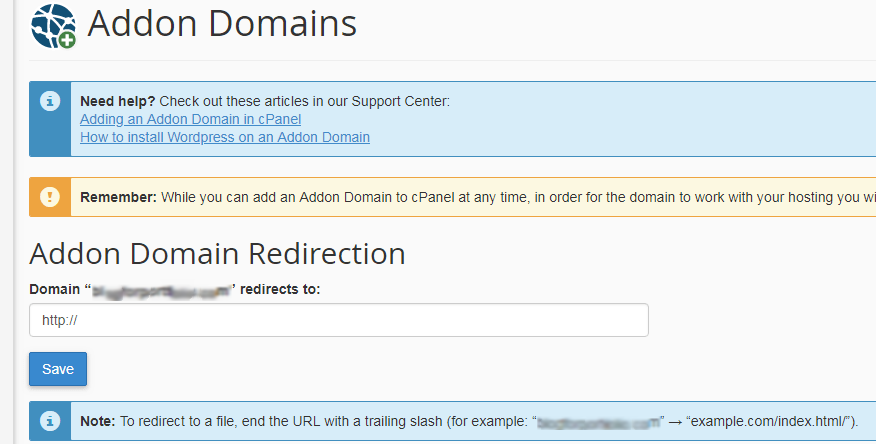
- Click the option to set a redirect.
- Type the full address where visitors should go, starting with
https://. - Save the change.
Or use Redirects in the Domains section. Pick the addon domain, enter the new address and click Add.
If it still redirects
- Open File Manager.
- Go to the addon domain's folder and look for the
.htaccessfile. You may need to show hidden files in Settings. - Look for lines starting with
RedirectorRewriteRule. - Take a copy of the file first, then remove or fix the line that causes it.
Tip: Browsers remember permanent redirects. Test in a private window or clear the browser cache.
Quick recap
- An addon domain can redirect if a rule is set in cPanel or .htaccess.
- Manage it under Domains in cPanel.
- Check .htaccess if the redirect stays.
- Back up files before you edit them.