

What is the problem?
An addon domain is an extra website name that you add to one hosting account. DNS is like a phone book for the internet. It turns a website name into a number that computers understand.
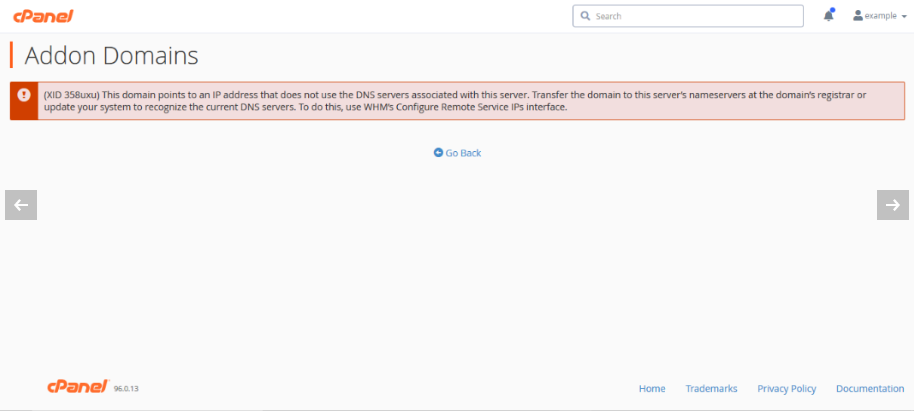
When you add an addon domain, cPanel checks where the domain's DNS points. If the domain's DNS is not on your own server, cPanel may refuse it. You may see an error saying the domain does not resolve to this server, or that it is not allowed because it is a remote domain.
A remote domain is a domain whose DNS is managed on another server. For example, you may keep your DNS with a different company.
Before you start
- You need root access to WHM. WHM is the control panel for the server owner. cPanel is the panel for each website account.
- Only change this if you know why you need it. The setting is safe, but it does change how the server checks domains.
Steps
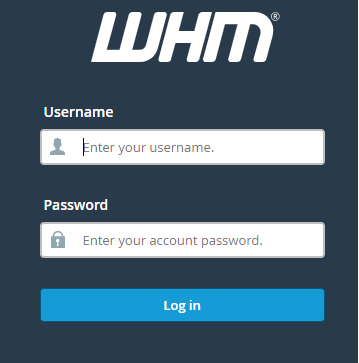
- Log in to WHM as root. Your welcome email has the address and login details. You can also ask Hostvento support.
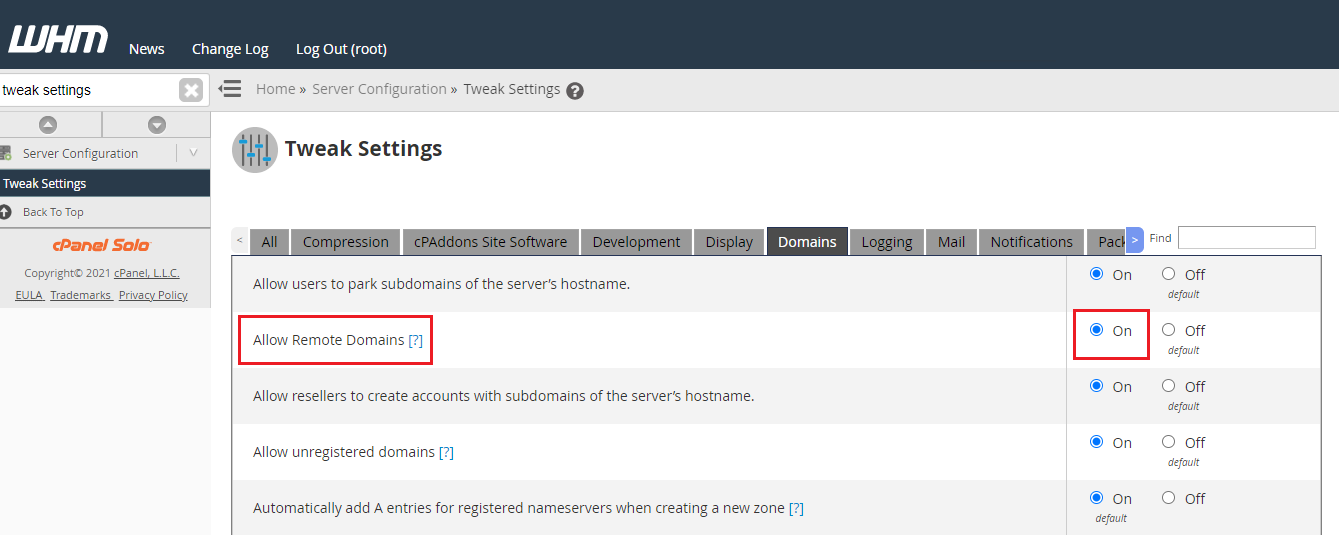
- In the search box at the top left, type Tweak Settings.
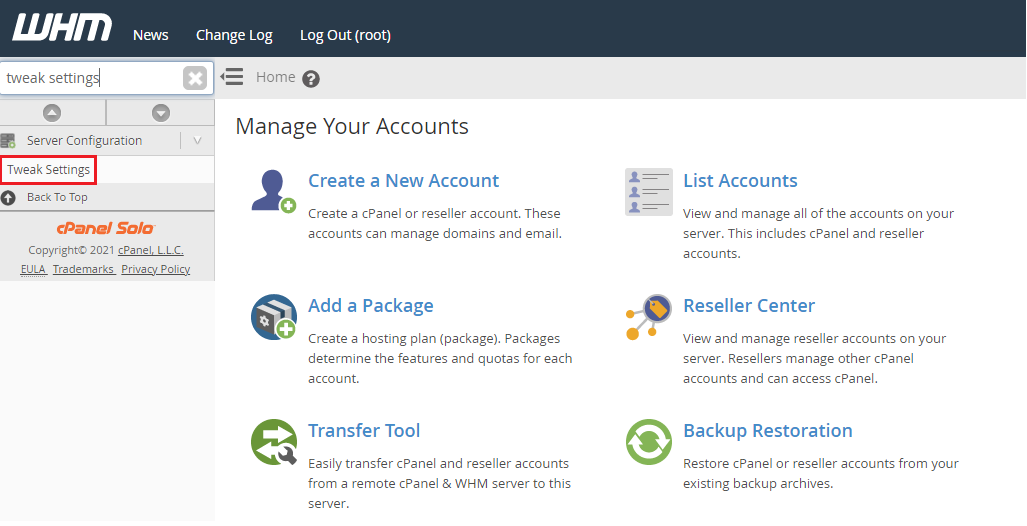
- Click Tweak Settings in the results.
- Open the Domains tab.
- Find the option called Allow users to create subdomains/addon domains that resolve to remote servers. The wording can differ a little between WHM versions. It is also named "Allow Remote Domains".
- Set it to On.
- Scroll to the bottom and click Save.
Try the addon domain again
- Log in to cPanel for the account.
- Open Domains (older versions show Addon Domains).
- Add your domain again.
The error should be gone. Keep in mind that the website will only show from this server once the domain's DNS points here. Change the DNS at the place where the domain is managed.
If it still fails
- Check that you typed the domain name correctly.
- Check that the domain is not already added to another account on the same server.
- Check that the domain's name servers are set correctly. DNS changes can take some hours to spread.
Quick recap
- The error appears when the domain's DNS is not on your server.
- In WHM, go to Tweak Settings, then the Domains tab.
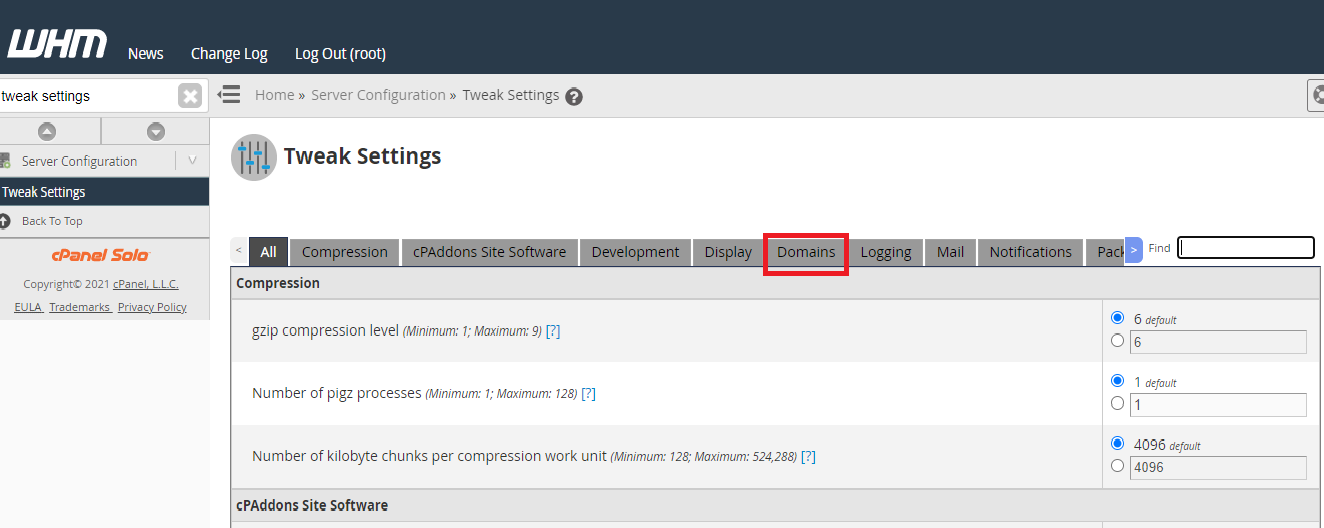
- Turn on the option for remote domains and click Save.
- Add the addon domain again in cPanel.