

What is an SRV record?
DNS is like a phone book for the internet. It turns names into numbers. An SRV record is a special line in that book. It tells an app which server and which port to use for one service.
A port is like a numbered door on a server. Different services use different doors. SRV records are used by chat tools, calendar tools, voice calls and some games.
The parts of an SRV record
| Part | Meaning |
|---|---|
| Service | The name of the service, such as _sip. It starts with an underscore. |
| Protocol | The way it talks, such as _tcp or _udp. |
| Priority | A low number is tried first. |
| Weight | Shares the work between servers that have the same priority. |
| Port | The door number the service uses. |
| Target | The name of the server that runs the service. |
The software or service you want to use will tell you the exact values. Copy them carefully.
Steps in cPanel
- Log in to cPanel.
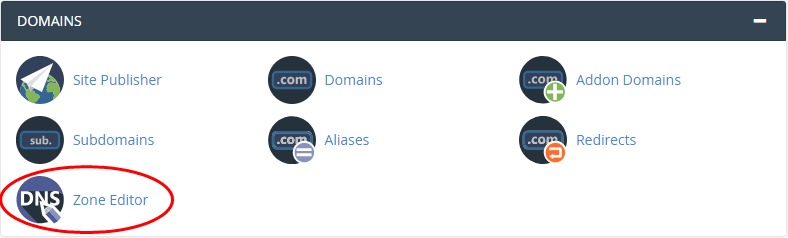
- Find the Domains section and click Zone Editor.
- Next to your domain, click Manage.
- Click Add Record. On older versions, click Add Record then Add SRV Record.

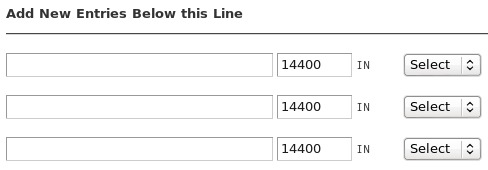
- Set the type to SRV.
- In Name, type the service and protocol, such as
_sip._tcp.
- Fill in Priority, Weight and Port.
- In Target, type the server name given by your service.
- Click Add Record.
The target must be a server name, not an IP address. That name needs its own A record.
If your DNS is not in cPanel
Add the record where your name servers are managed. If your domain is with Hostvento, log in to the client area and open the DNS settings of the domain under Domains. If you cannot see an SRV option, ask Hostvento support.
Check it
New records can take a few hours to spread. Then test the service in your app.
Quick recap
- An SRV record tells an app which server and port to use.
- Get the exact values from the service you want to use.
- In cPanel, use Zone Editor, then Manage and Add Record.
- The target must be a name, not an IP.