

Your choices
A domain is the name of a website, like example.com. A hosting account has one main domain. You can add more in three ways.
| Option | Use it when |
|---|---|
| Addon domain | You want a second, separate website with its own files. |
| Alias (parked domain) | You want another name to show the same website. |
| Subdomain | You want a part of your own site, like shop.example.com. |
Some plans limit how many extra domains you can add. Check your plan details or ask Hostvento support.
Step 1: Point the new domain to Hostvento
A new domain must know where your site lives. This is done with name servers. They are like a signpost that sends visitors to the right server.
- Find the name servers in your welcome email.
- Log in to the place where you bought the new domain.
- Open its name server settings and type in the Hostvento ones.
- Save. The change can take some hours to spread.
Step 2: Add the domain in cPanel
- Log in to the client area.
- Open Services, choose your hosting, and log in to cPanel.
- Open Domains. In older versions, open Addon Domains.

- Click Create A New Domain (or Add Domain).
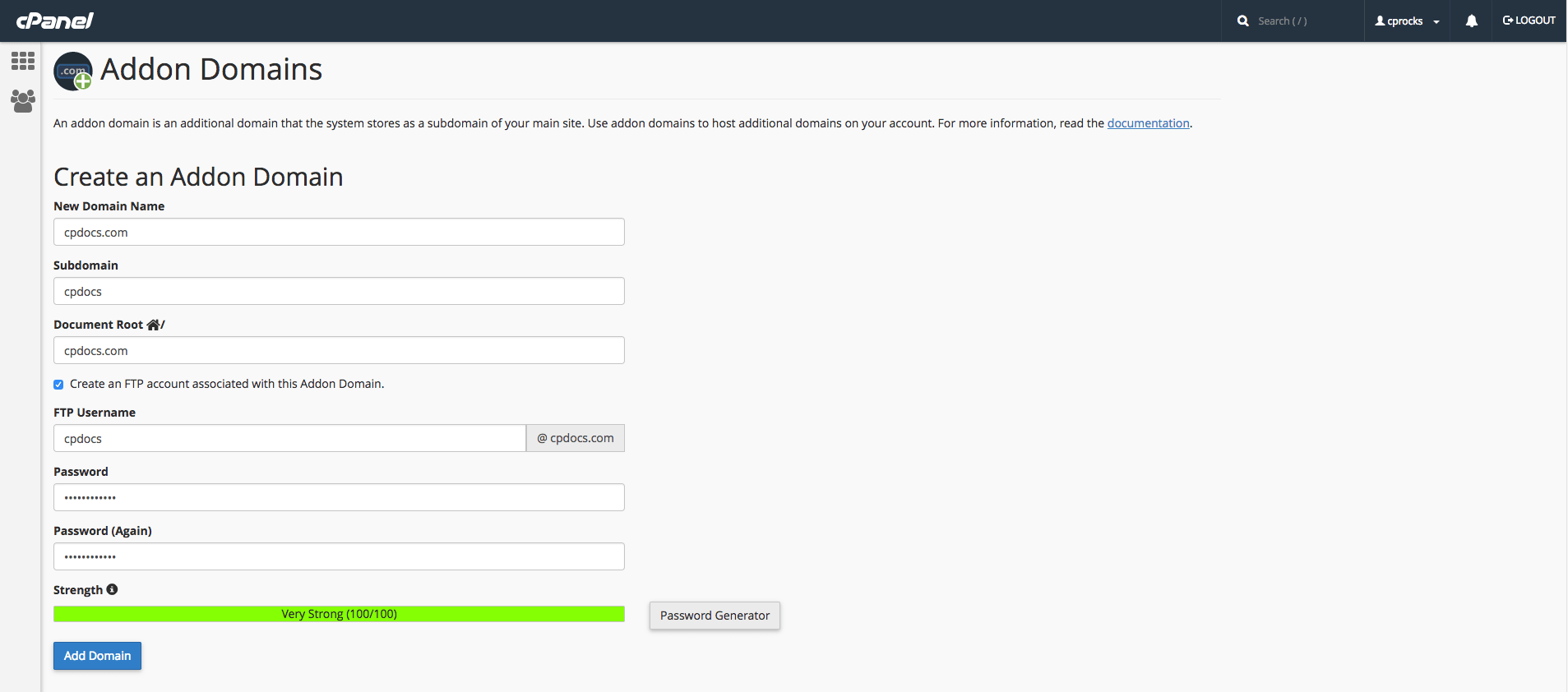
- Type the new domain name.
- Leave the folder name that cPanel suggests, or change it.
- Click Submit.
Upload the new website files to the folder you chose. This is called the document root. It is the folder the website is shown from.
To show the same site on another name
When creating the domain in cPanel, choose to share the document root of your main site. Then both names show the same content.
Check it works
After DNS has spread, type the new domain in a browser. You should see the right site.
Tip: Email works per domain too. After adding a domain, you can create email accounts for it in cPanel.
Quick recap
- Use addon domains for separate sites, aliases for the same site, subdomains for site sections.
- Point the new domain's name servers to Hostvento.
- Add the domain in cPanel and upload its files.
- Check your plan for any limit on domains.