

Tip: Google Domains is old. Google passed its domains to another company, Squarespace Domains. The menus look a bit different now, but the ideas and steps are very similar. If your screen differs, look for the same words.
What is DNS?
DNS is like a phone book for the internet. It turns a website name into a number that computers understand. Name servers are the computers that hold this phone book for your domain. DNS records are the single lines in it.
You have two choices:
- Use the name servers of another company, such as your host. Then you change records there.
- Keep the default name servers and change records in your domain panel.
Before you start
A wrong change can take your website and email offline. Take a screenshot of your current settings first.
Change the name servers
- Sign in to your domain account with your Google or Squarespace login.
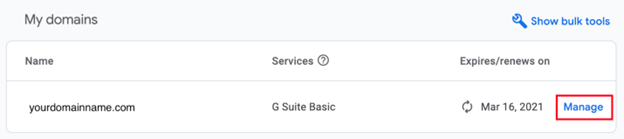
- Click your domain name.
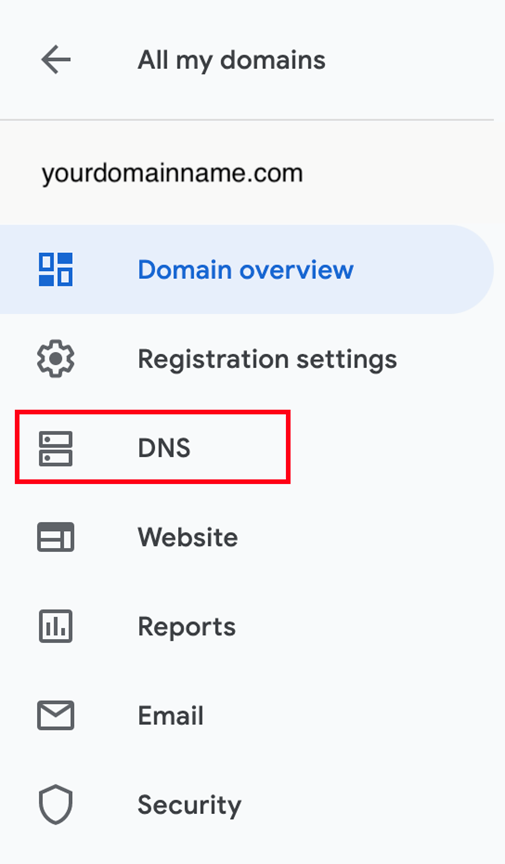
- Click DNS in the menu.
- Look for Name servers.
- Choose Use custom name servers.
- Type the name servers given by your host. Hostvento hosting customers find them in the welcome email, or can ask support.
- Click Save.
Spreading the change can take from a few hours up to two days.
Change a single record instead
- Open DNS for your domain.
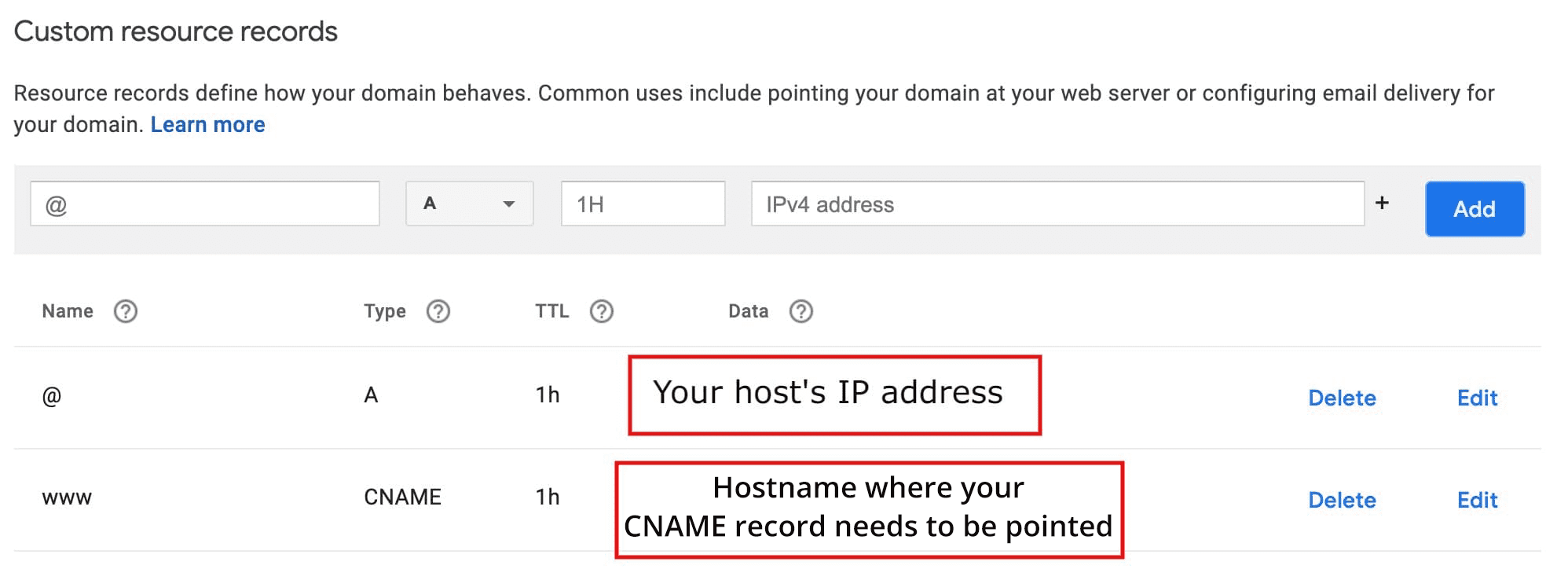
- Scroll to Custom records (or DNS records).
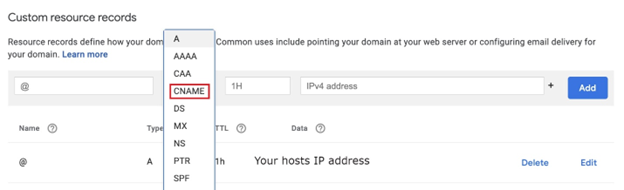
- Find the record you want to change, such as an A record. An A record links a name to a server's IP address.
- Click the edit (pencil) icon, or Manage custom records.
- Type the new value.
- Click Save.
To add a new record, use Create new record, pick the type, fill in the boxes and save.
Check the change
- Wait some hours.
- Open your website in a private browser window.
- Send a test email, if you changed email records.
If you need help, open a ticket at https://secure.hostvento.com/submitticket.php.
Quick recap
- Open your domain and click DNS.
- Use custom name servers to move DNS to your host.
- Or edit individual records in the custom records area.
- Note your old settings and wait for the change to spread.