

What is an A record?
DNS is like a phone book for the internet. An A record is one line in that book. It connects a name, like example.com, to an IP address. An IP address is the number of a server, for example 203.0.113.10.
When you move your site to a new server, you change the A record to the new number. Then visitors reach the new place.
Before you start
- Get the new IP address from your new host. For Hostvento hosting, see your welcome email or ask support.
- Note down the old value. It lets you go back if something breaks.
- Check that your site files are already on the new server.
- Your DNS must be managed where you edit. If your nameservers point elsewhere, edits here will not matter.
Steps in cPanel
- Log in to cPanel.
- Open Zone Editor.

- Click Manage next to your domain.
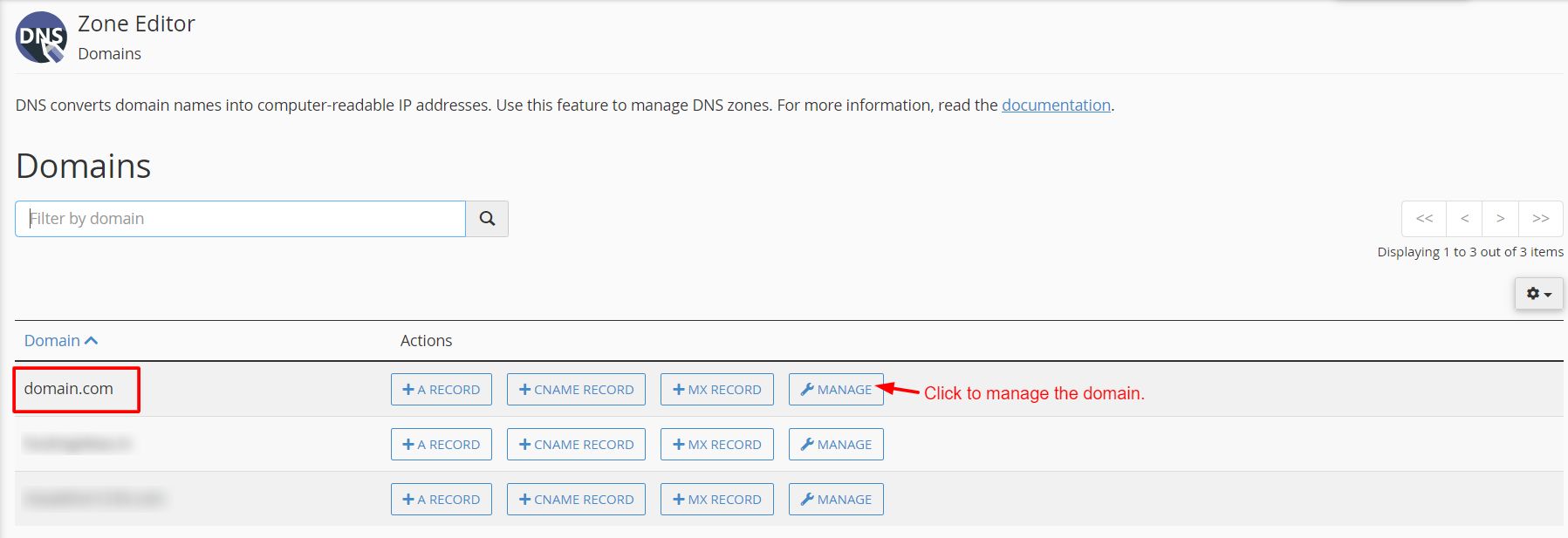
- Find the row with type A and the name of your domain.
- Click Edit on that row.
- Replace the old IP address with the new one.
- Click Save Record.
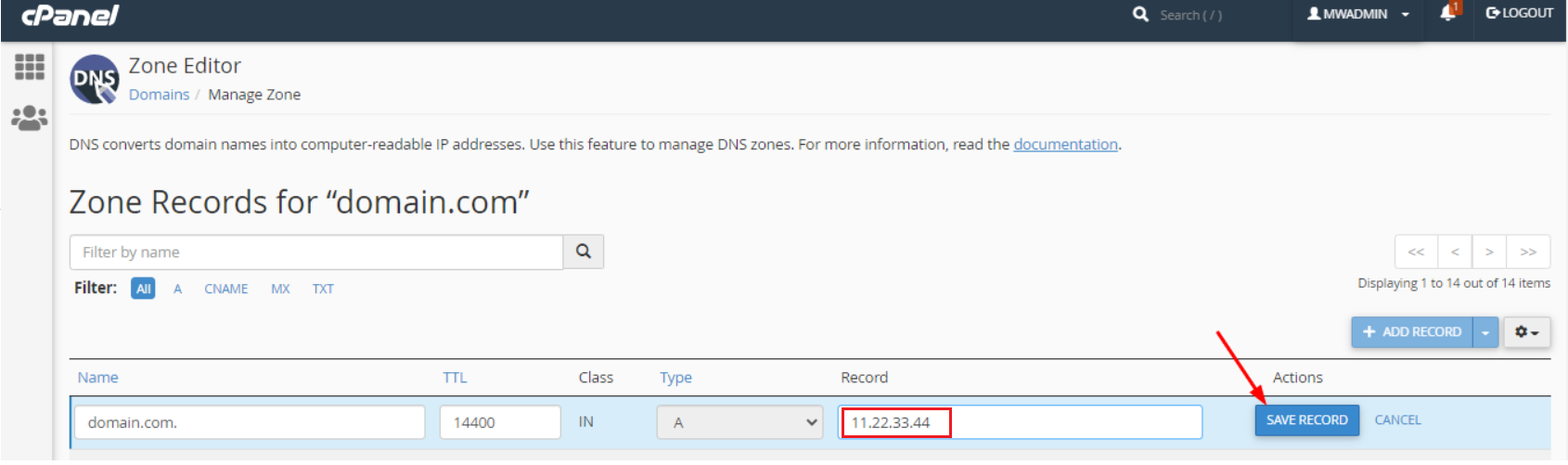
Repeat for www if it has its own A record. If www is a CNAME, it follows the main name by itself. A CNAME is an alias that points one name to another name.
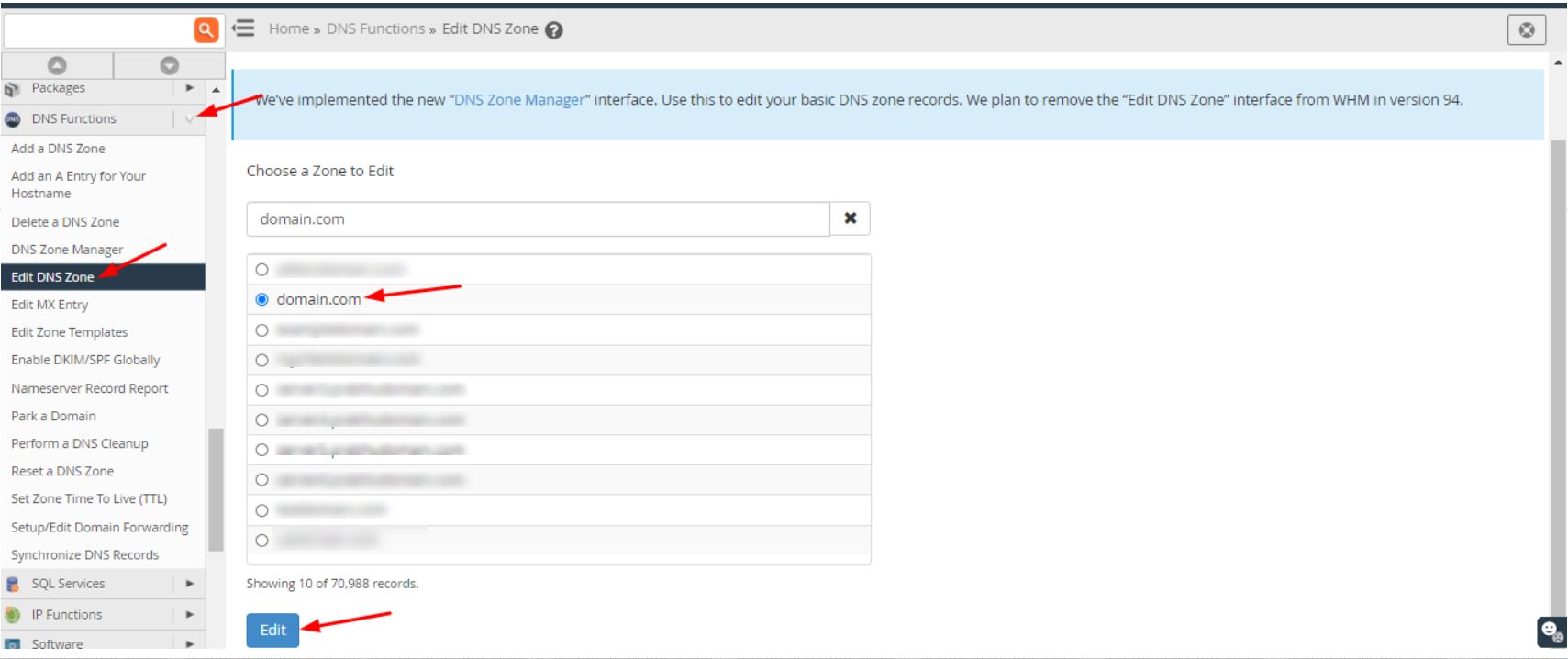
Steps in the Hostvento client area
- Log in at https://secure.hostvento.com/clientarea.php.
- Open Domains and then My Domains.
- Choose Manage Domain for your domain.
- Open the DNS management page, if your plan shows one.
- Edit the A record and save.
If you cannot find a DNS page, ask support.
Wait for it to spread
Each record has a TTL (time to live). It says how long others may remember the old value. Changes can take from minutes to some hours. To make it quicker, lower the TTL a day before the move.
Check it
- Wait a while.
- Open your site in a private window.
- Clear your DNS cache if you still see the old site.
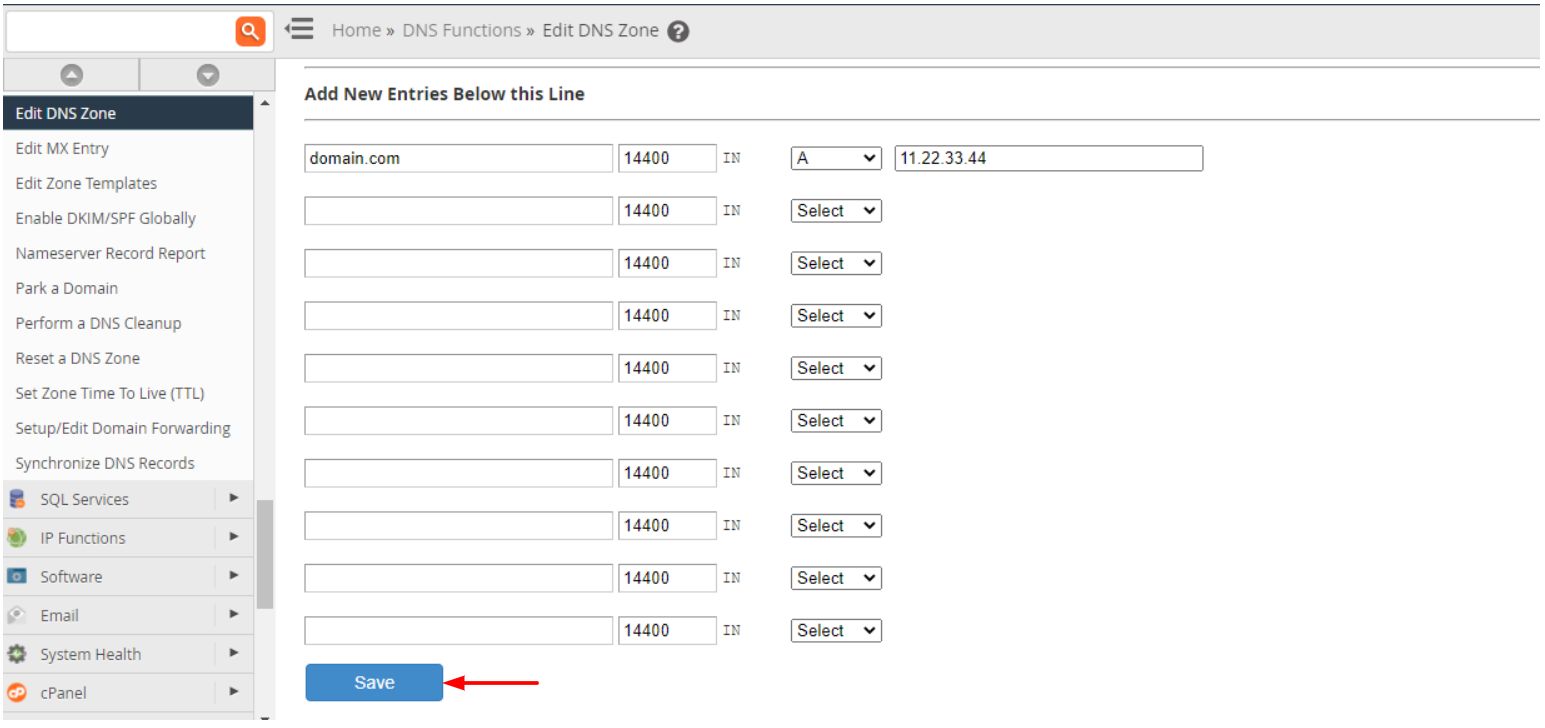
Tip: Only change the A record that you mean to change. The records for email, such as MX, are separate lines.
Quick recap
- An A record links your domain name to a server IP.
- Get the new IP and note the old one.
- Edit the A record in Zone Editor and save.
- Wait for DNS to spread, then test.