

What are these things?
Node.js lets you run JavaScript programs on a server. OpenLiteSpeed is a fast web server program. It answers visitors who open your website.
A Node.js app listens on its own port, like 3000. A port is a numbered door on the server. Visitors use ports 80 and 443. So we set OpenLiteSpeed as a go-between. This is called a reverse proxy. It takes the visitor's request and hands it to your app.
Before you start
- Log in to your server as root with SSH.
- Have OpenLiteSpeed installed, with its WebAdmin console available (usually on port 7080).
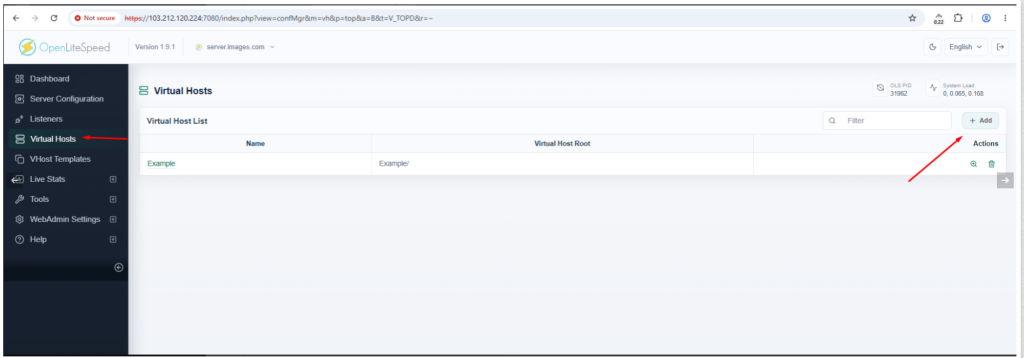
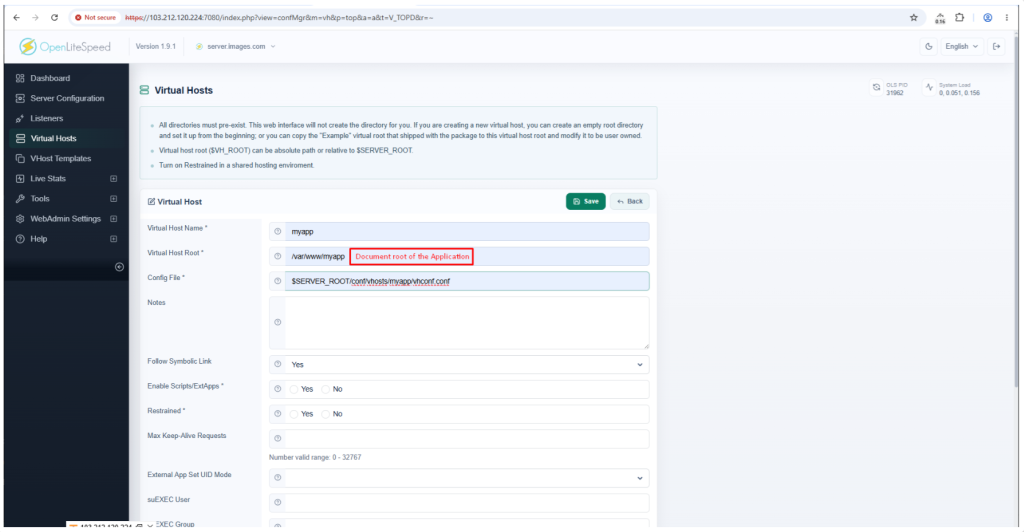
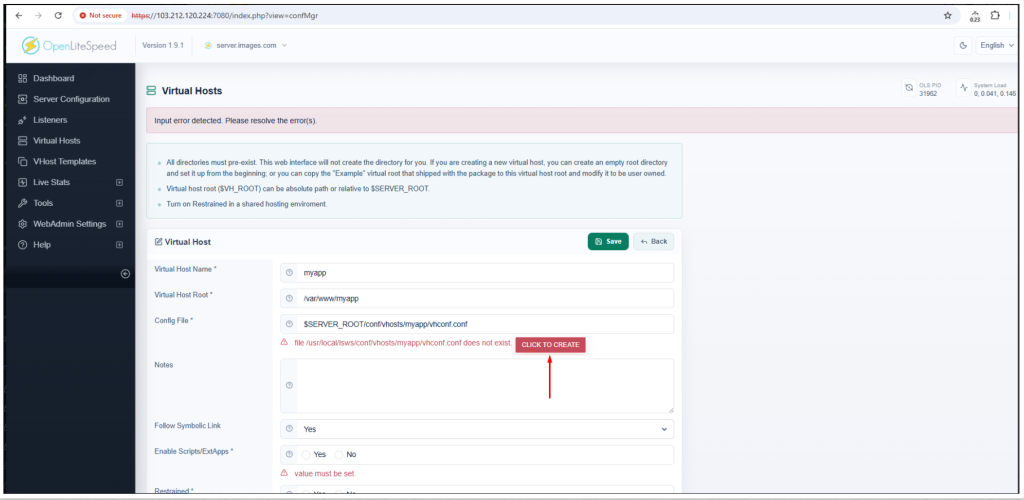
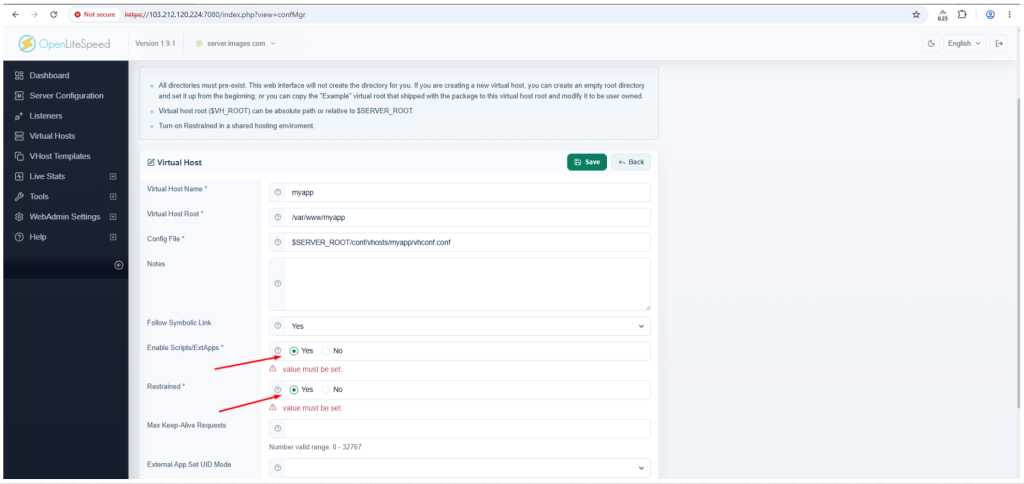
- Have your domain set up as a virtual host. A virtual host is one website entry inside OpenLiteSpeed.
Step 1: Install Node.js and start your app
- Check Node.js is installed:
This prints the version. If it says "not found", install Node.js with your system's package manager.node -v - Go to your app folder and install its needs:
cd /var/www/myapp npm install - Start the app on port 3000 with a process manager called PM2, which keeps it running:
Replacenpm install -g pm2 pm2 start app.js pm2 saveapp.jswith your own start file. - Test it on the server:
You should see your app's reply.curl http://127.0.0.1:3000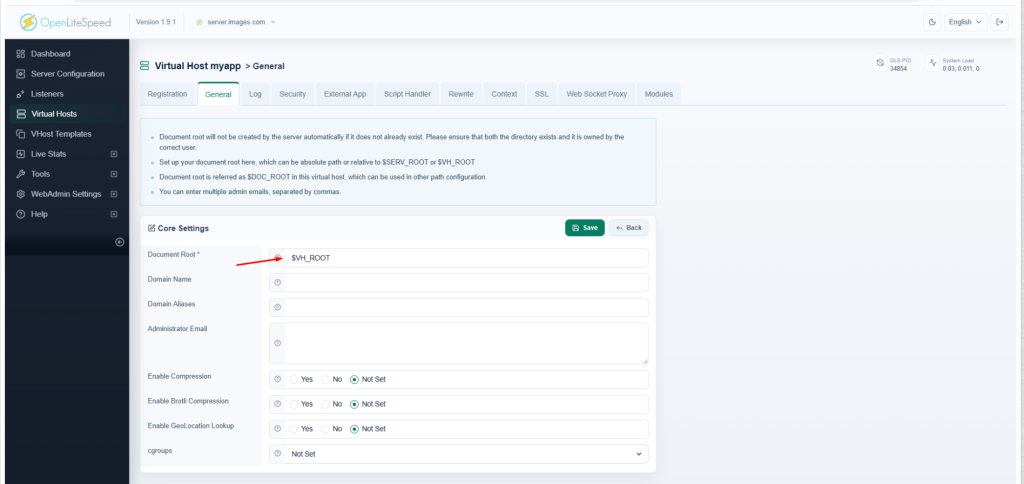
Step 2: Add an external app in OpenLiteSpeed
- Log in to the WebAdmin console in your browser.
- Open Virtual Hosts and click your site.
- Open the External App tab and click Add.
- Set Type to Web Server.
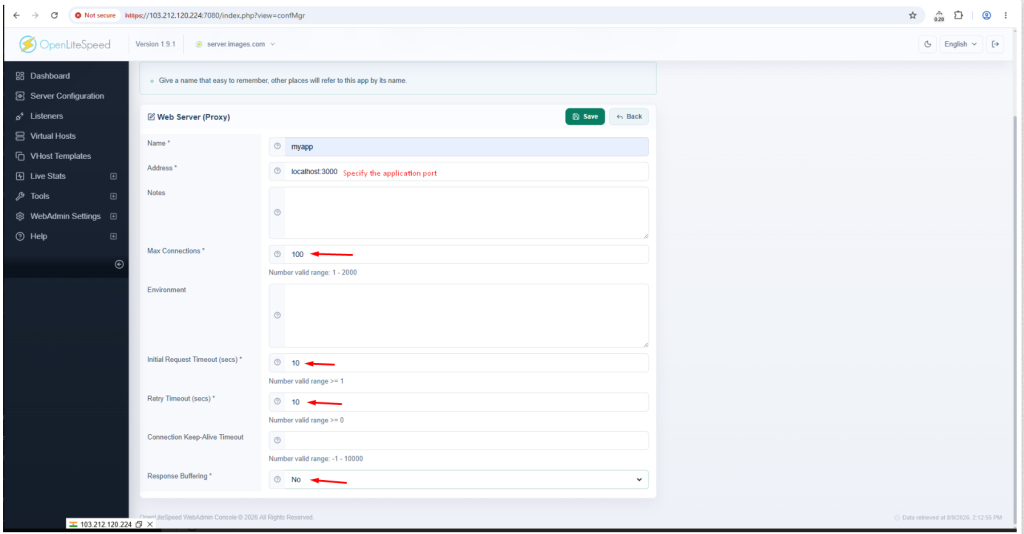
- Set Name to
nodeapp. - Set Address to
127.0.0.1:3000. - Click Save.
Step 3: Add a context
- Open the Context tab and click Add.
- Set Type to Proxy.
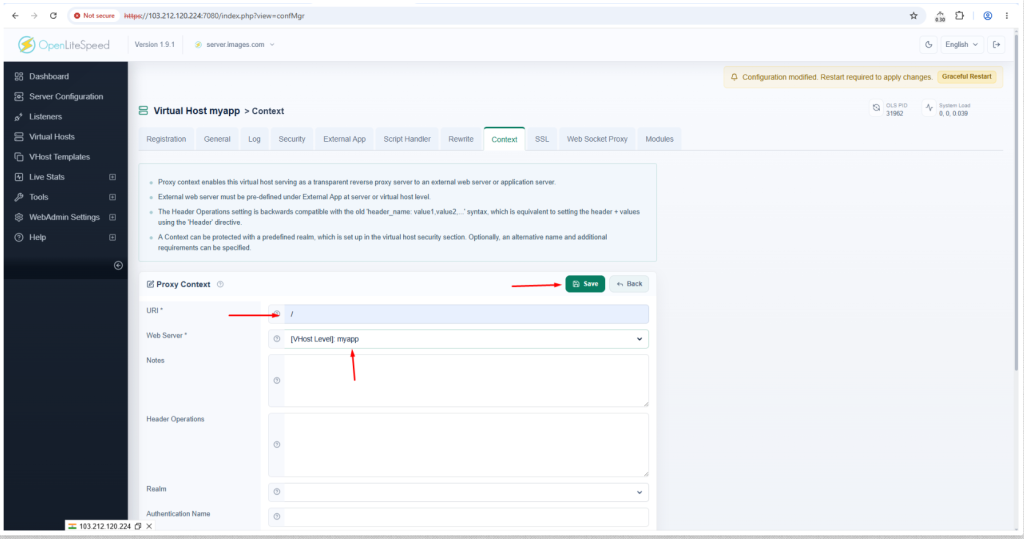
- Set URI to
/. - Set Web Server to
nodeapp. - Click Save.
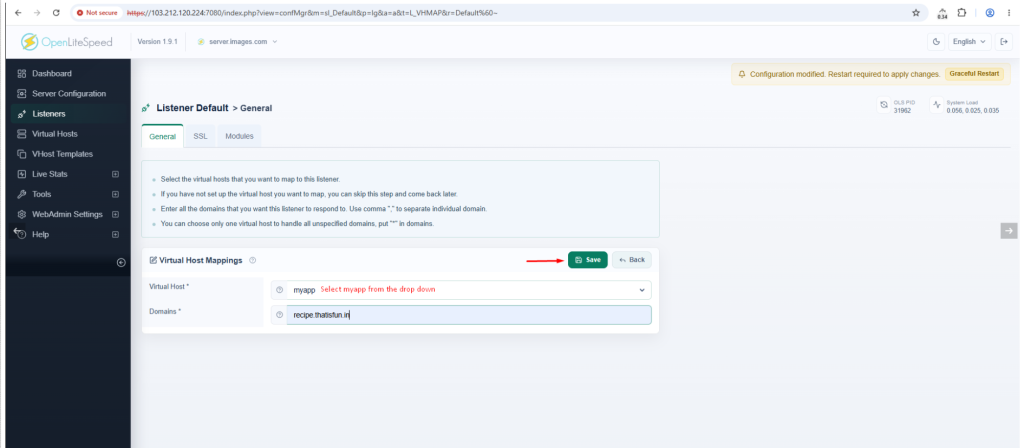
- Click Graceful Restart at the top.
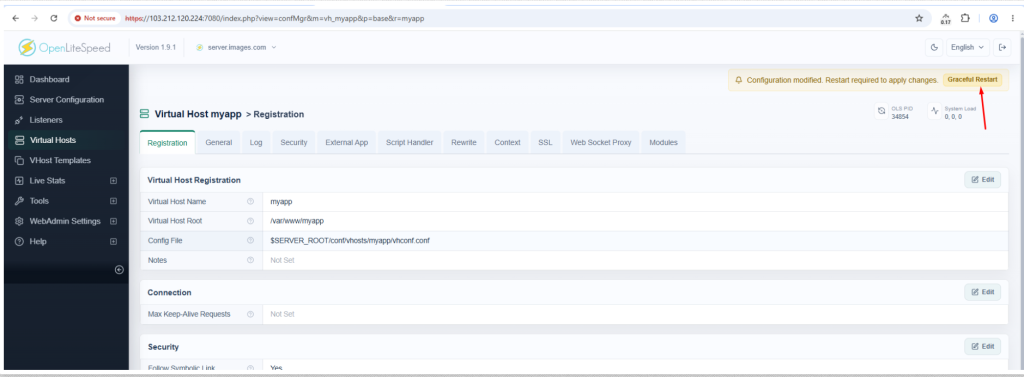
Open your domain in a browser. Your Node.js app should answer.
If it does not work
- Run
pm2 listto check that the app is running. - Check that the firewall does not block the ports you use.
- Look at the OpenLiteSpeed error log.
Tip: Keep port 3000 closed to the outside. Only OpenLiteSpeed should reach it. Menu names can differ a little between versions.
Quick recap
- OpenLiteSpeed acts as a reverse proxy for your Node.js app.
- Run the app with PM2 on a local port.
- Add an external app with the address
127.0.0.1:3000. - Add a Proxy context for
/and restart gracefully.