

What is a nameserver?
A nameserver is a computer that knows where your website lives. When someone types your domain name, the nameserver tells their browser which server to ask. It works like a signpost. If the signpost points to the wrong place, your site will not load.
When do you need to change them?
- You moved your website to a new host.
- You want to use a service like a CDN, which is a network that speeds up sites.
- Your welcome email gave you new nameservers.
Steps
- Log in to the client area at https://secure.hostvento.com/clientarea.php.
- Click Domains in the top menu.
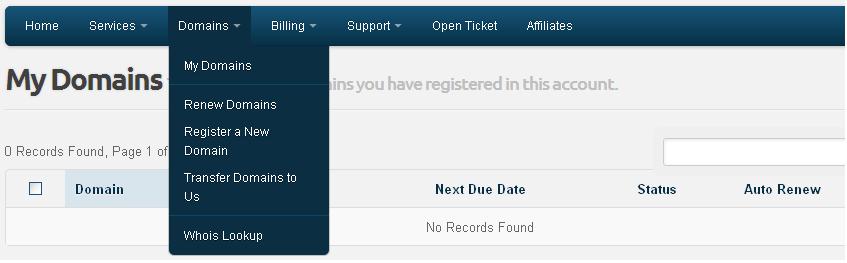
- Click My Domains.
- Find your domain. Click the menu or the gear button next to it.
- Choose Manage Nameservers.
- Pick Use custom nameservers. If you want the default ones, pick the default option instead.
- Type the new nameservers into the boxes. You need at least two.
- Click Change Nameservers.
Your new nameservers are saved. The exact labels can differ a little in your client area.
Where do I find the right nameservers?
Your hosting provider gives them to you. For Hostvento hosting, look in your welcome email. If you cannot find it, ask support. They usually look like ns1.example.com and ns2.example.com.
How long does it take?
The change can take a few hours. Sometimes it takes up to 48 hours. This waiting time is called propagation. It is like the post office updating all its maps. During this time, some visitors may see the old site and some the new one.
Check the change
Use a nameserver checker website, or the command below on your computer.
nslookup -type=ns yourdomain.comThis command lists the nameservers for your domain.
Quick recap
- Nameservers tell the internet where your website lives.
- Go to Domains, then My Domains, then Manage Nameservers.
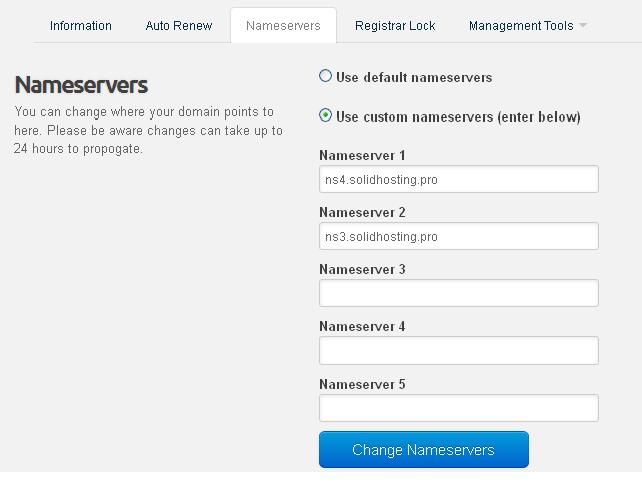
- Enter at least two nameservers and save.
- Keep a note of the old ones.
- Wait up to 48 hours for the change to spread.