

Why preview?
When you build a new site, your domain may still point to an old host. You want to check the new site first. A preview is like a rehearsal before opening night. You see your work, and the public sees nothing.
What is Plesk?
Plesk is a control panel. A control panel is a web page where you manage your hosting with buttons. Plesk has a built-in preview tool.
Method 1: Website Preview
- Log in to Plesk. Your login details are in your welcome email.
- Click Websites & Domains in the left menu.
- Find your domain.
- Click Preview Website. It sits under the domain name.
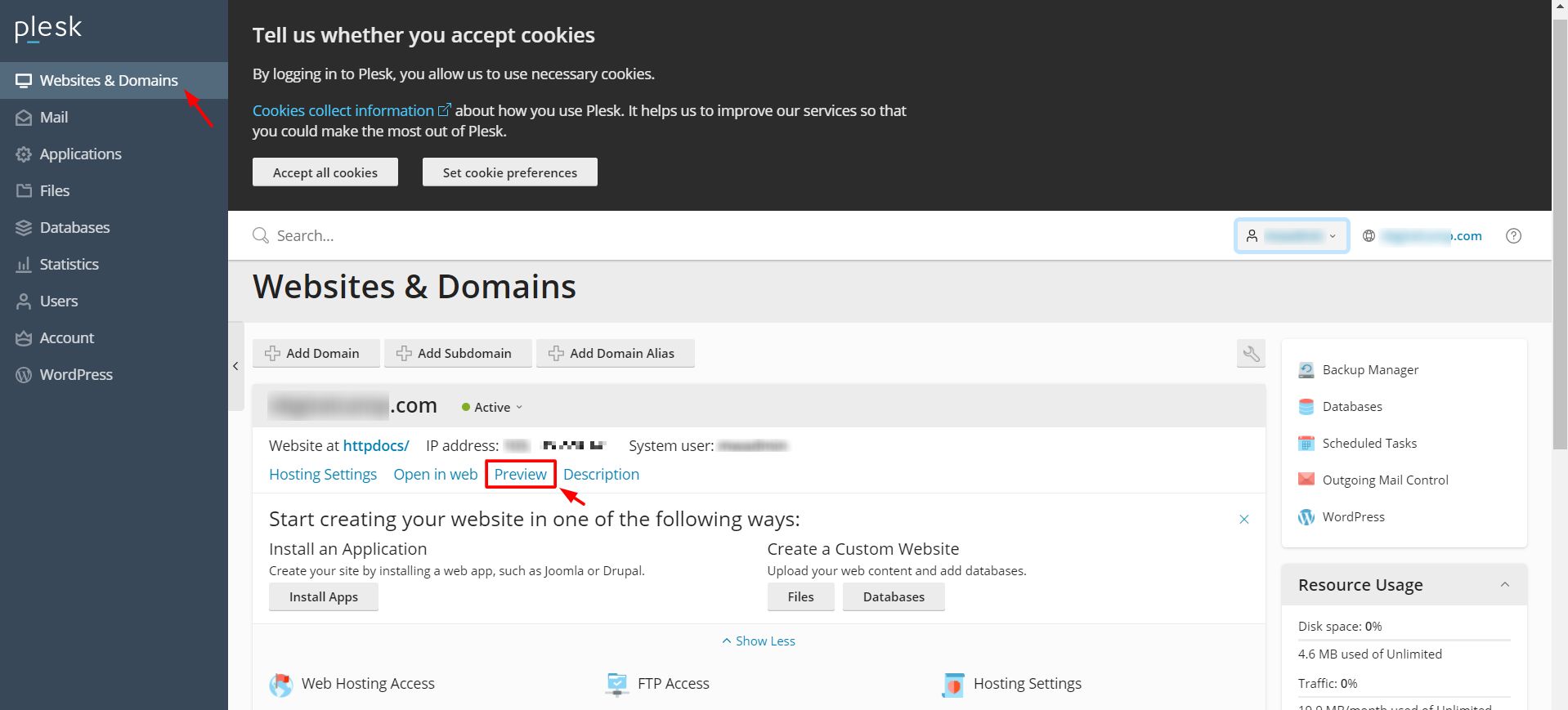
- A new tab opens. It shows your site as it is on this server.
Some pages may look broken. The preview uses a temporary address, so some links may point to your real domain.
Method 2: Edit your hosts file
The hosts file is a small file on your own computer. It tells your computer where to find a domain, before it asks DNS. DNS is the internet's phone book. With this trick, only your computer sees the new server.
- Find your server's IP address. It is in your welcome email or in Plesk.
- Open Notepad as Administrator on Windows. On Mac or Linux, open Terminal.
- Open the hosts file. On Windows it is
C:\Windows\System32\drivers\etc\hosts. On Mac and Linux it is/etc/hosts. - Add a line at the bottom with the IP, then the domain.
203.0.113.10 yourdomain.com www.yourdomain.comThis sends your own computer to the new server. Replace the example IP with your real one.
- Save the file.
- Open your domain in a browser.
If the preview shows an error
- Check that your files are in the domain's document root. That is the folder where the site's files live.
- Check that you have an
index.htmlorindex.phpfile.
Open a support ticket if you need help.
Quick recap
- A preview lets you see your site before going live.
- In Plesk, click Preview Website under your domain.
- Or edit your hosts file to test the real domain name.
- Remove hosts file lines when finished.