

What is an email filter?
An email filter is a rule. It looks at each incoming message and decides what to do. It is like a mail sorter at the post office. It checks the label and drops the letter in the right box, or in the bin.
What is a global filter?
cPanel is a control panel, which is a web page for managing hosting. A global filter works for every email address on your account. An account-level filter works for only one address. Use global filters when you want one rule for all addresses, such as blocking a bad sender.
Steps
- Log in to cPanel. Your login details are in your welcome email.
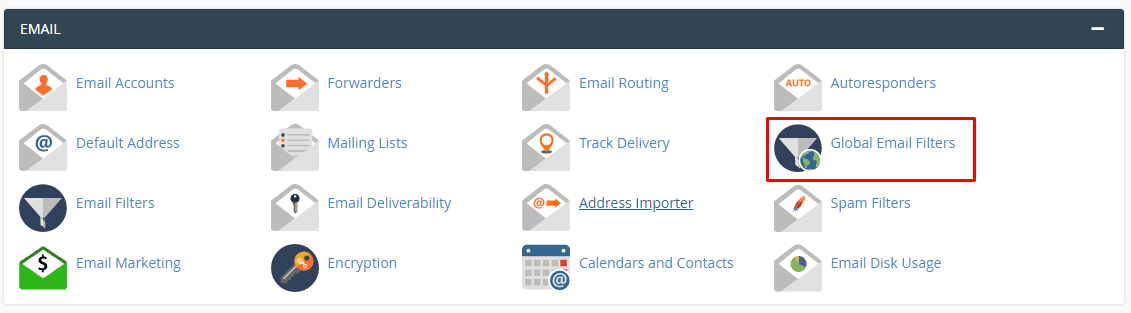
- In the Email section, click Global Email Filters.
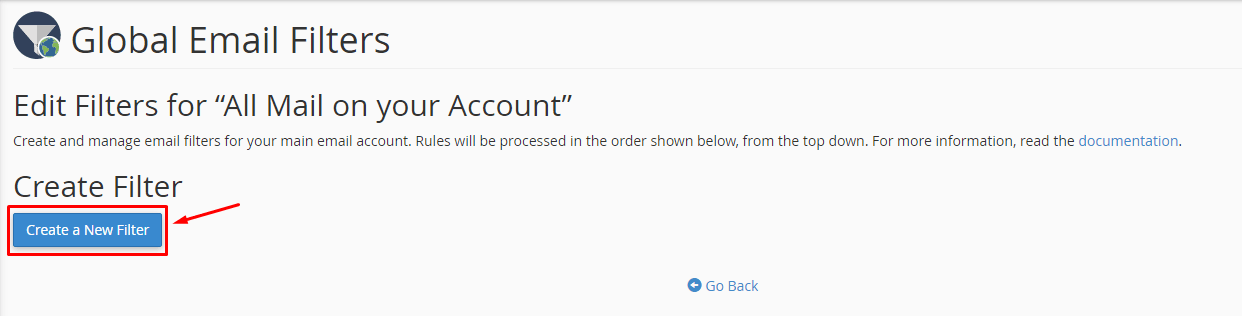
- Click Create a New Filter.
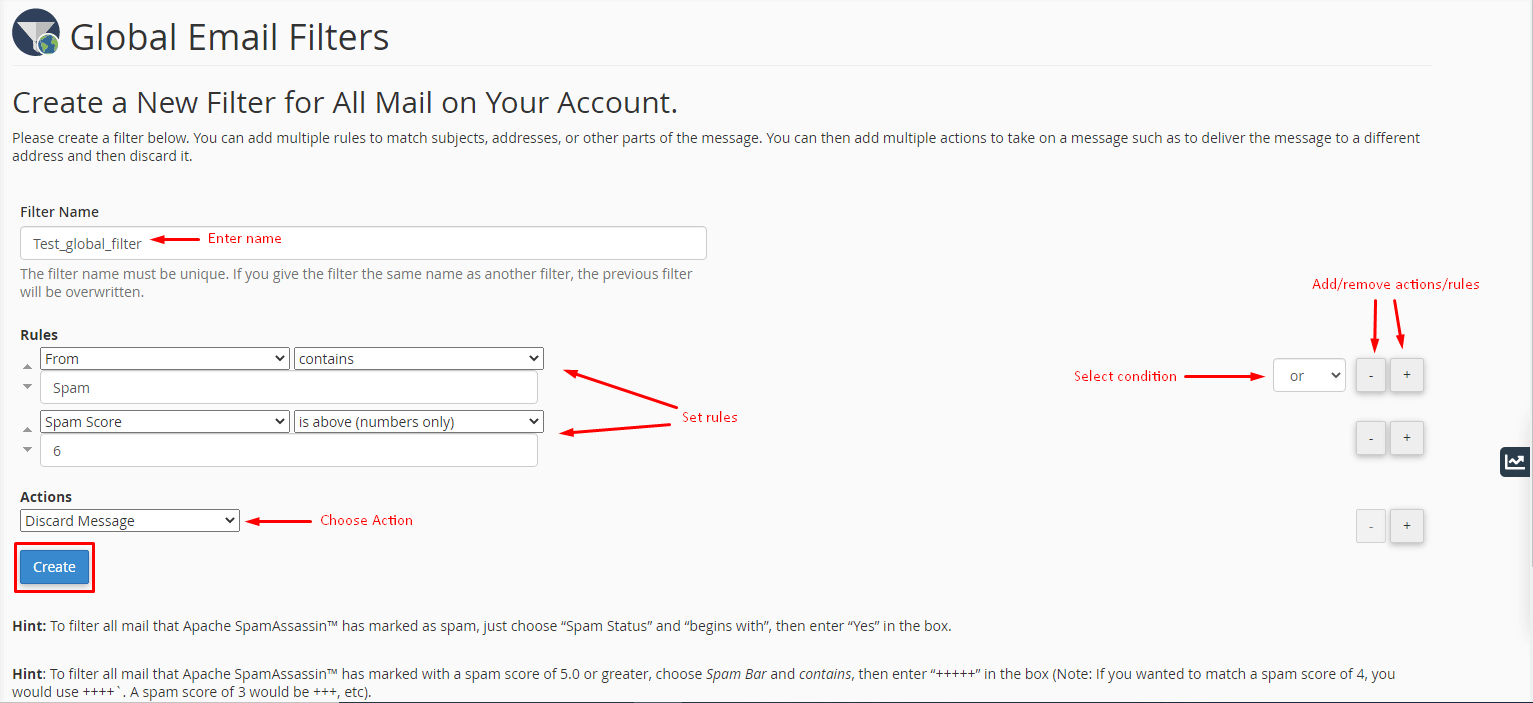
- Give the filter a name, such as "Block spam sender".
- Under Rules, pick what to look at. Choices include From, Subject, To and Body.
- Pick how to match, like Contains or Equals.
- Type the word or address to match, such as
spammer@example.com. - Under Actions, pick what to do. For example, Discard Message to delete it, or Redirect to Email to send it elsewhere.
- Click Create.
To add more rules to one filter, click the plus button next to a rule. Choose and or or to join them.
Test your filter
- On the Global Email Filters page, find the Filter Test box.
- Paste a sample address or subject.
- Click Test Filter. It shows what the filter would do.
Edit or delete a filter
All your filters are listed on the same page. Click Edit to change one. Click Delete to remove it.
If you do not see the option
Some plans or cPanel versions hide it. Ask Hostvento support through a support ticket.
Quick recap
- A filter is a rule for incoming mail.
- A global filter covers every address on the account.
- Open Global Email Filters in cPanel and create a rule.
- Test the filter before you use Discard Message.