

What is an SSL certificate?
An SSL certificate is a small digital file that proves your website is real. It also scrambles the data between visitors and your site, like sending a letter in a locked box. Sites with SSL start with https:// and show a padlock.
Webuzo is a control panel. A control panel is a web page where you manage your hosting with buttons. Ask Hostvento support whether Webuzo is available on your plan.
What you need
- The certificate file, often ending in
.crt. - The private key. This is a secret file made when you created the certificate request. Never share it.
- The CA bundle, if your provider gave one. It links your certificate to the company that issued it.
Steps
- Log in to Webuzo. Use the details from your welcome email.
- Look for the SSL option in the menu. It may be named SSL Certificates.

- Choose the domain you want to secure, if a list appears.
- Open the certificate file in a plain text editor such as Notepad.
- Copy everything, including the lines that start with
-----BEGIN CERTIFICATE-----and end with-----END CERTIFICATE-----. - Paste it into the box named Certificate.
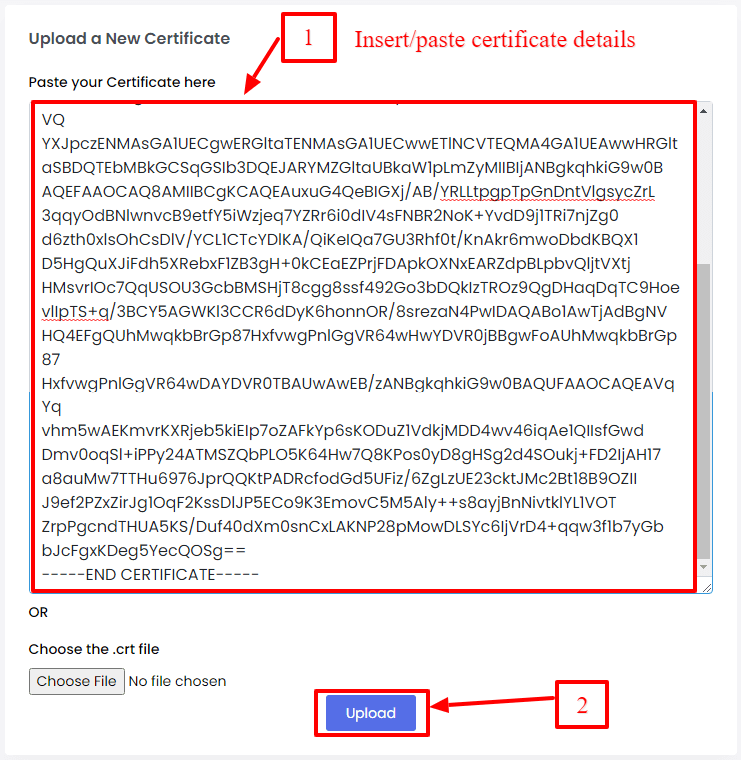
- Open your private key file the same way and paste it into the Private Key box.
- If you have a CA bundle, paste it into the CA Bundle box.
- Click the Submit or Install button.
- Wait for the message that says the certificate was saved.
Menu names can differ between Webuzo versions. If you cannot find a field, look around the SSL page for the closest name.
Check it works
- Open your site in a browser with
https://in front of your domain. - Look for the padlock beside the address.
- If the browser shows a warning, clear the cache and try again.
Tip: If you get a "key does not match" error, the certificate and key are from different requests. Use the pair that was created together. Contact Hostvento support if you are stuck.
Quick recap
- An SSL certificate secures the link between visitors and your site.
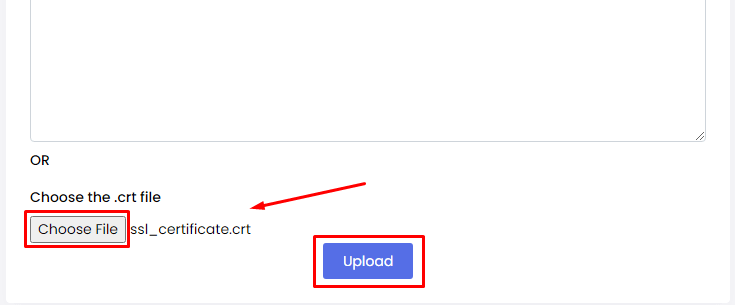
- You need the certificate, the private key and maybe a CA bundle.
- Paste each into its box on the SSL page in Webuzo and submit.
- Test your site with
https://.