

What you need
- Ubuntu. An LTS release (20.04, 22.04 or newer).
- A server with at least 2 GB of RAM (4 GB or more is better for Magento).
- A LAMP stack. Linux, Apache, MySQL and PHP.
- A domain name or a subdomain to open the store.
Note: Magento 2 also needs Elasticsearch or OpenSearch (version 2.4 and newer), and Composer for the usual install. The steps below follow the archive method and show the main parts. Check the Adobe Commerce system requirements for your version.
Step 1: Install Apache
sudo apt update && sudo apt install apache2 -y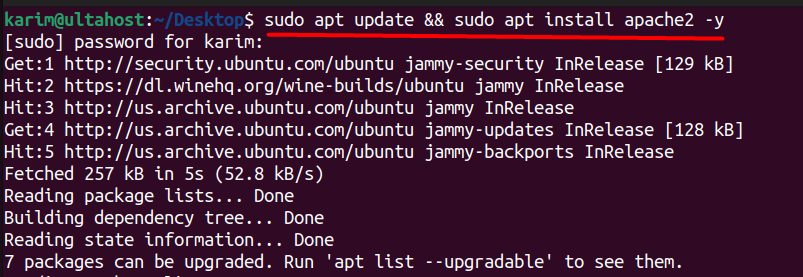
sudo systemctl start apache2
sudo systemctl enable apache2
Step 2: Install MySQL
sudo apt install mysql-server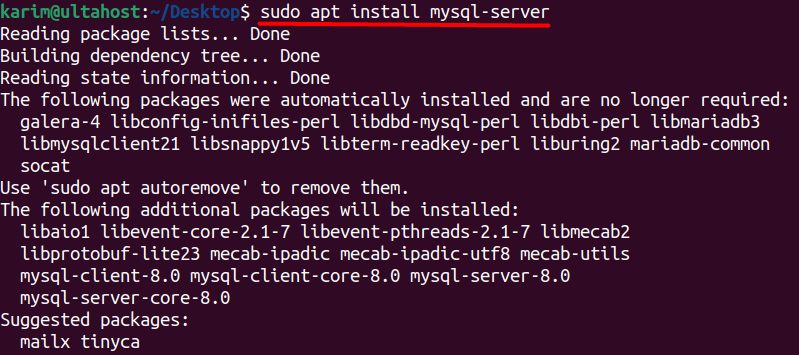
sudo systemctl start mysql && sudo systemctl enable mysqlStep 3: Install PHP
sudo apt install php libapache2-mod-php php-mysql php-curl php-gd php-dom php-xml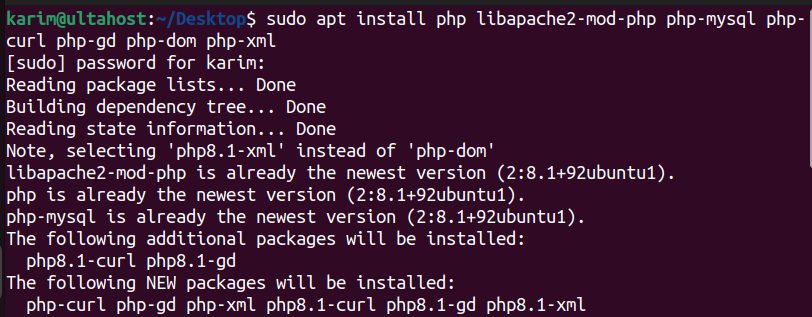
Add the extra modules Magento needs:
sudo apt install php-zip php-soap php-bcmath php-intl php-mbstring php-xslRaise the PHP limits in php.ini (for example memory_limit = 2G, max_execution_time = 1800), then restart Apache:
sudo systemctl restart apache2
Step 4: Create the database
sudo mysql -u root -p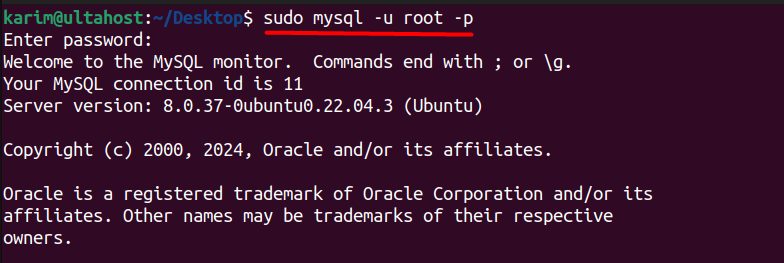
CREATE DATABASE magento;
Create a user (use a strong password, and localhost unless the database is on another machine):
CREATE USER 'magento_user'@'localhost' IDENTIFIED BY 'strong_password';
GRANT ALL PRIVILEGES ON magento.* TO 'magento_user'@'localhost';
FLUSH PRIVILEGES;
EXIT;
Step 5: Download and extract Magento
Download the Magento 2 archive from the Magento Open Source download page (a free Adobe account is needed).
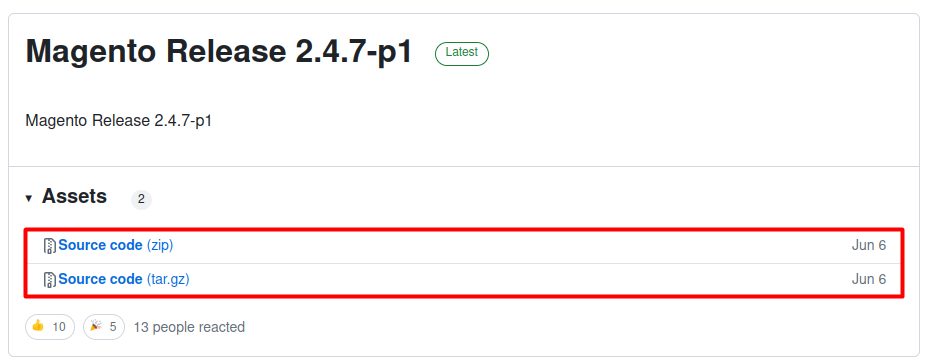
Extract it into the web folder:
sudo tar -xvf ~/Downloads/magento2-2.4.7-p1.tar.gz -C /var/www/html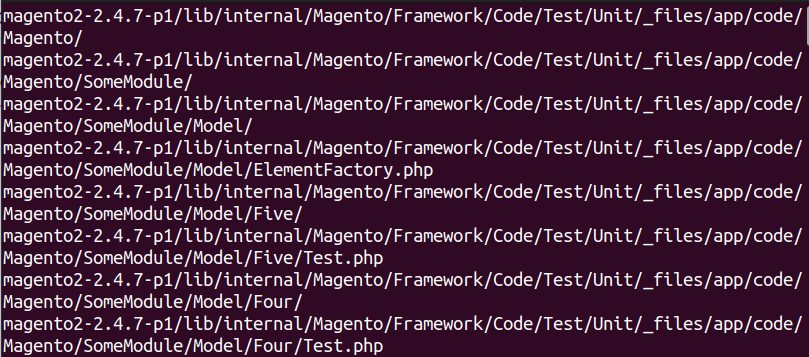
Set the owner:
sudo chown -R www-data:www-data /var/www/html
Step 6: Create the Apache virtual host
sudo nano /etc/apache2/sites-available/magento.confAdd (use your own domain; pub is the web root of Magento 2.4 if you point to it):
<VirtualHost *:80>
    ServerName example.com
    ServerAdmin admin@example.com
    DocumentRoot /var/www/html
    <Directory /var/www/html>
        Options Indexes FollowSymLinks MultiViews
        AllowOverride All
        Require all granted
    </Directory>
    ErrorLog /var/log/apache2/magento_error.log
    CustomLog /var/log/apache2/magento_access.log combined
</VirtualHost>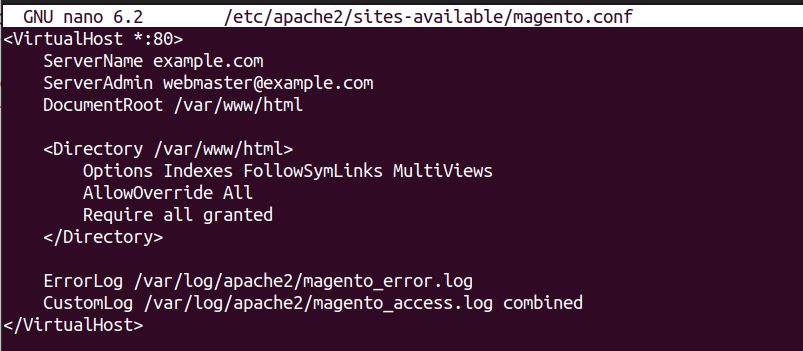
Enable the site and the rewrite module, then reload:
sudo a2ensite magento.conf
sudo a2enmod rewrite
sudo systemctl reload apache2
Step 7: Install Magento
Open your domain in the browser. The installer asks you to:
- Accept the terms and conditions.
- Choose the language and currency.
- Enter the database details (database
magento, the user and password from step 4). - Set the admin user, password and email address.
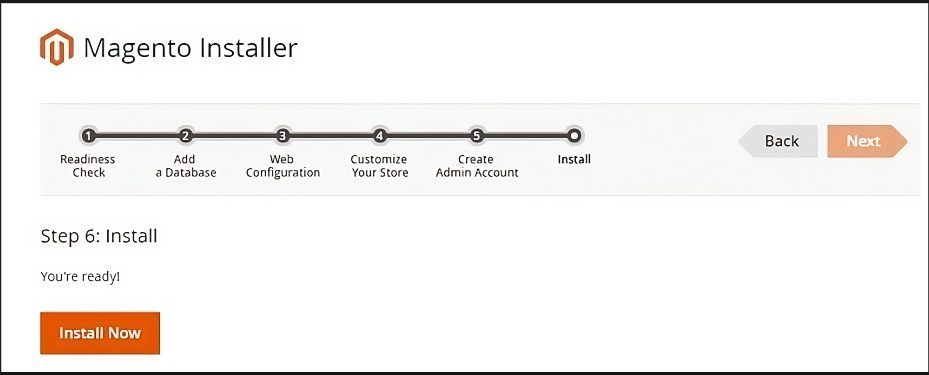
After the install, write down the admin URL. Then secure the store with an SSL certificate and keep Magento updated.
Quick recap
- Install the LAMP stack and the PHP modules Magento needs.
- Create a database, extract Magento and make a virtual host.
- Finish with the web installer, and add SSL.