

What is Plesk?
Plesk is a control panel. A control panel is a dashboard for your hosting. From it you can manage your website, email, files and databases. It is like the control room of a building.
Not every plan has Plesk. Check your welcome email or ask Hostvento support.
What you need
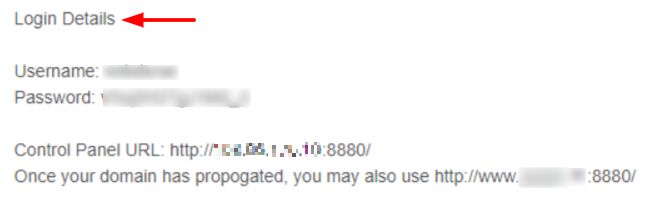
- The Plesk address (URL) for your server.
- Your Plesk username and password.
Both are in your welcome email. If you cannot find them, ask Hostvento support.
Steps
- Open a web browser.
- Type the Plesk address in the address bar. It often looks like
https://yourdomain.com:8443or uses your server name with:8443. The number 8443 is the door (port) that Plesk uses. - Press Enter.
- If the browser shows a security warning, check the address. Your server may use a certificate the browser does not know. Continue only if the address is exactly the one from your welcome email.
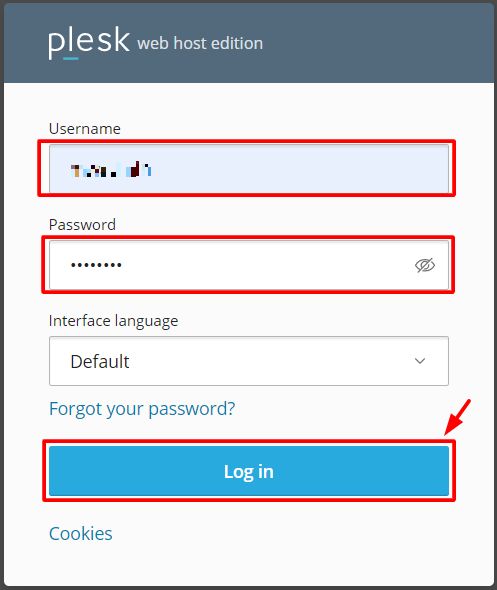
- Type your Username.
- Type your Password.
- Click Log in.
You will see the Plesk home screen. Use the menu on the left. Websites & Domains is where you will spend most of your time.
Another way in
- Go to the Hostvento client area and log in.
- Open the Services menu and click My Services.
- Click your hosting service.
- Look for a login button for the control panel, if your plan shows one.
If you cannot log in
- Check that Caps Lock is off.
- Click Forgot your password? on the Plesk login page, if shown.
- Try another browser or a private window.
- Open a support ticket. Never share your password in public.
Tip: Save the Plesk address as a bookmark. It saves time later.
Quick recap
- Plesk is a dashboard for your hosting.
- Find the address and login in your welcome email.
- Go to the address, then enter your username and password.
- Ask support if the details are lost.