

What is an SSL certificate?
An SSL certificate is a digital ID card for your website. It makes the connection private and shows a padlock in the browser. A certificate authority (CA) is the company that checks your site and issues the certificate.
What you need
- The certificate file. It is often named
certificate.crtor ends with.crtor.cer. - The CA bundle file. It is also called the intermediate certificate. It links your certificate to the trusted provider.
- The private key, if you made the request yourself outside Plesk. A private key is a secret file that matches your certificate. Never share it.
If you made the request (CSR) in Plesk, the private key is already stored there. Plesk will pair it with the certificate.
Steps
- Log in to Plesk.
- Click Websites & Domains.
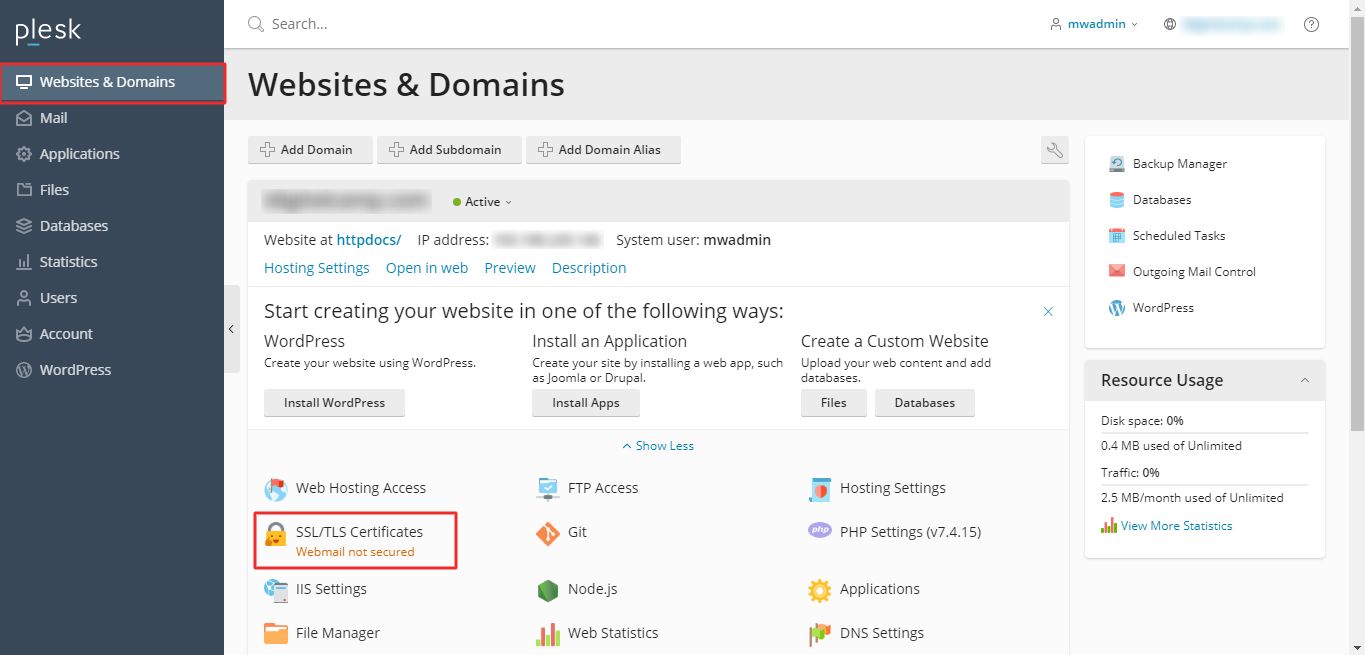
- Find your domain and click SSL/TLS Certificates.

- If you made the CSR in Plesk, find that entry in the list and click its name.
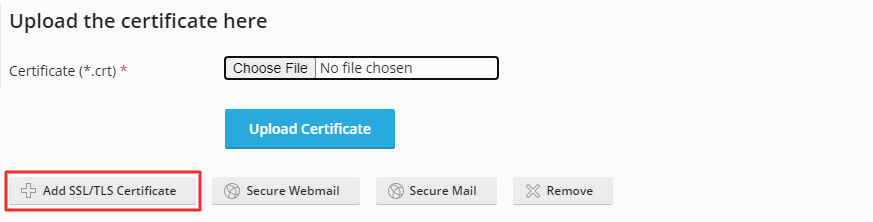
- Look at the section about uploading a certificate. Click Choose File and pick the certificate file.
- Click Upload Certificate.
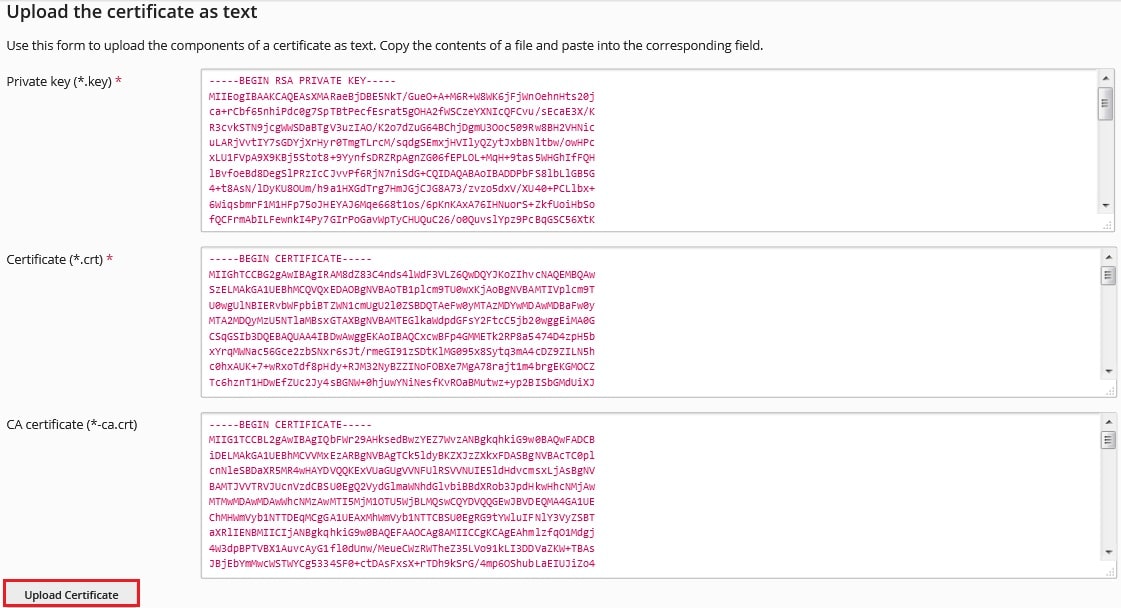
- If you have the CA bundle, upload it in the matching box. In some versions, it is under the CA certificate option.
- If you did not make the CSR in Plesk, click Add SSL/TLS Certificate instead. Fill in a name. Paste or upload the private key, the certificate and the CA bundle.
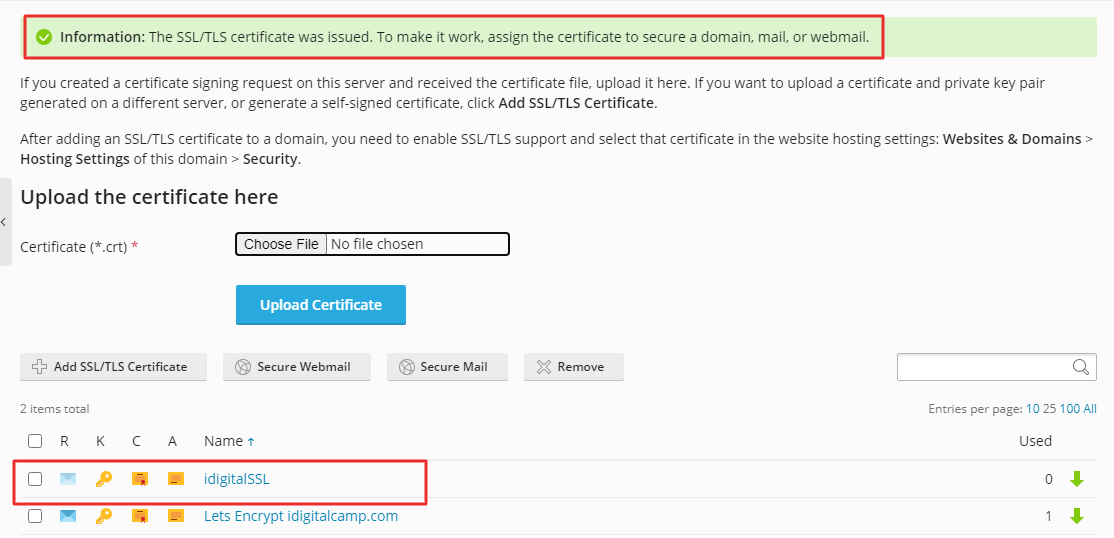
- Click Upload Certificate or Add.

Turn the certificate on
- Go back to Websites & Domains.
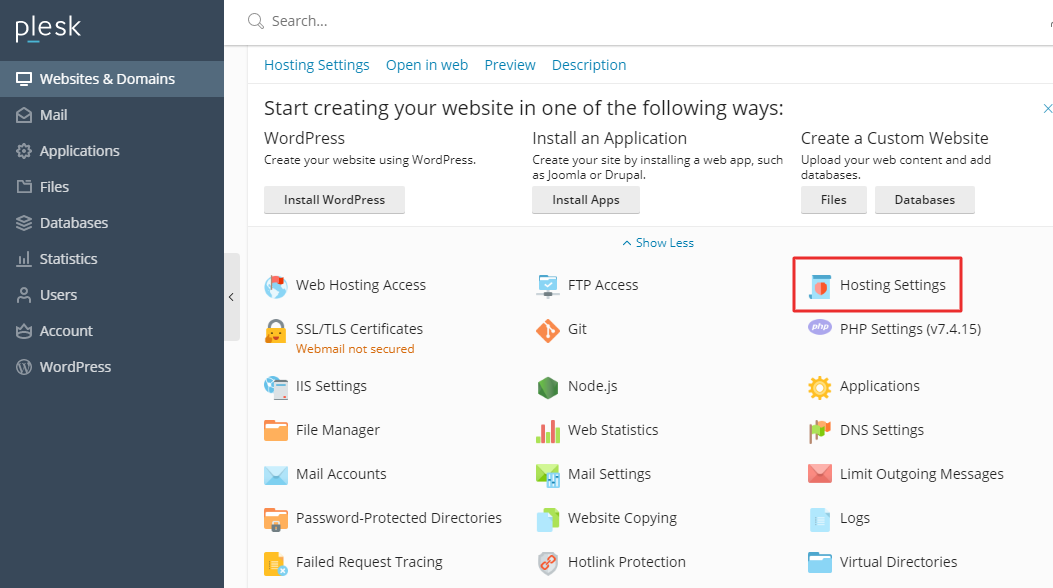
- Click Hosting Settings for your domain.
- Tick SSL/TLS support.

- In the Certificate menu, pick your new certificate.
- Click OK.
Also set up Permanent SEO-safe 301 redirect from HTTP to HTTPS in the same area. This sends visitors to the safe version.
Check it works
Open your site with https:// in a browser. A padlock should show. If it does not, clear your cache and try again.
Tip: Menu names can differ between Plesk versions. If an option is missing, open a support ticket.
Quick recap
- You need the certificate, the CA bundle and the private key.
- Upload them in SSL/TLS Certificates.
- Turn on SSL/TLS support in Hosting Settings.
- Test with
https://.