

What is a database dump?
A database is where a website keeps its data, like posts and customers. A dump is a copy of that data saved in one file, often ending in .sql. You can use it as a backup. You can also use it to move a site to a new place.
The tool used here is phpMyAdmin. It lets you work with MySQL databases in your browser.
Export a database
- Log in to Plesk.
- Click Websites & Domains.
- Click Databases under your domain.
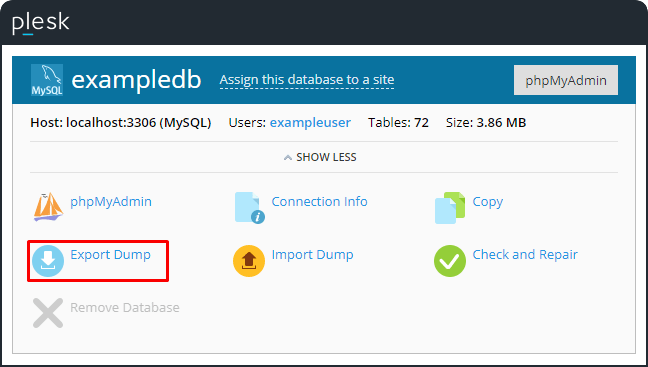
- Find your database and click phpMyAdmin next to it.
- In phpMyAdmin, click your database name in the left list.
- Click the Export tab.
- Pick the Quick method and the SQL format.
- Click Export or Go.
- Your browser downloads the
.sqlfile. Keep it safe.
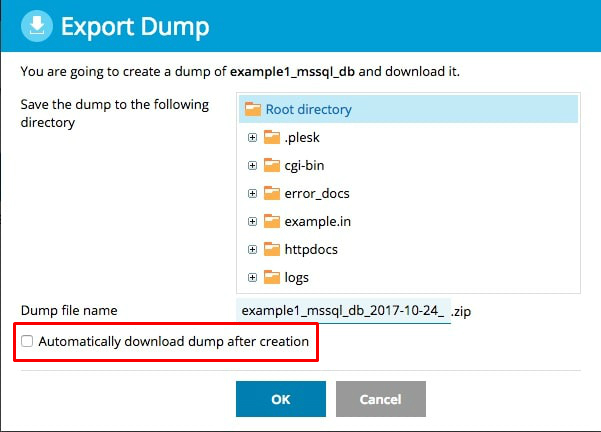
There is also a quick way in Plesk. In the Databases list, some versions show an Export Dump link. Click it and choose a place to save.
Import a database
Warning: Importing can replace existing data. Export a copy of your current database first.
- Go to Websites & Domains and then Databases.
- Click phpMyAdmin next to the database you want to fill.
- Click the database name on the left.
- Click the Import tab.
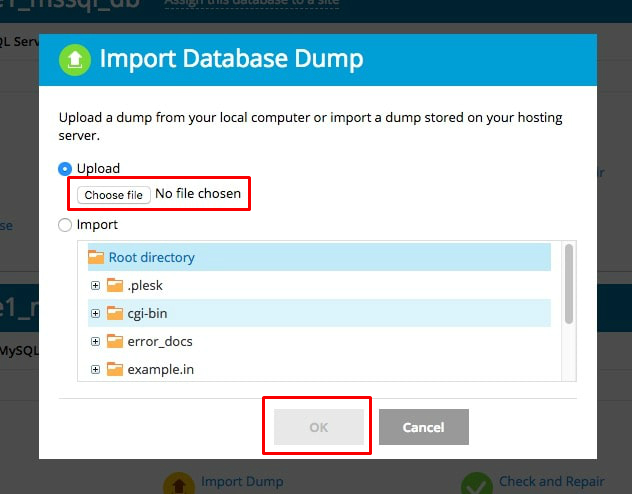
- Click Choose File and pick your
.sqlfile. - Keep the format as SQL.
- Click Import or Go.
- Wait for the green success message.
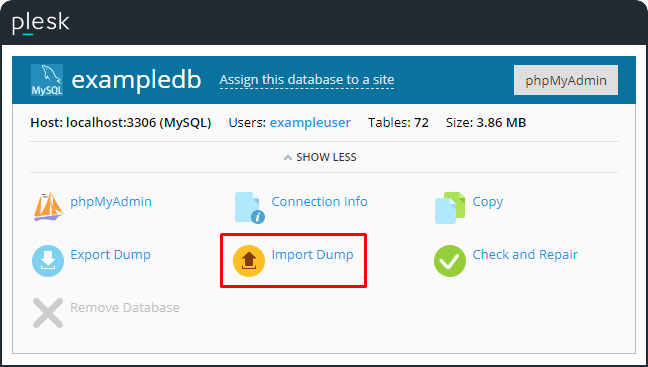
In Plesk, you can also use Import Dump in the Databases list. Choose the file and click OK.
If the import fails
- The file may be too big. Zip it, because phpMyAdmin can read ZIP files. Or ask support about the upload limit.
- The database may already have tables with the same names. Use an empty database for a fresh copy.
- The dump may come from a newer MySQL than yours. Ask support to look at the error message.
Tip: After an import, update your site's config file with the right database name, user and password.
Need help? Open a support ticket.
Quick recap
- A dump is your database saved in one
.sqlfile. - Export with the Export tab in phpMyAdmin.
- Import with the Import tab into the right database.
- Always make a backup before you import.