

What are a CSR and a private key?
An SSL certificate makes your site private and safe, and shows a padlock in the browser. To order one, you must first send a CSR to the certificate provider.
A CSR (Certificate Signing Request) is a block of text. It holds details about your site and your company. It is like a form you fill in to ask for an ID card.
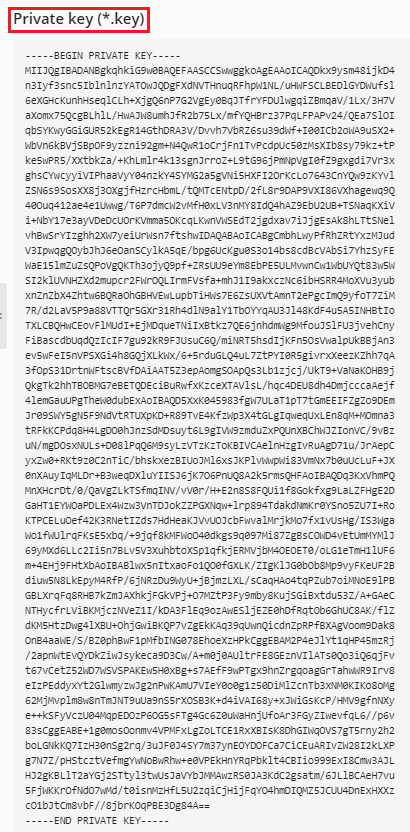
A private key is a secret file made at the same time. It matches your certificate. Plesk keeps it on the server. Never share it with anyone.
Before you start
- Know the exact domain name you want to protect, such as
www.yourdomain.com. - Know your country, city and organisation name.
- Have an email address you can open.
Steps
- Log in to Plesk.
- Click Websites & Domains.
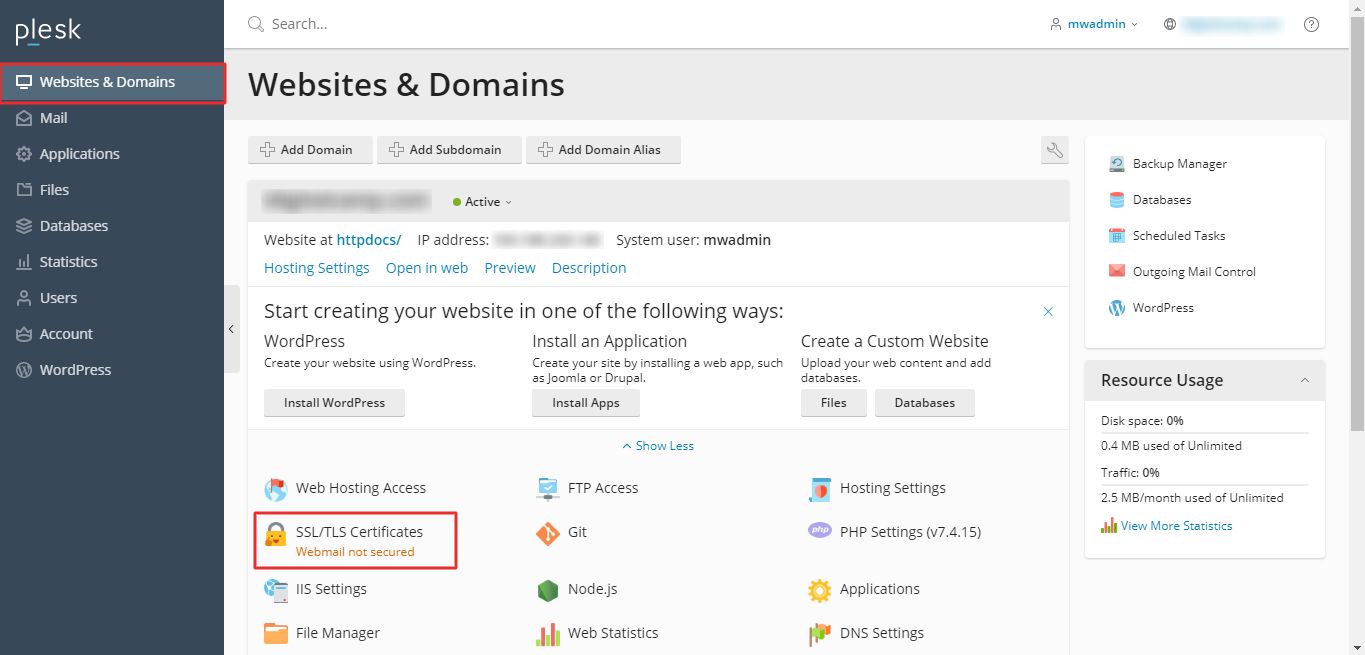
- Click SSL/TLS Certificates under your domain.
- Click Add SSL/TLS Certificate.

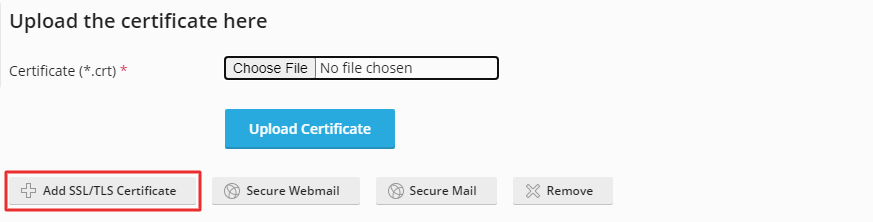
- Type a Certificate name. Use a name you will remember.
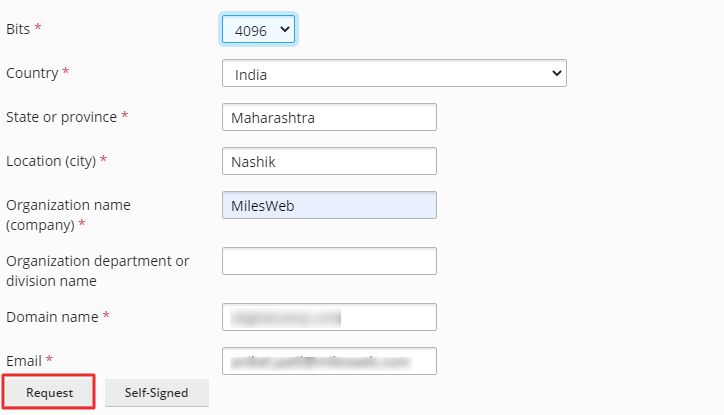
- Choose the Bits size. 2048 is a common safe choice.
- Fill in Country, State or province, Location (city) and Organization name.
- Type the Domain name. Use the exact name you need to protect.
- Type your Email.
- Click Request.
Use English letters only. Do not use special symbols in the fields.
Get your CSR
- Back in SSL/TLS Certificates, click the name of the certificate you just made.
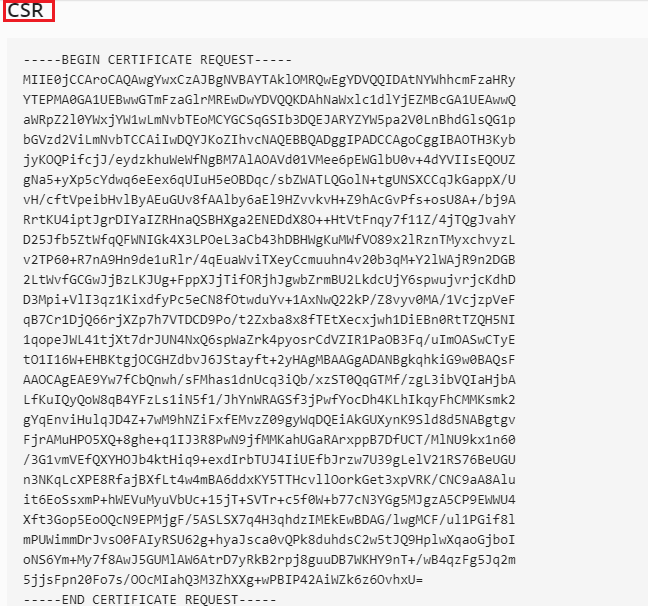
- Find the box labeled CSR.
- Copy the whole text. It starts with
-----BEGIN CERTIFICATE REQUEST-----and ends with-----END CERTIFICATE REQUEST-----. - Paste it into the order form of your certificate provider.
The private key is in the same page. You do not need it to order. Plesk pairs it with the certificate when you upload the certificate later.
When the certificate arrives
Go back to the same entry in SSL/TLS Certificates. Upload the certificate file the provider sent. Our guide on adding an SSL certificate from another provider shows how.
Warning: Do not delete this entry before you upload the certificate. The private key lives there, and a new CSR means a new key.

Need help? Open a support ticket.
Quick recap
- A CSR is a request. The private key is a secret that matches it.
- Create both in SSL/TLS Certificates > Add SSL/TLS Certificate.
- Copy the CSR to your certificate provider.
- Keep the private key safe and private.