

What is a reseller?
A reseller is someone who rents hosting space and shares it with their own clients. Think of renting a big shop and then letting small stalls inside it. Each stall owner is a customer. Each customer gets their own login and their own space.
Your reseller plan sets how many customers you can add. Check your welcome email or ask Hostvento support if you are unsure about your limits.
Steps
- Log in to your reseller Plesk panel.
- Click Customers in the left menu.
- Click Add a Customer.
- Fill in the contact details. Name and email are the key ones.
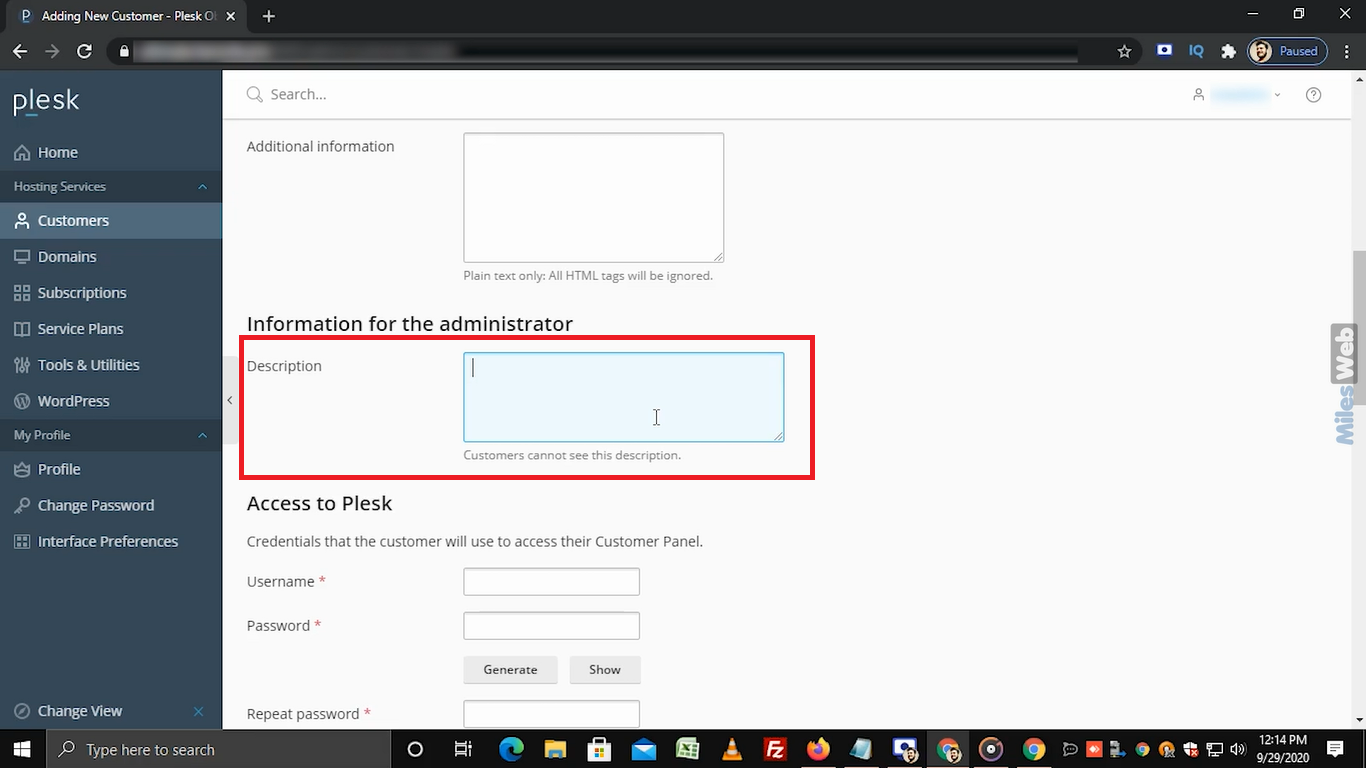
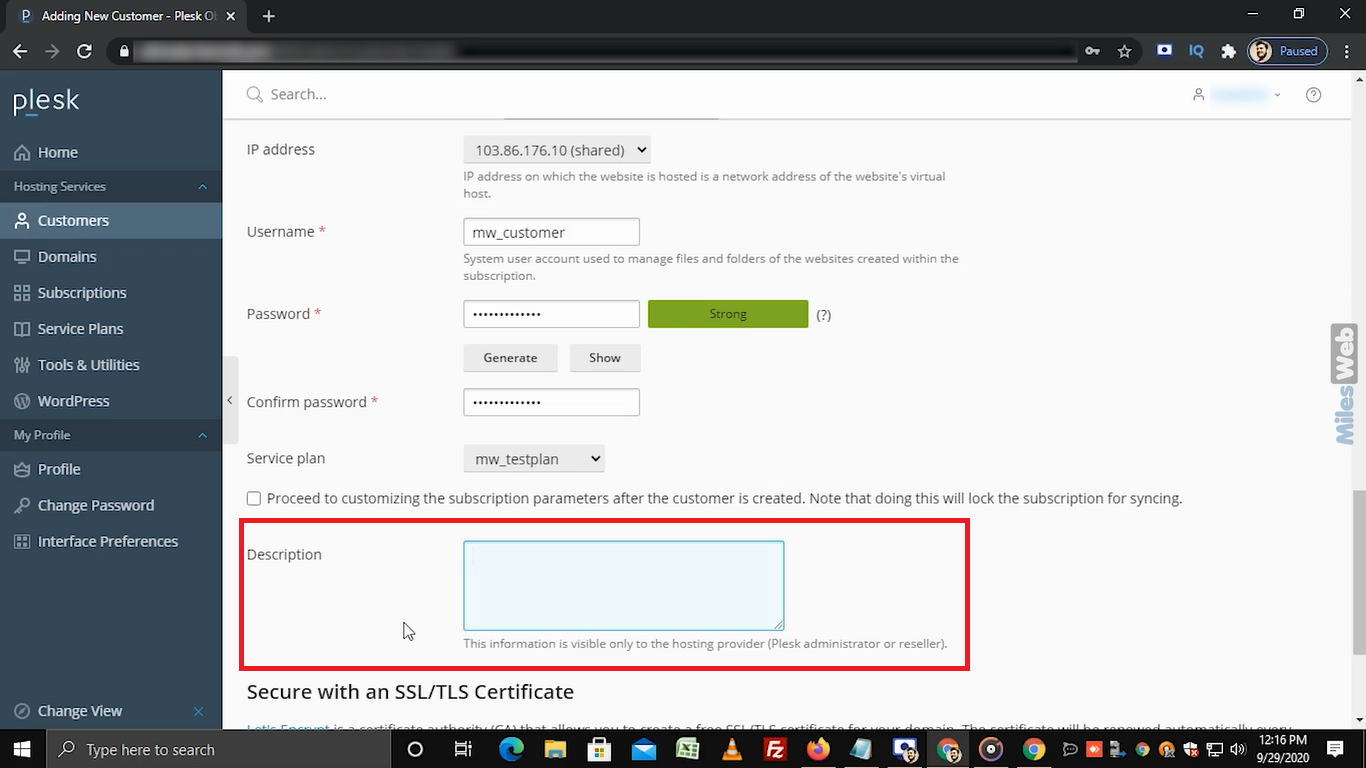
- Type a username for the customer.
- Type a password, or click Generate to let Plesk make a strong one. Write it down for later.
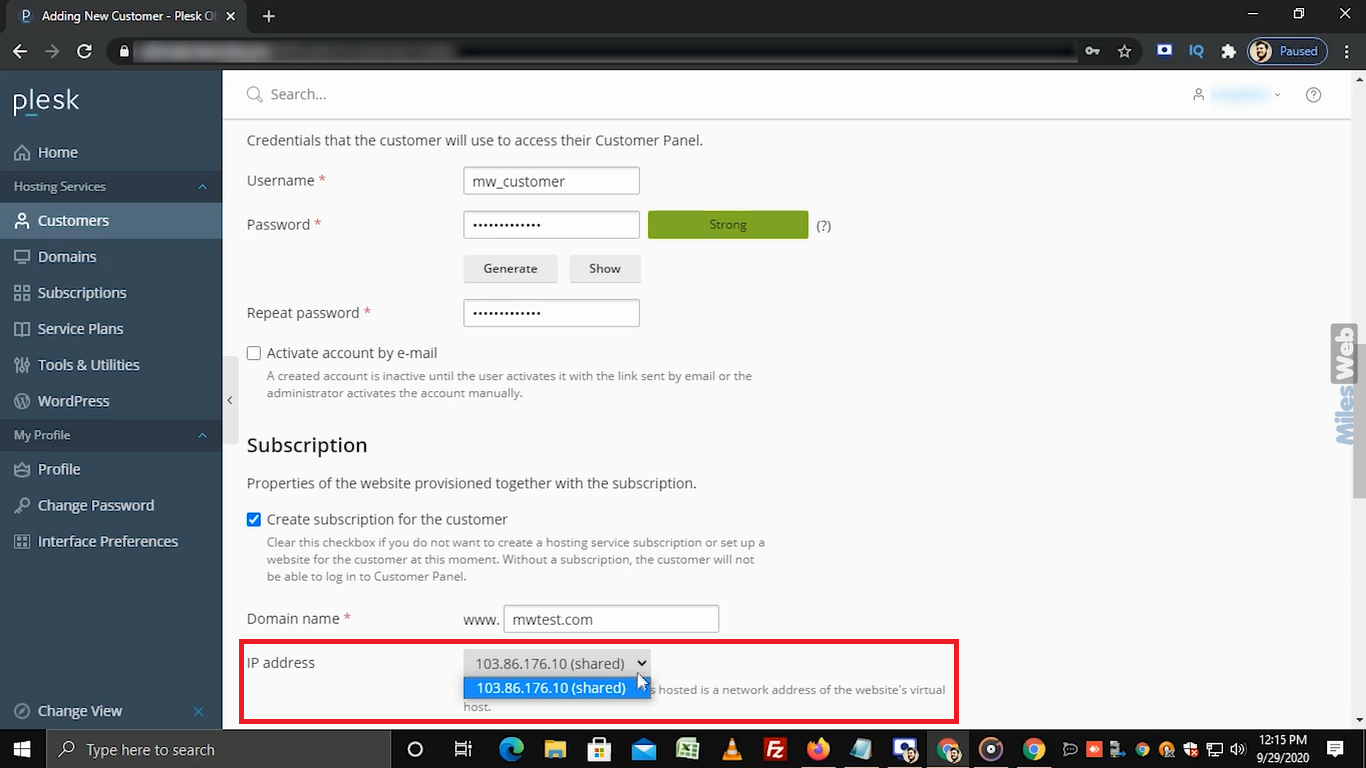
- To give the customer a website at once, tick the option to create a subscription. A subscription is a hosting package with its own space for one or more websites.
- Type the domain name for the website.
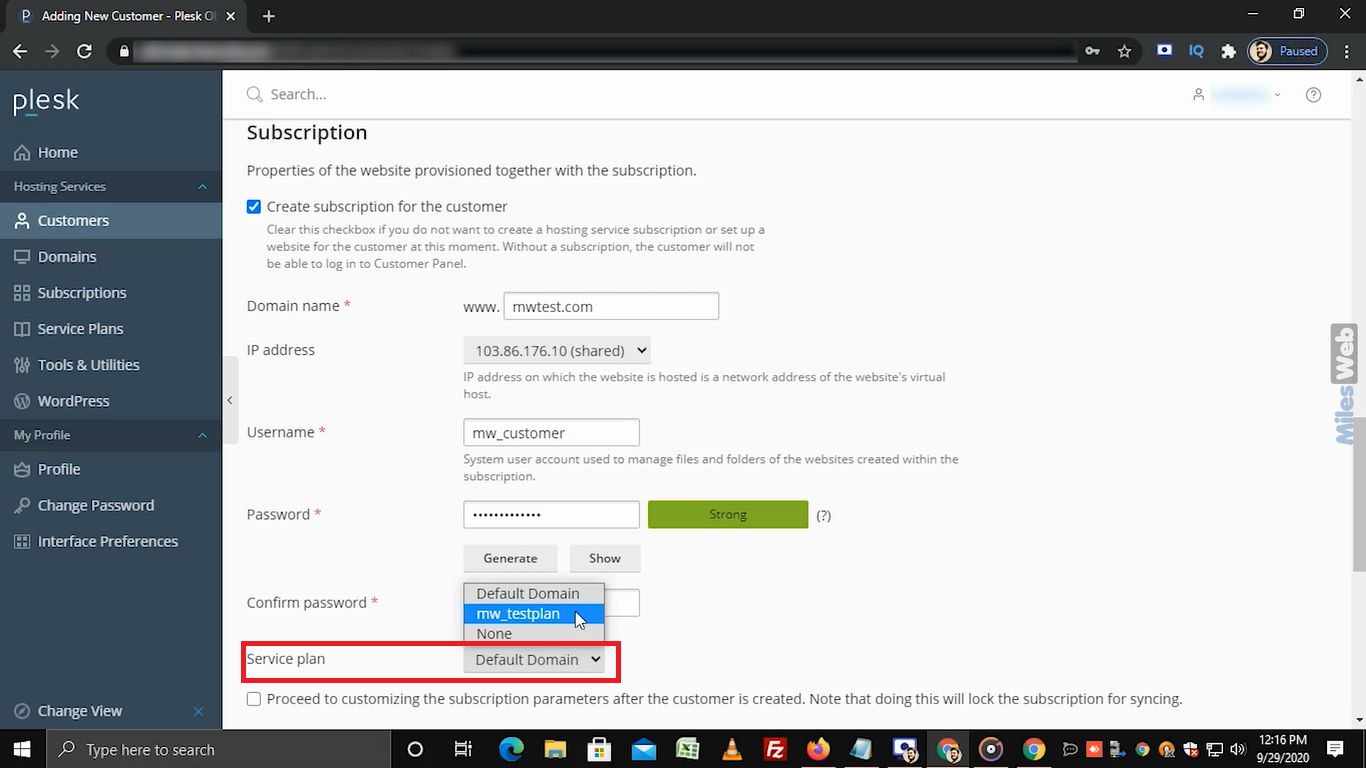
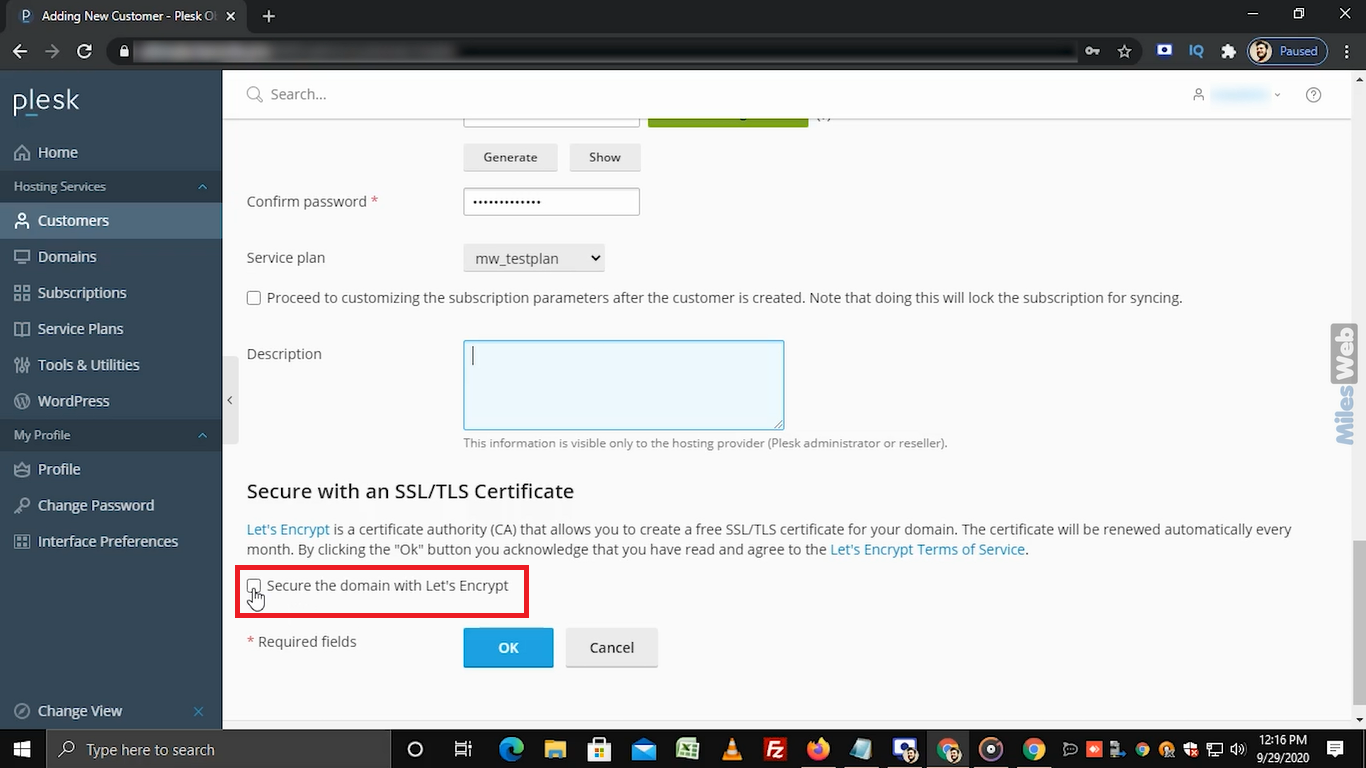
- Choose a service plan from the list. A service plan is a ready-made set of limits, such as space and email accounts.
- Click OK or Add.
Plesk now creates the account. The customer can log in with the username and password you set.
Send the login details
Tell the customer the login link, username and password. Ask them to change the password after the first login. Send passwords only in a safe way, not in a public chat.
Check the new customer
- Go back to Customers.
- Look for the new name in the list.
- Click it to see the subscription and settings.
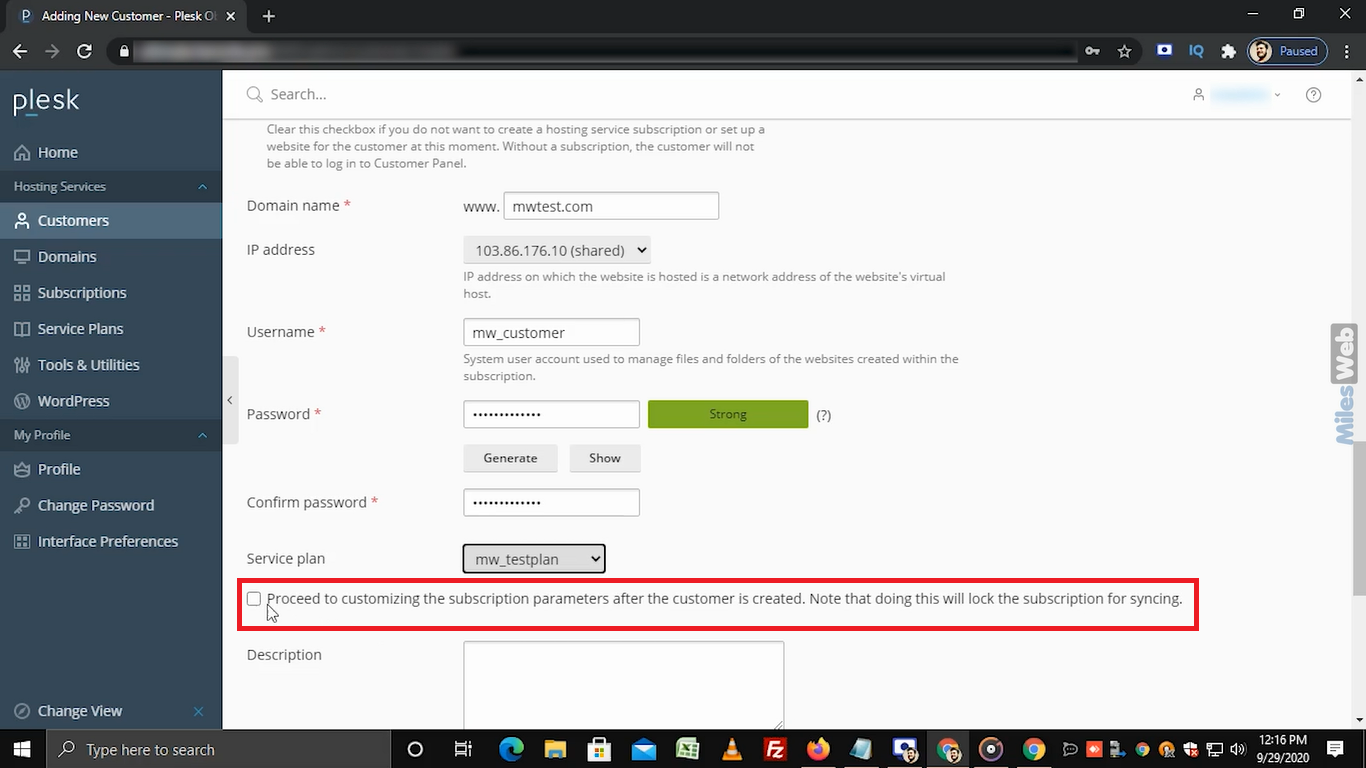
Tip: Make the service plans first, before adding customers. Then you can pick the right plan in one click.
If the button is missing, your account may not be a reseller account. Open a support ticket to check.
Quick recap
- A customer is a client who has their own login under your reseller account.
- Go to Customers and click Add a Customer.
- Fill in contact details, username and password.
- Pick a domain and a service plan to give them a website.
- Send the login details safely.