

What is password protection?
A directory is another word for a folder. Password protection puts a lock on a folder. When someone visits it, the browser asks for a username and password. It is like a door with a keypad.
This is useful for private files, a test version of a site, or an admin area.
Add password protection
- Log in to Plesk.
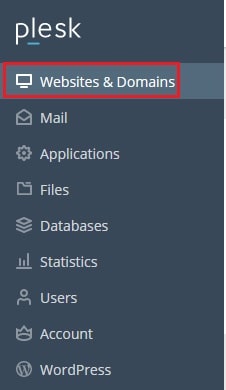
- Click Websites & Domains.
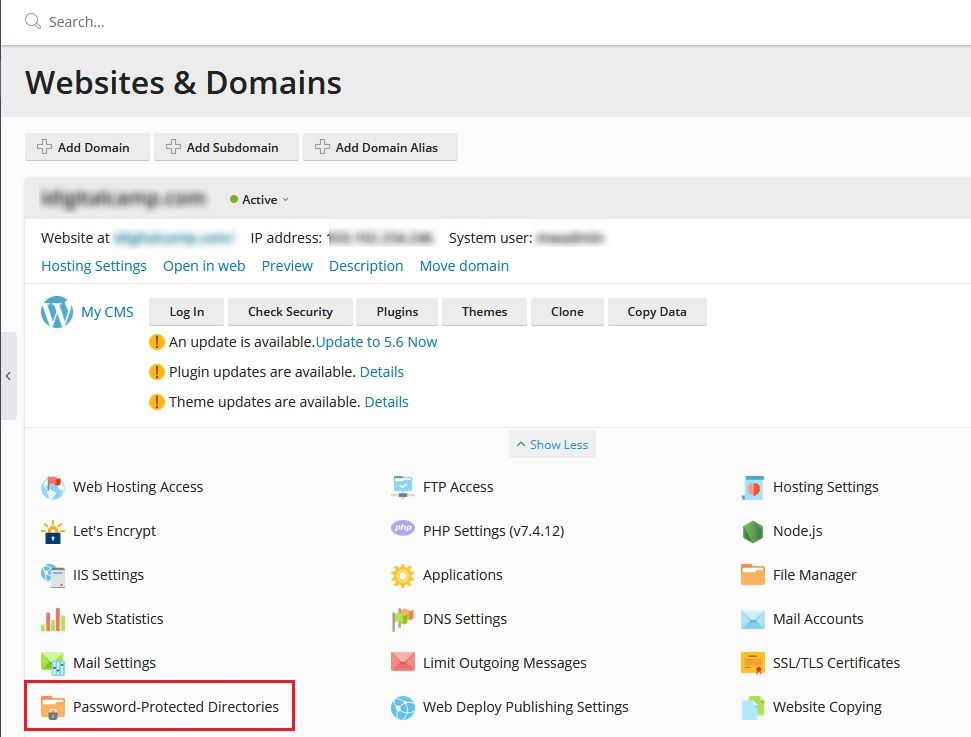
- Find your domain and click Password-Protected Directories.
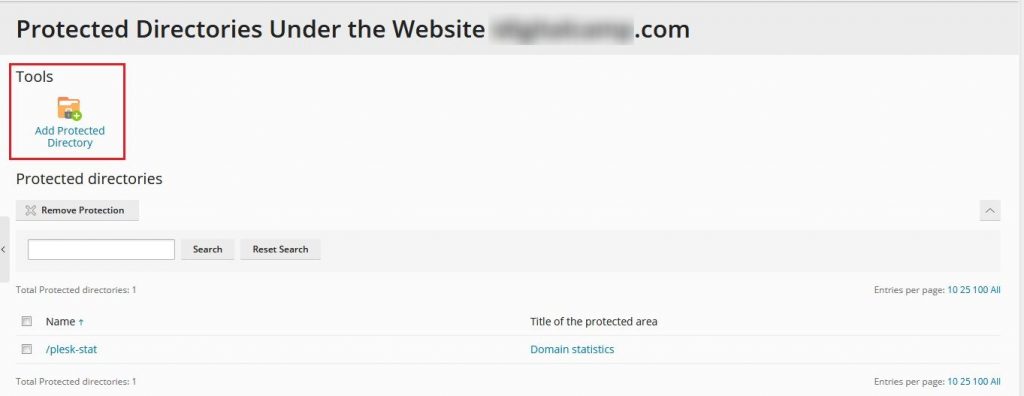
- Click Add Protected Directory.
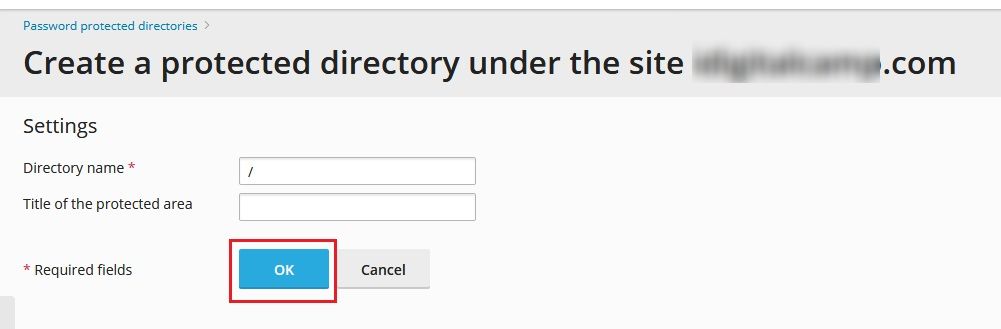
- In Directory name, type the folder path, for example
/private. Plesk makes the folder if it does not exist. - Type a short text in Header text of the authentication window. Visitors see it in the login box.
- Click OK.
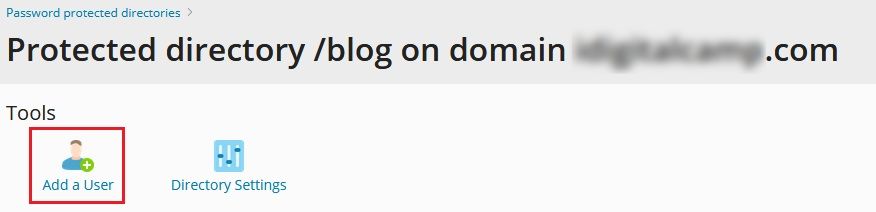
- Click the new folder name in the list.
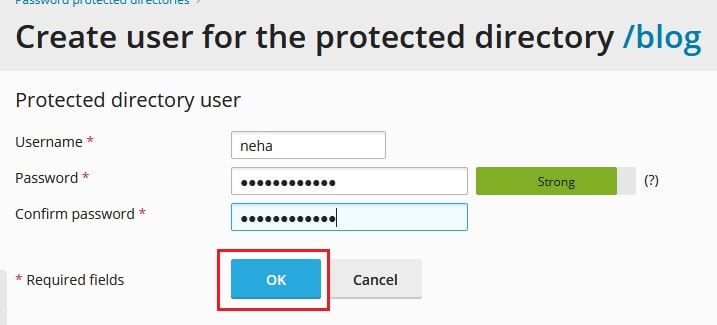
- Click Add User.
- Type a login name and a password. Use a strong password.
- Click OK.
Now open the folder in your browser. A box should ask for the name and password.
Add more users
Repeat steps 8 to 11 for each person. Each user gets their own name and password.
Remove password protection
Careful: after you remove it, anyone can open that folder. Check that the files inside are safe to show.
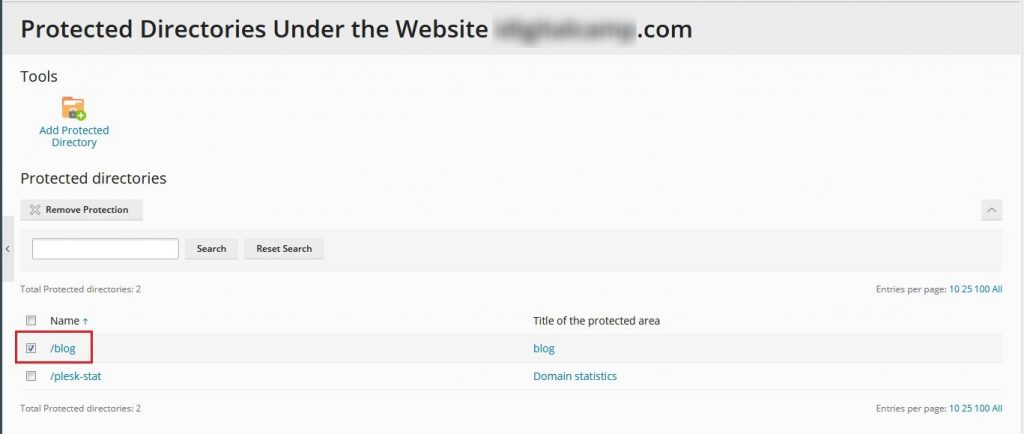
- Go to Websites & Domains, then Password-Protected Directories.
- Tick the box next to the folder.
- Click Remove Protection.
- Confirm when Plesk asks.
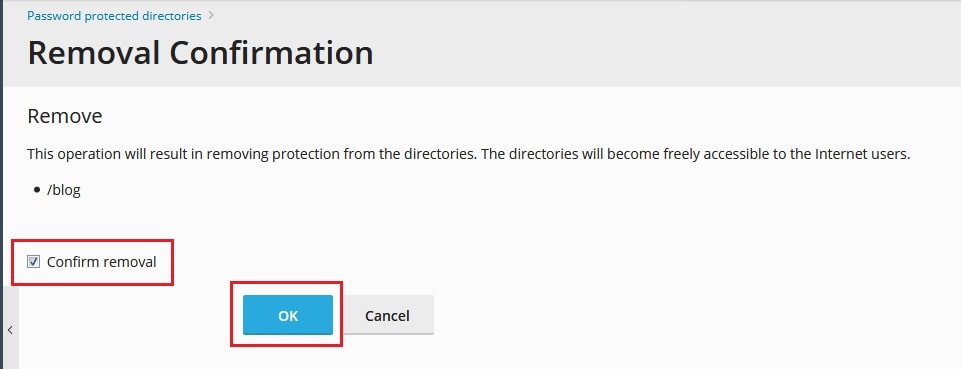
Your files stay in place. Only the lock is removed.
Tip: To block just one person, open the folder in the list and remove only that user. The lock stays for everyone else.
If the box does not appear, clear your browser cache or try a private window. You can also open a support ticket.
Quick recap
- A protected folder asks for a username and password.
- Add one under Password-Protected Directories, then add users.
- Remove it with Remove Protection. Your files stay.
- After removing it, the folder is open to everyone.