

What are permissions?
Every file and folder on your hosting has rules. The rules say who can do what. There are three actions:
- Read: look at the file.
- Write: change or delete the file.
- Execute: run the file as a program. For folders, it means going inside.
The rules apply to three groups: the owner, the group, and everyone else. Permissions are often shown as a number like 644 or 755. Each digit is one group. A bigger number gives more rights.
| Number | Meaning | Common use |
|---|---|---|
644 | Owner can read and write. Others can only read. | Normal files |
755 | Owner can do all. Others can read and run. | Folders |
Warning: wrong permissions can break your site. Never use 777, because it lets anyone change the file. Take a backup before you change many files.
Steps
- Log in to Plesk.
- Click Websites & Domains, then your domain.
- Click File Manager.
- Open the folder that holds your file.
- Find the file or folder. The list may have a Permissions column. Click the permission text in that row.
- If you do not see it, click the small menu next to the file name and choose Change Permissions.
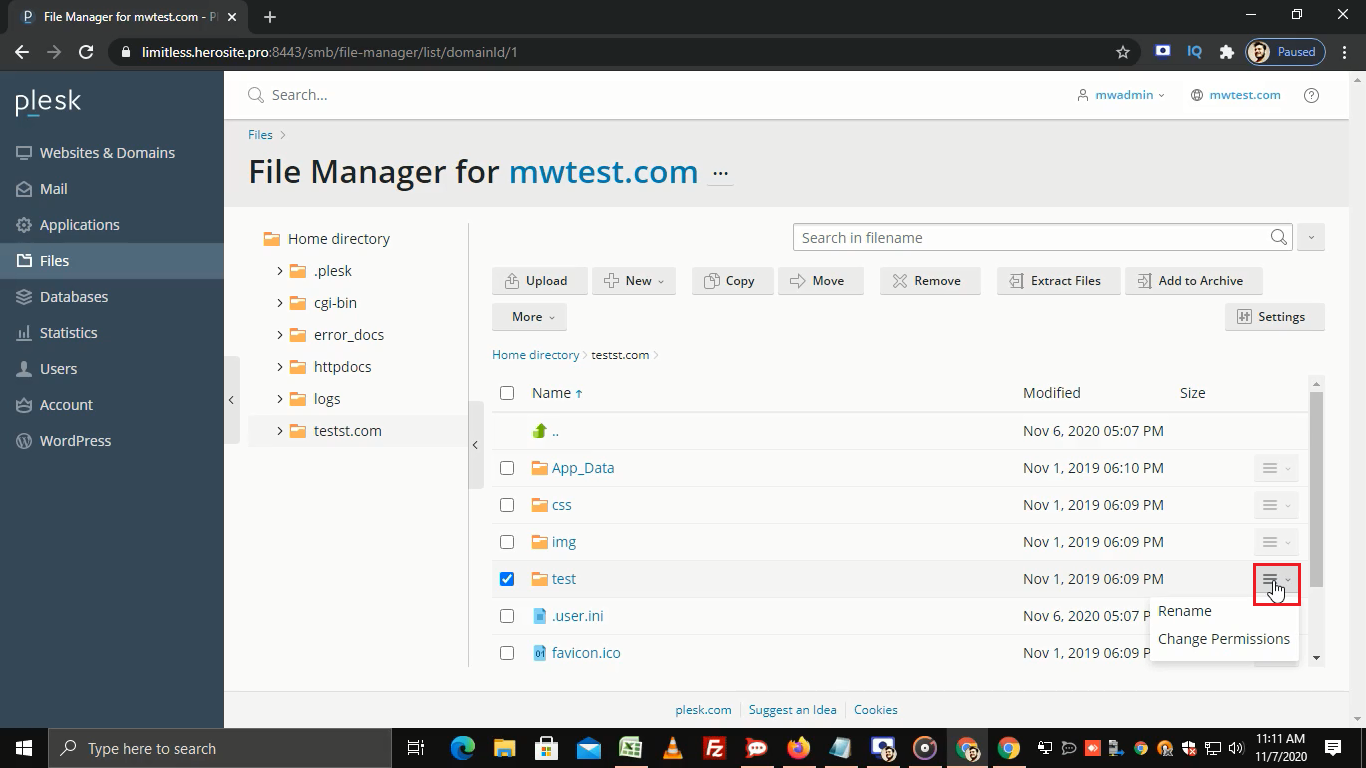
- Tick the boxes you need for Read, Write and Execute. Do this for each group.
- To apply the change to everything inside a folder, tick Apply to subdirectories and files if you see it.
- Click OK.
Check the result
Look at the Permissions column again. It should show the new setting. Then open your website and test it.
Tip: If a site shows a "403 Forbidden" error or cannot upload files, wrong permissions are often the cause. Try
644 for files and 755 for folders.Not sure what to pick? Open a support ticket and ask.
Quick recap
- Permissions control who can read, write or run a file.
- Open File Manager and change them on the file's row.
- Use
644for files and755for folders in most cases. - Avoid
777, and back up first.