

What are PHP settings?
PHP is a language that many websites use, such as WordPress. PHP has settings, also called parameters. They set limits like how much memory a script may use, how big an uploaded file can be, and how long a script may run. Plesk Obsidian is a version of the Plesk control panel.
The settings you will meet most often:
| Setting | What it does |
|---|---|
memory_limit | Most memory one script can use |
upload_max_filesize | Largest file you can upload |
post_max_size | Largest amount of data sent in one form |
max_execution_time | Seconds a script may run |
Hosting plans can set top limits. If a value will not go higher, ask Hostvento support.
Steps
- Log in to Plesk.
- Click Websites & Domains.
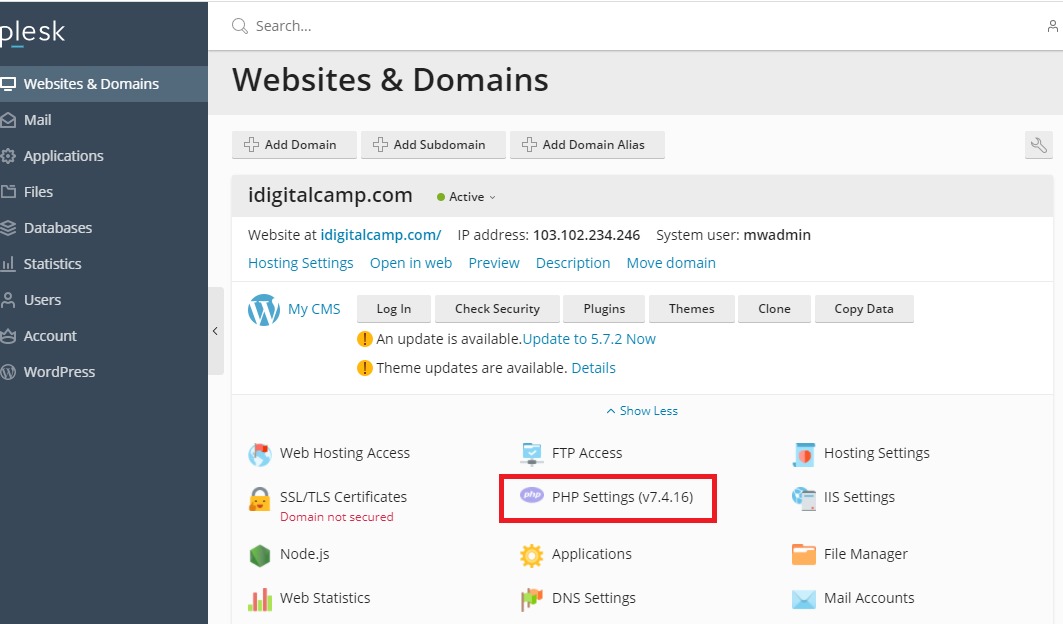
- Find your domain and click PHP Settings.
- Check the PHP version at the top. Change it only if you know your site works with the new one.
- Scroll to the list of settings. Many have a box or a drop-down list.
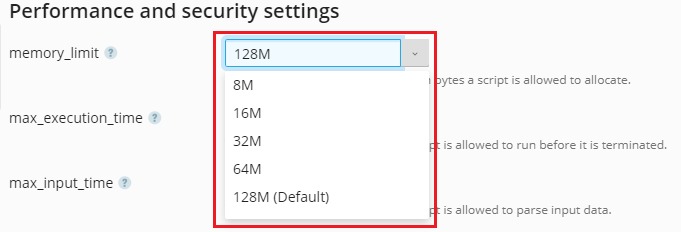
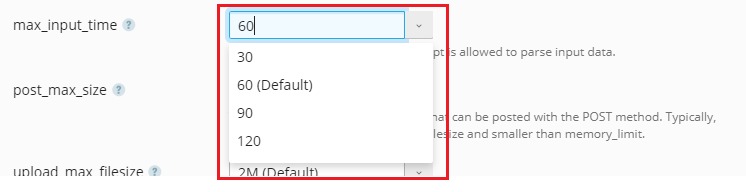
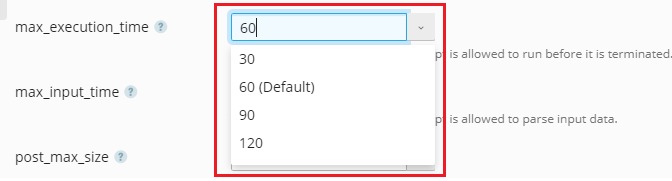
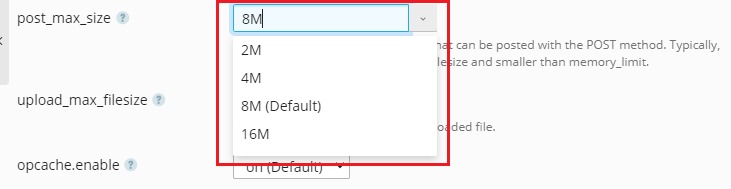
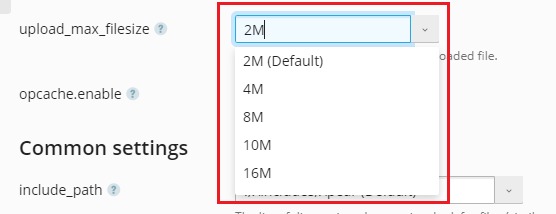
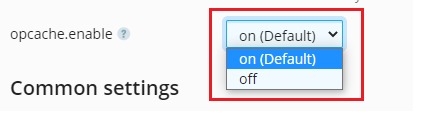
- Change the value you need. For example, set
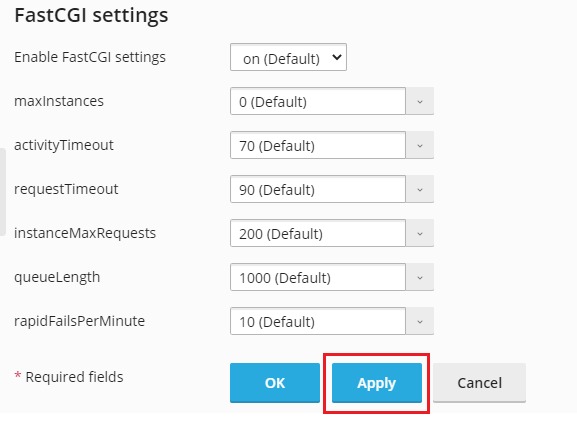
memory_limitto256M. The letter M means megabytes. - Scroll to the bottom and click OK. Click Apply if you want to stay on the page.
Add a setting by hand
If a setting is not in the list, look for the box named Additional configuration directives. You can type extra lines there, one per line:
display_errors=off
date.timezone=Asia/Kolkata
These lines turn off error display on the page, and set the time zone. Use only settings you understand. A wrong line can break your site. Take a backup first.
Test your change
- Reload your website.
- Try the action that failed before, such as a big upload.
Tip: To see the live values, make a file named
info.php with <?php phpinfo(); ?> in it. Open it in your browser. Delete the file after you check, because it shows private details.Need help? Open a support ticket.
Quick recap
- PHP settings set limits for your PHP scripts.
- Change them in PHP Settings under your domain.
- Use the extra directives box for settings not in the list.
- Back up first, test after, and delete
info.phpwhen done.