

What is gzip?
Gzip squeezes files before they are sent, like packing clothes into a vacuum bag. The browser opens the bag on arrival. Smaller files travel faster, so your site feels quicker and uses less bandwidth. Bandwidth is the amount of data your site sends out.
Nginx is a web server. It is the program that sends your pages to visitors. Plesk can use Nginx alone, or in front of Apache. Gzip works well on text files such as HTML, CSS and JavaScript. It does not help much on images, which are already small.
Warning: wrong Nginx lines can stop your site from working. Take a backup first. If the site breaks, remove the lines you added.
Steps in Plesk
- Log in to Plesk.
- Click Websites & Domains.
- Find your domain and click Apache & nginx Settings.
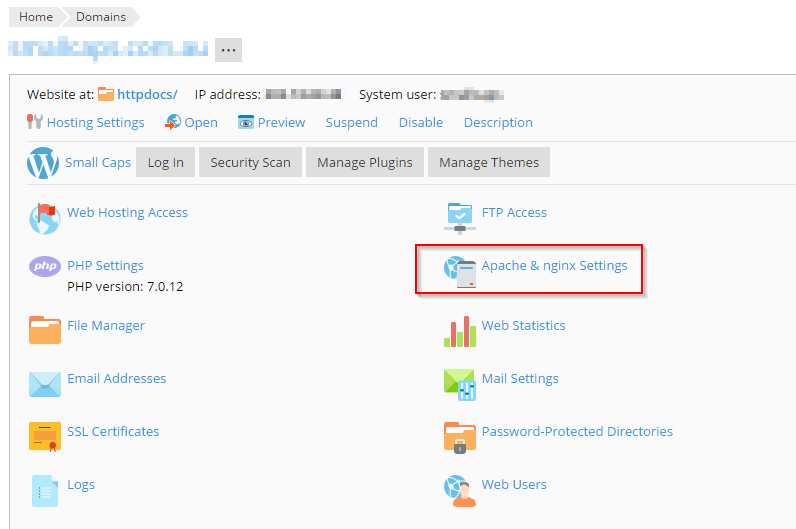
- Scroll to the Additional nginx directives box.
- Type these lines:
gzip on;
gzip_comp_level 5;
gzip_min_length 256;
gzip_types text/plain text/css application/json application/javascript text/xml application/xml image/svg+xml;
The lines turn gzip on, set the squeeze level to 5 out of 9, skip very tiny files, and list the file types to compress.
- Click OK or Apply.
Nginx settings here only affect this one domain. Other sites on the server are not changed.
Check that it works
- Open your site in Chrome.
- Press F12 to open the developer tools.
- Click the Network tab and reload the page.
- Click a CSS or JavaScript file.
- Look in the response headers for
content-encoding: gzip.
You can also use a free online gzip test tool. Type your site address into it.
If you see an error
- A line may be repeated. Plesk may already turn gzip on. Remove your duplicate line.
- Check that each line ends with a semicolon.
Need help? Open a support ticket.
Quick recap
- Gzip shrinks text files so pages load faster.
- Add the lines in Apache & nginx Settings under Additional nginx directives.
- Check for
content-encoding: gzipin the Network tab. - Back up first, and remove the lines if the site breaks.