

What is a spam filter?
A spam filter is like a guard at the door of your mailbox. It reads each new message and gives it a score. A high score means "probably junk". Plesk commonly uses a tool named SpamAssassin for this. Ask Hostvento support if it is on your plan.
Turn it on for the whole domain
- Log in to Plesk.
- Click Mail in the left menu. Or open Websites & Domains, then your domain, then Mail.
- Click the Spam Filter tab. If you see Mail Settings, open your domain there and look for spam options.
- Tick Switch on spam filtering.
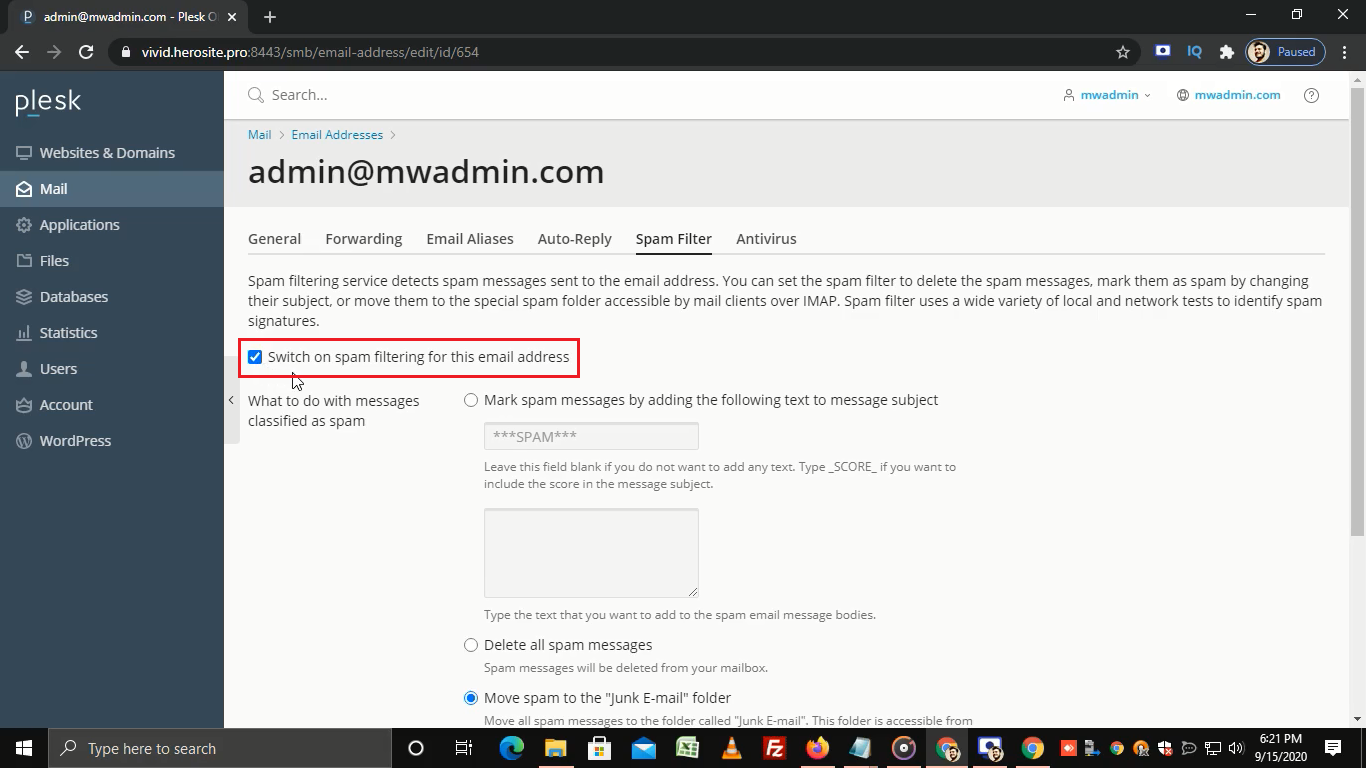
- Choose what to do with spam. You usually have these choices:
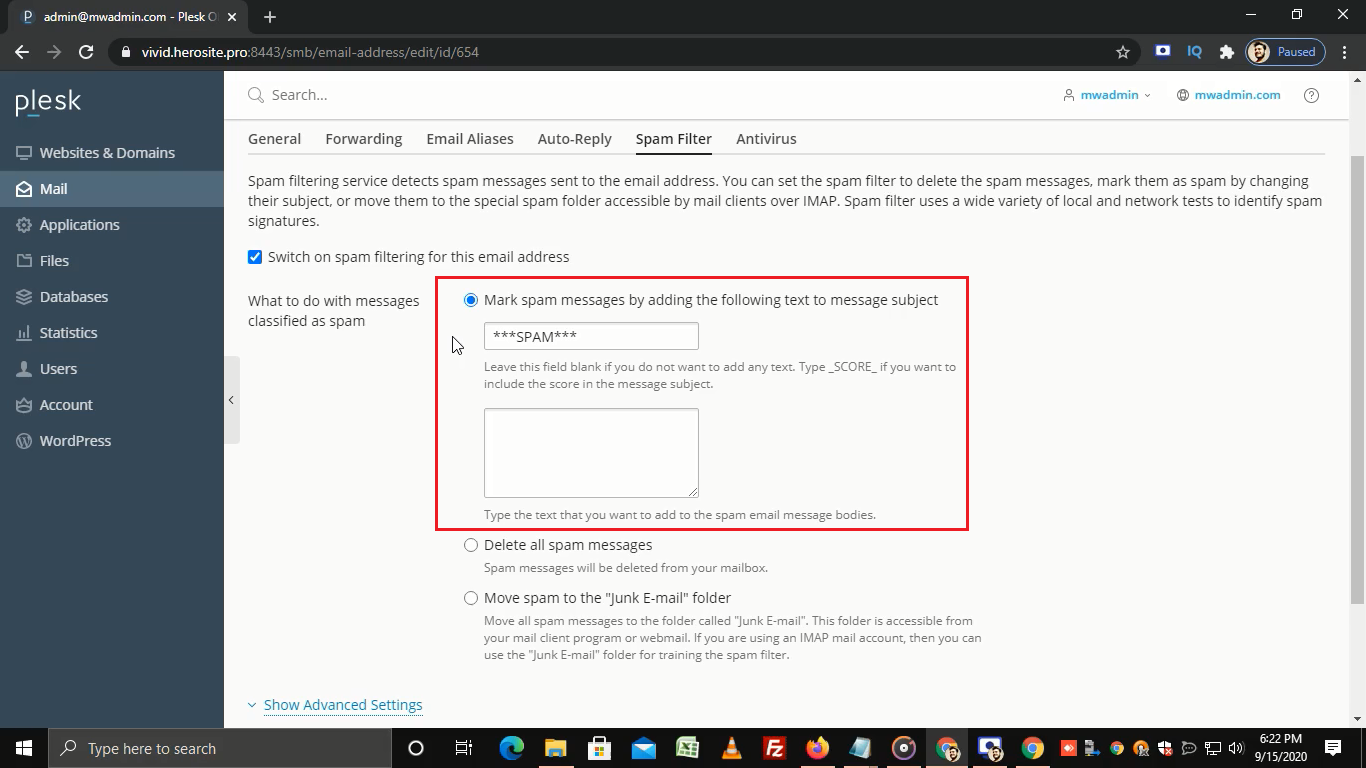
- Mark messages as spam: adds a label like "***SPAM***" to the subject. The mail still arrives.
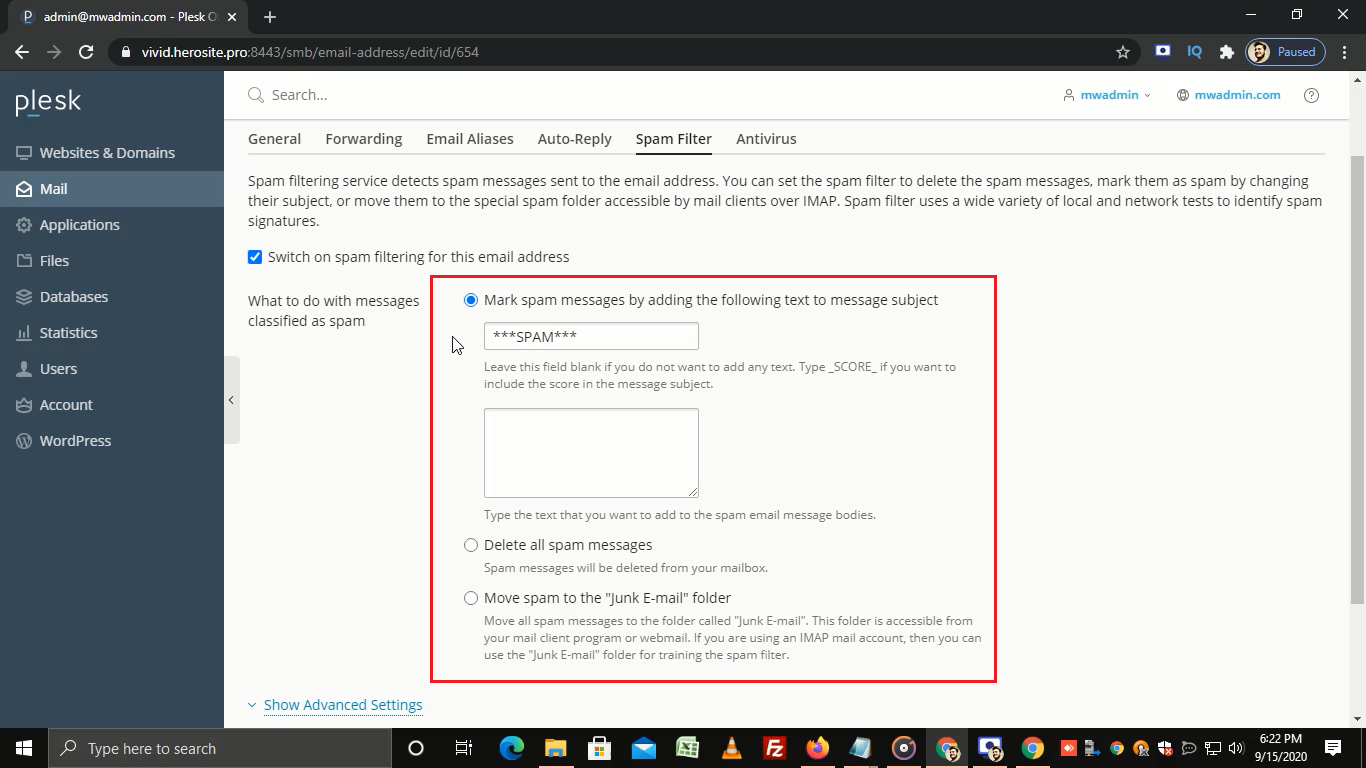
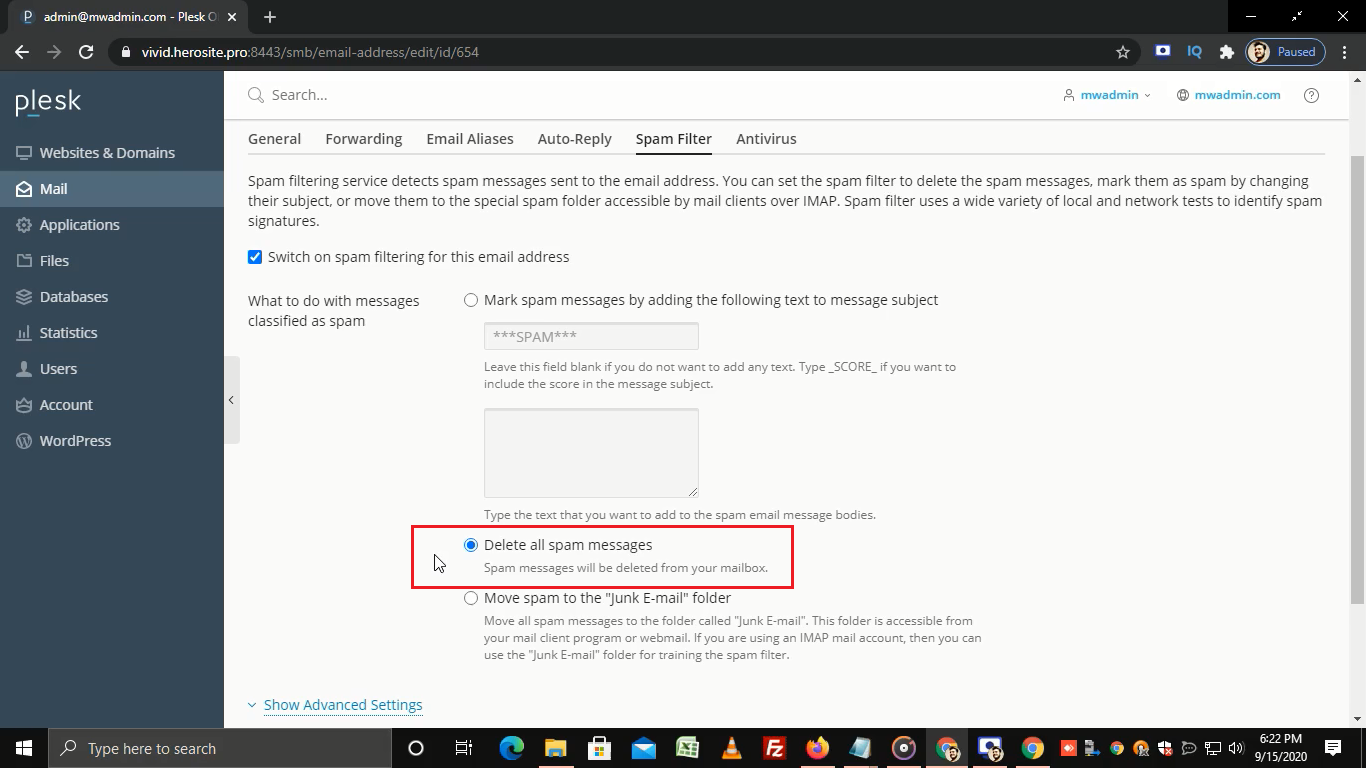
- Delete spam: removes it at once. Be careful, because good mail can be removed by mistake.
- Move to Spam folder: keeps it in a folder you can check.
- Mark messages as spam: adds a label like "***SPAM***" to the subject. The mail still arrives.
- Set the spam filter sensitivity. A lower number catches more spam but may block good mail. A higher number is safer for real mail. If you are not sure, keep the default.
- Click OK.
Warning: do not choose "Delete" on day one. Pick "Move to Spam folder" first, and check it often.
Turn it on for one mailbox
- Open Mail.
- Click the email address.
- Open the Spam Filter tab.
- Tick the box to turn it on, and save with OK.
Block or allow senders
In the same Spam Filter area, you can add a Blacklist and a Whitelist. A blacklist holds senders you always want to block. A whitelist holds senders you always trust. Add email addresses or whole domains such as *@example.com.
Tip: If a good email lands in spam, add the sender to your whitelist. Check your Spam folder once a week.
Need help? Open a support ticket.
Quick recap
- A spam filter scores each email and handles the junk.
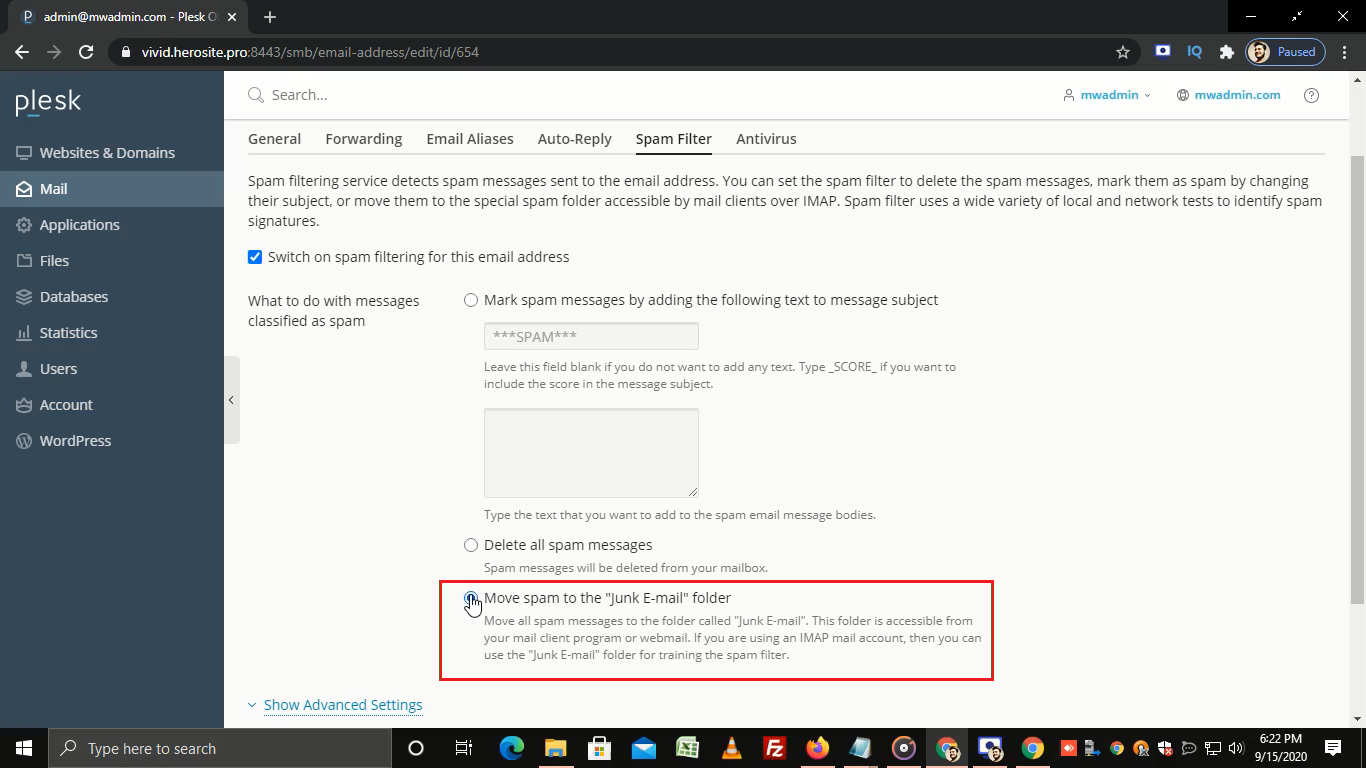
- Switch it on under Mail, then Spam Filter.
- Start by moving spam to a folder instead of deleting it.
- Use the whitelist for senders you trust.