

What do these words mean?
- Java is a programming language. Some websites and business tools are built with it.
- Tomcat is a program that runs Java web apps. It is the engine, and your app is the car.
- A WAR file is a single package that holds a whole Java web app. It has the ending
.war.
Java hosting is not on every plan. Plesk needs a Tomcat or Java extension to be installed on the server. On a VPS or dedicated server you have root rights, so you can add it yourself from Extensions. On shared hosting, ask Hostvento support if Java is available for you.
Before you start
- Have your
.warfile ready on your computer.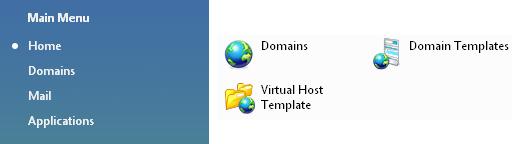
- Take a backup if you will replace an app that is already running.
Step 1: Make sure Tomcat is on
- Log in to Plesk.
- Click Extensions in the left menu.
- Look for a Tomcat or Java extension in the list of installed ones.
- If it is missing, open the extension catalog, search for Tomcat and click Install. (Root rights needed.)
Step 2: Turn on Java for your domain
- Click Websites & Domains.
- Find your domain and click Tomcat or Java. The name depends on your version.
- Click Switch On or Enable.
Step 3: Upload the app
- On the same page, find Web Applications or Applications.
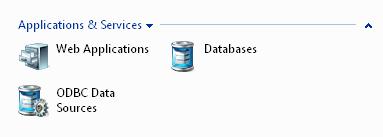
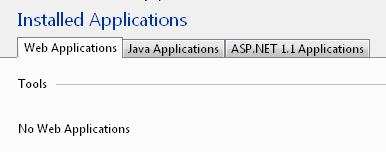
- Click Upload Application, or Install.
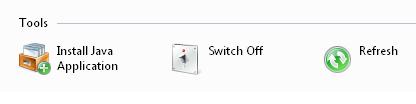
- Click Choose File and select your
.warfile. - Click OK.
Plesk unpacks the file and starts the app. The app appears in the list with a green status when it runs.
Step 4: Open the app
Click the app name in the list, or type this in your browser:
http://yourdomain.com:8080/appname/This opens the app on Tomcat's usual port 8080. The exact address depends on your setup. If the app does not load, check the status in the list, and use the start or restart button.
Tip: If the app fails to start, check the Tomcat log file in Plesk. It often names the problem, such as a wrong Java version.
Need help? Open a support ticket.
Quick recap
- Java apps run on Tomcat and come as a WAR file.
- Tomcat must be installed and switched on for your domain.
- Upload the WAR file under the Tomcat page, in Web Applications.

- Check the status and the logs if the app does not start.