

What is an SSL certificate?
An SSL certificate is a digital ID card for your website. It proves your site is real and hides the data that moves between the visitor and the site. A site with a certificate shows a padlock in the browser and an address that starts with https.
When you get a certificate, you usually receive these parts:
- The certificate file. Its name often ends in
.crt. - The private key. It is a secret file made together with your request. Never share it.
- The CA bundle (also called the chain). It links your certificate to the company that issued it.
Step 1: Make a request (CSR)
A CSR is a coded request that you send to the certificate company. Plesk makes it for you.
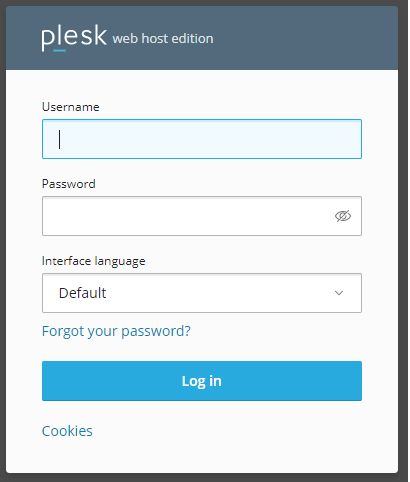
- Log in to Plesk.
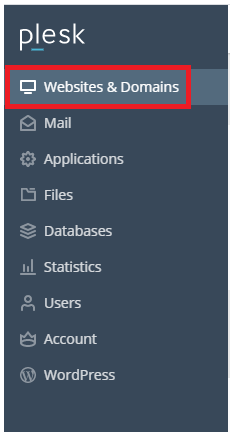
- Click Websites & Domains, then your domain.
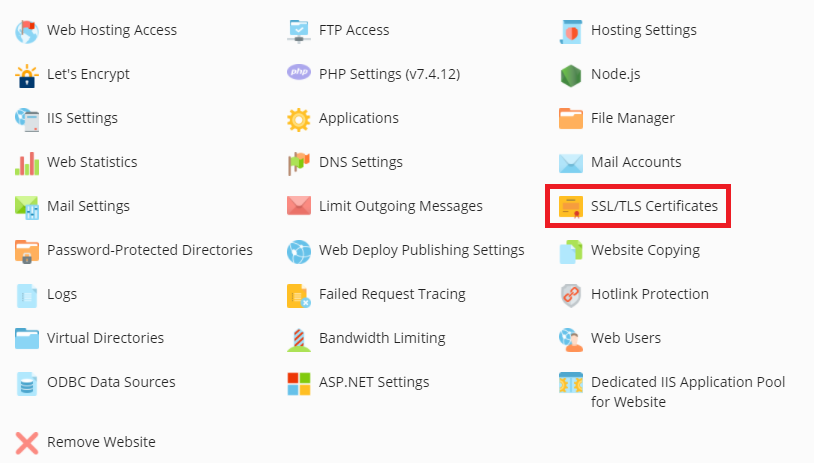
- Click SSL/TLS Certificates.
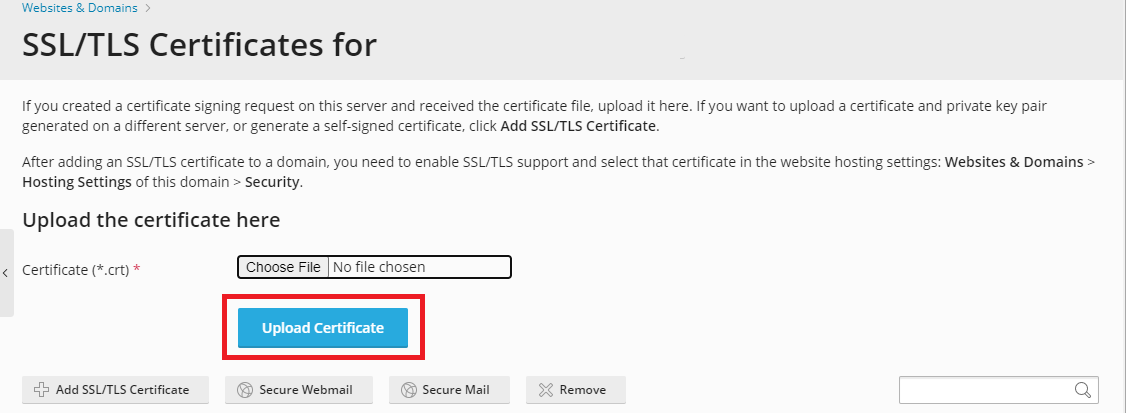
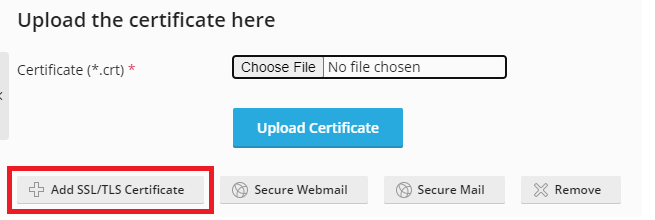
- Click Add SSL/TLS Certificate.
- Type a name for the certificate.
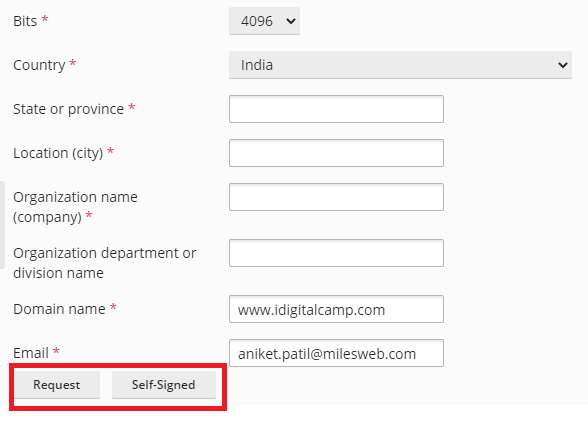
- Fill in the form. Use your real domain name, and a real country and organisation.
- Click Request.
- Open the new item in the list and copy the CSR text. Send it to the company you buy from.
Step 2: Install the certificate
After the company sends your files, do this.
- Open SSL/TLS Certificates for the domain.
- Click the name of the certificate you made in step 1.
- Find the section for uploading the files.
- Under Certificate, upload the
.crtfile, or paste its text.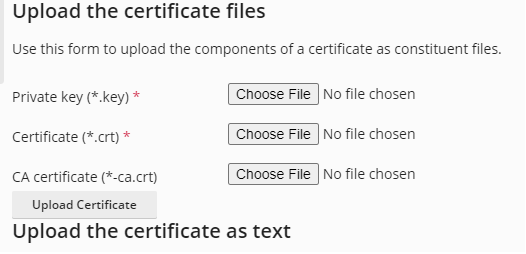
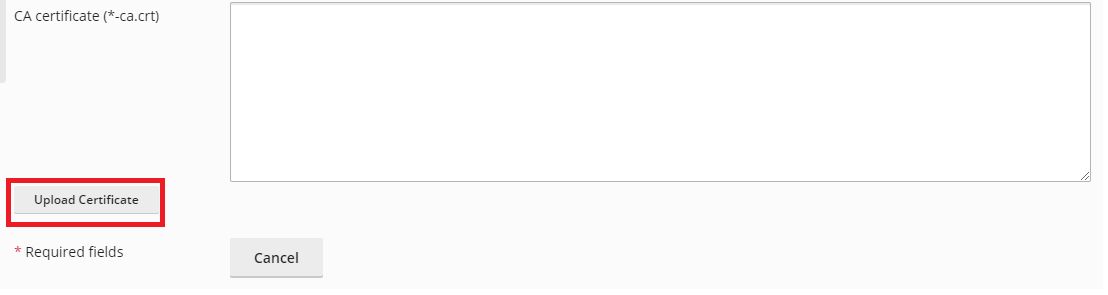
- Under CA certificate, upload the bundle file.
- Click Upload Certificate or Reload.
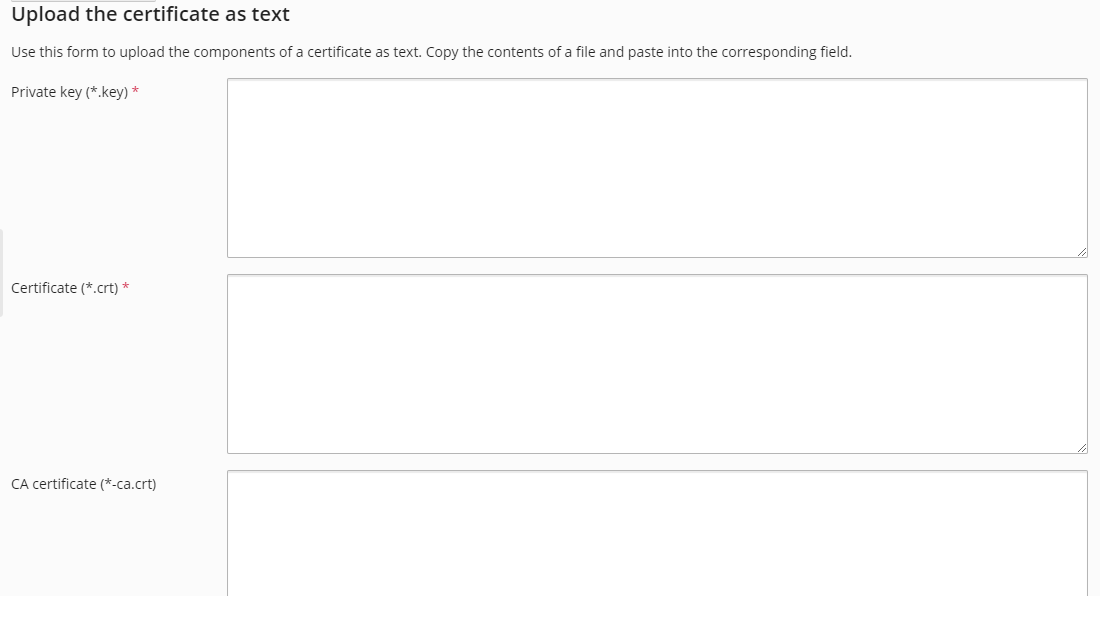
If you already have the private key, use the form to upload the key, the certificate and the bundle all together instead.
Step 3: Use it for your website
- Go back to Websites & Domains.
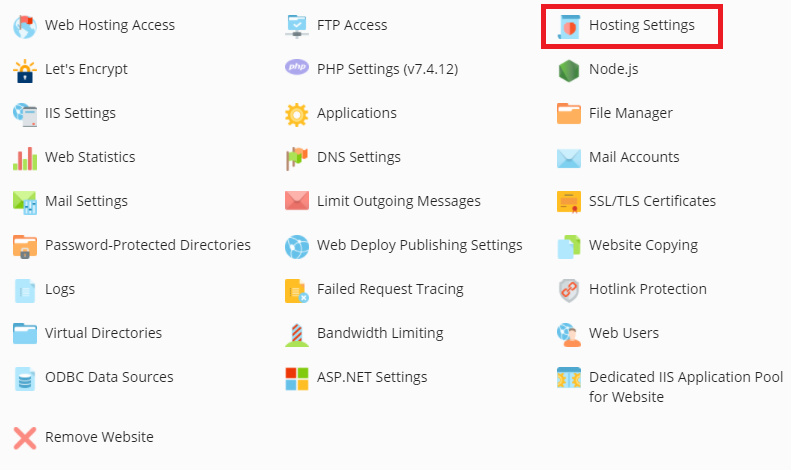
- Click Hosting Settings for your domain.
- Find Certificate and choose the new one.
- Tick SSL/TLS support.
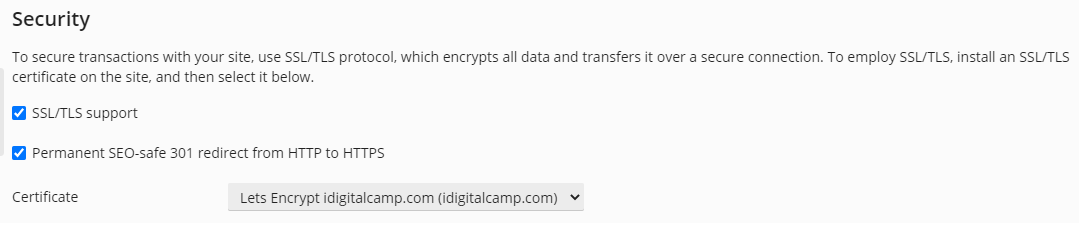
- Tick the option to redirect visitors from http to https if it is there.
- Click OK.
Open your site with https:// and check for the padlock.
Tip: If you only want a free certificate, Plesk can get a Let's Encrypt one for you. Ask Hostvento support what suits your plan.
Need help? Open a support ticket.
Quick recap
- A certificate gives your site https and a padlock.
- Make a CSR in Plesk, then send it to the certificate company.
- Upload the certificate and the bundle.
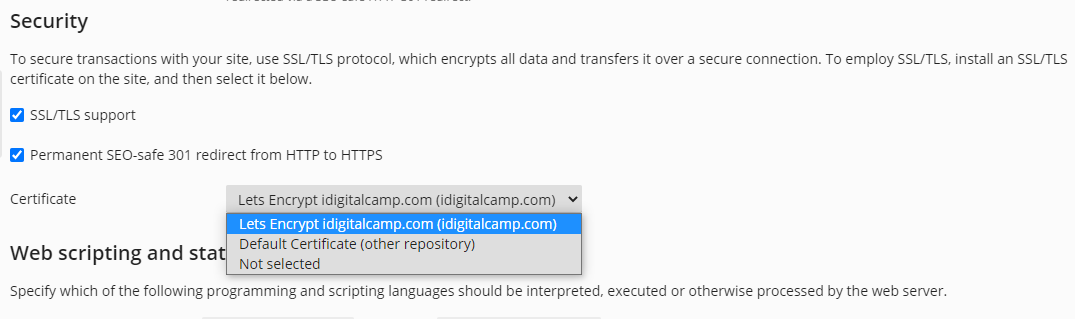
- Select the certificate in Hosting Settings.