

What is an SSL certificate?
An SSL certificate is like a sealed envelope for your website. It hides the data that travels between your visitors and your site. Sites with SSL show a padlock and start with https://.
Plesk is a control panel. A control panel is a web page where you manage your hosting. SSL It! is an extension, which is a small add-on for Plesk. It gets a free certificate from Let's Encrypt, a trusted free certificate provider.
Your domain must already point to your hosting before this works. If you are not sure the extension is on your plan, ask Hostvento support.
Steps
- Log in to your Plesk panel. Your welcome email has the link and login details.
- Click Websites & Domains in the left menu.
- Find your domain. Click SSL/TLS Certificates under it.
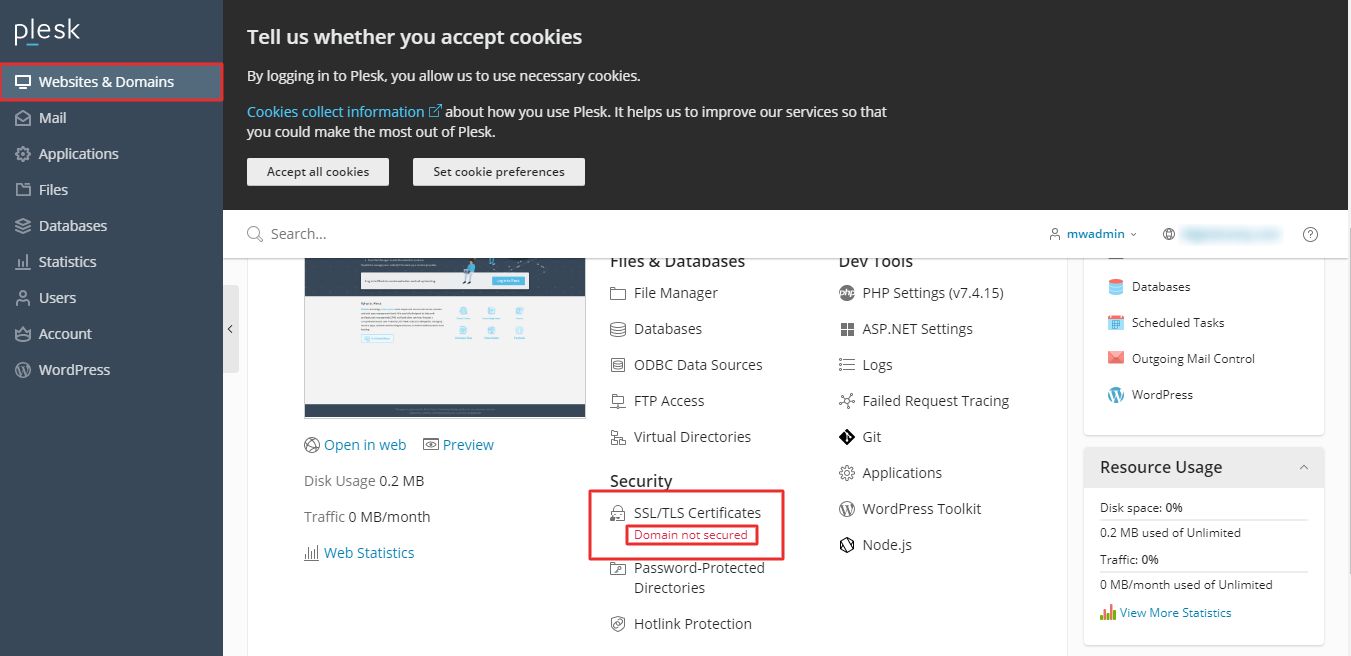
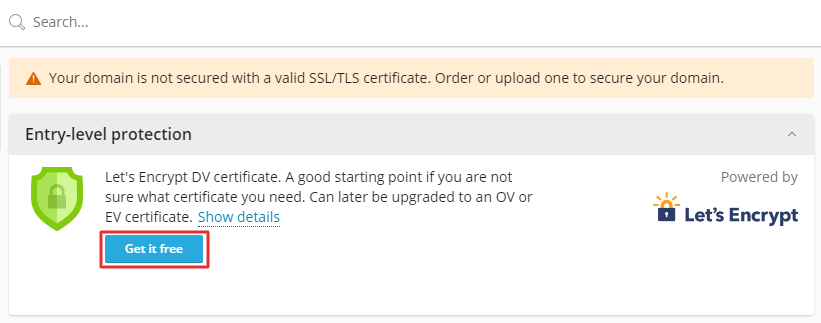
- Look for the SSL It! button and click it. If you do not see it, open Extensions and check that SSL It! is installed.
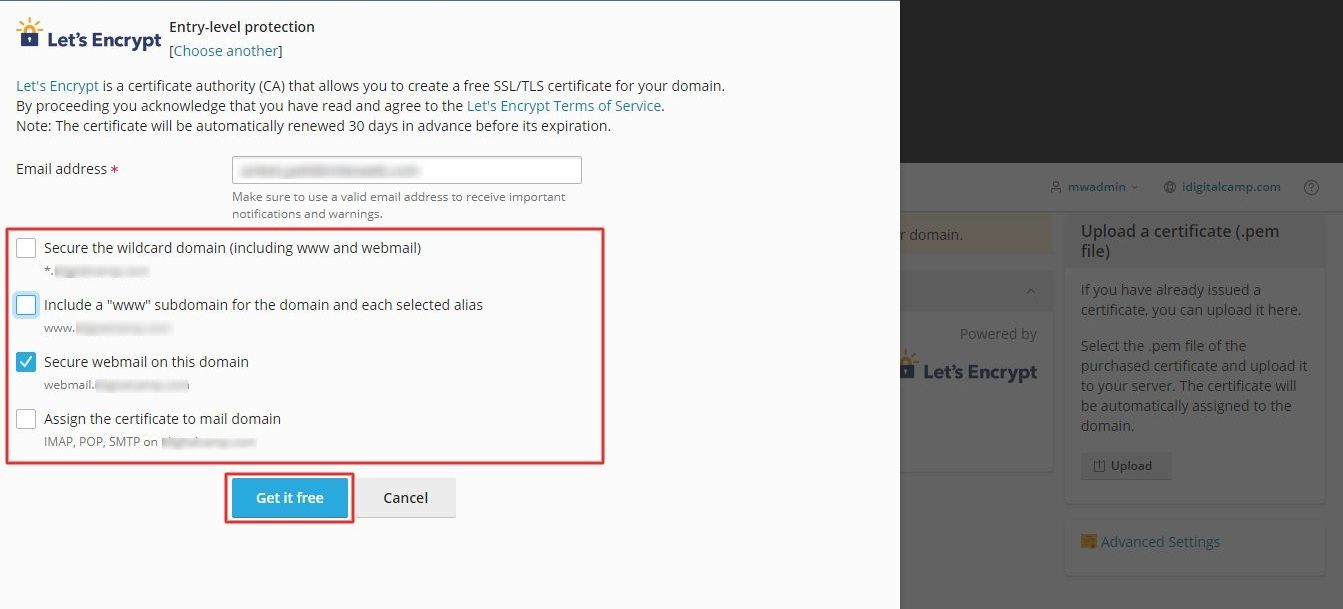
- Type your email address. The certificate provider uses it to send you warnings.
- Tick the box to secure the
wwwversion of your domain too. - Tick the box to include the webmail address if you use email on this domain.
- Click Get it free. Wait a few moments.
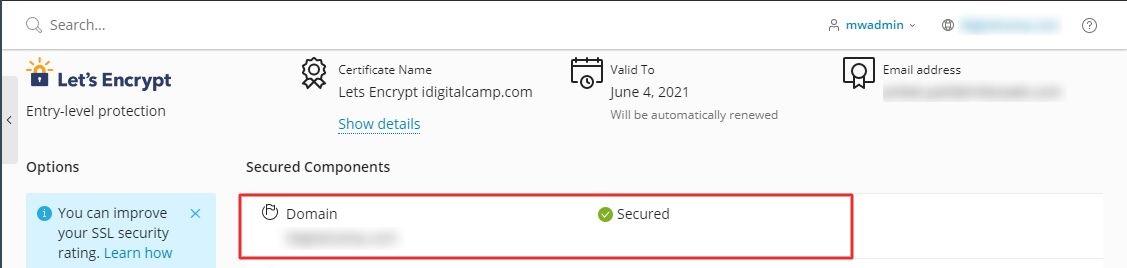
- When Plesk says the certificate was issued, open your site with
https://in the address bar.
Tip: Free certificates last a short time. SSL It! usually renews them for you. Check back once in a while to be sure.
If it fails
- Check that your domain points to your Hostvento hosting. The certificate provider must be able to reach your site.
- Check that no redirect or firewall blocks the domain.
- Wait a few hours after changing DNS. DNS is the internet's phone book, and changes take time to spread.
Still stuck? Open a support ticket.
Quick recap
- SSL gives your site a padlock and keeps data private.
- Go to Websites & Domains, then SSL/TLS Certificates.
- Click SSL It!, enter your email, and click Get it free.
- Test your site with
https://. - Ask support if the extension is missing.