

What is an SSL redirect?
SSL is a way to lock the data between a visitor and your website. Sites with SSL start with https:// and show a padlock. A redirect is a sign that sends people from one address to another. An SSL redirect sends visitors from http:// to https:// without them noticing.
Plesk is a control panel, a web page where you manage your hosting. You need an SSL certificate on your domain first. If you do not have one, install one before you start.
Steps
- Log in to Plesk.
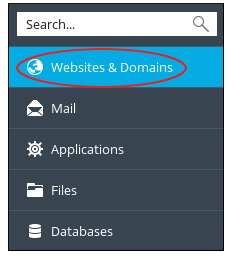
- Click Websites & Domains.
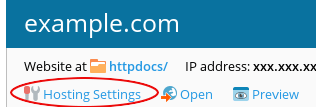
- Click Hosting Settings under your domain.
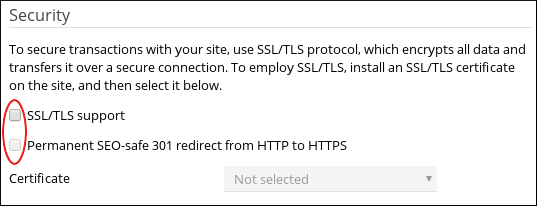
- Find the Security section.
- Tick SSL/TLS support.
- Choose your certificate from the list if asked.
- Tick Permanent SEO-safe 301 redirect from HTTP to HTTPS.
- Click OK or Apply.
Test it
- Open a private browser window.
- Type
http://yourdomain.com. - Check that the address changes to
https://and the padlock appears.
If the page shows an error
- A "too many redirects" error can mean another redirect rule fights this one. Check your
.htaccessfile or any plugin that forces HTTPS. - If the padlock shows a warning, some images or scripts may still load with
http://. Change those links tohttps://. - If the browser says the certificate is wrong, check that it matches your domain.
Tip: Warning: if you turn the redirect on with no valid certificate, visitors see a scary error. Install the certificate first and test the site.
Need help? Open a support ticket.
Quick recap
- An SSL redirect sends visitors to the secure site.
- Install a certificate first.
- In Hosting Settings, tick the 301 redirect option.
- Test in a private window.
- Fix mixed http links if the padlock warns.