

What is a log?
A log is a diary your server writes by itself. It notes each visit and each problem. The access log lists who asked for which page. The error log lists things that went wrong. Logs help you find the reason when a site is slow or shows an error.
Plesk is a control panel, a web page where you manage your hosting.
Open the logs
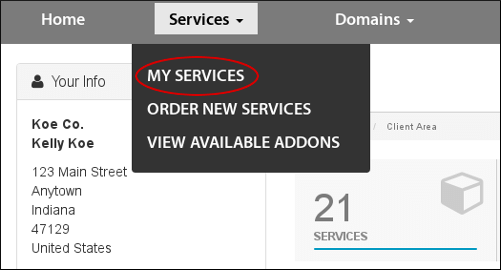
- Log in to Plesk.
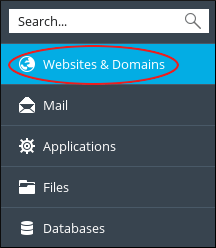
- Click Websites & Domains.
- Find your domain and click Logs.
- Choose the log file from the list. Common ones are the access log and the error log.
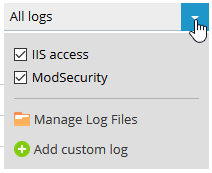
- Plesk shows the newest lines. Scroll to read more.
Filter the logs
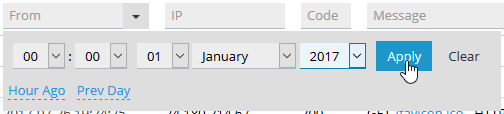
- Look for the search box above the log list.
- Type a word to look for. Try a page name, an IP address, or the word "error".
- Press Enter or click Search.
- Only matching lines remain.
- Click Clear to see everything again.
An IP address is the number that identifies a device on the internet. Searching for it shows every request from that device.
Tune what you see
- Choose how many lines to show per page.
- Use the refresh button to load the newest lines.
- Click Download to save a log file to your computer.
Read an error line
Error lines usually have a time, a short message and a file name. Look for the file name and the words that follow. These often point to the exact page or plugin with the problem.
Tip: Warning: do not click Clear or delete log files if a support agent still needs them. Logs may also contain visitor details, so do not share them in public.
Cannot find the cause? Send the error line when you open a support ticket.
Quick recap
- Logs are your server's diary.
- Open Logs under your domain.
- Use the search box to filter lines.
- Download logs if you need them.
- Share error lines with support to get faster help.