

What is a service?
A service is a program that runs in the background on your server and does one job. One service shows websites. Another handles email. Another keeps the database working. If a service stops, that part of your hosting stops too.
Warning: Stopping a service takes that feature offline. If you stop the web server, your sites will not load. Only stop a service when you must, and start it again soon after.
Steps
- Log in to Plesk as the administrator.
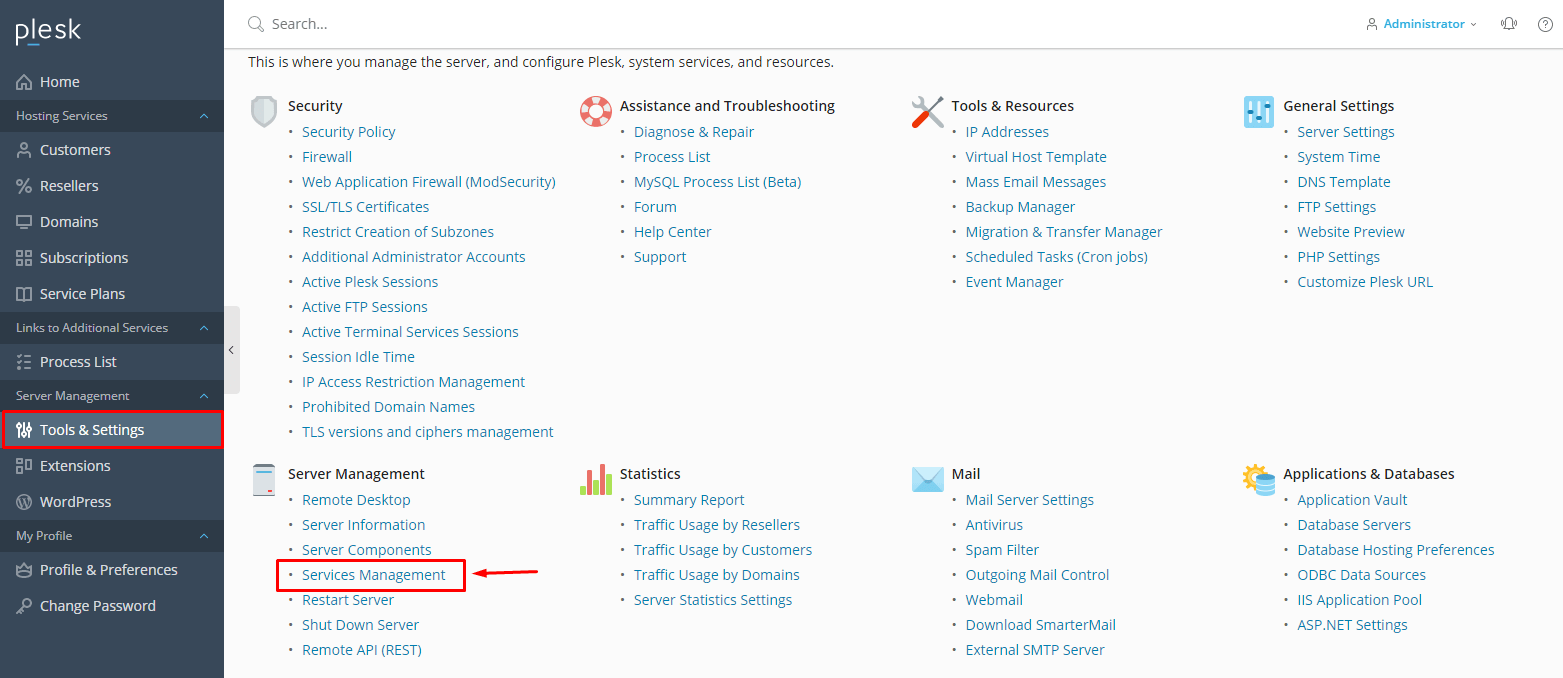
- Click Tools & Settings.
- Under General Settings, click Services Management.
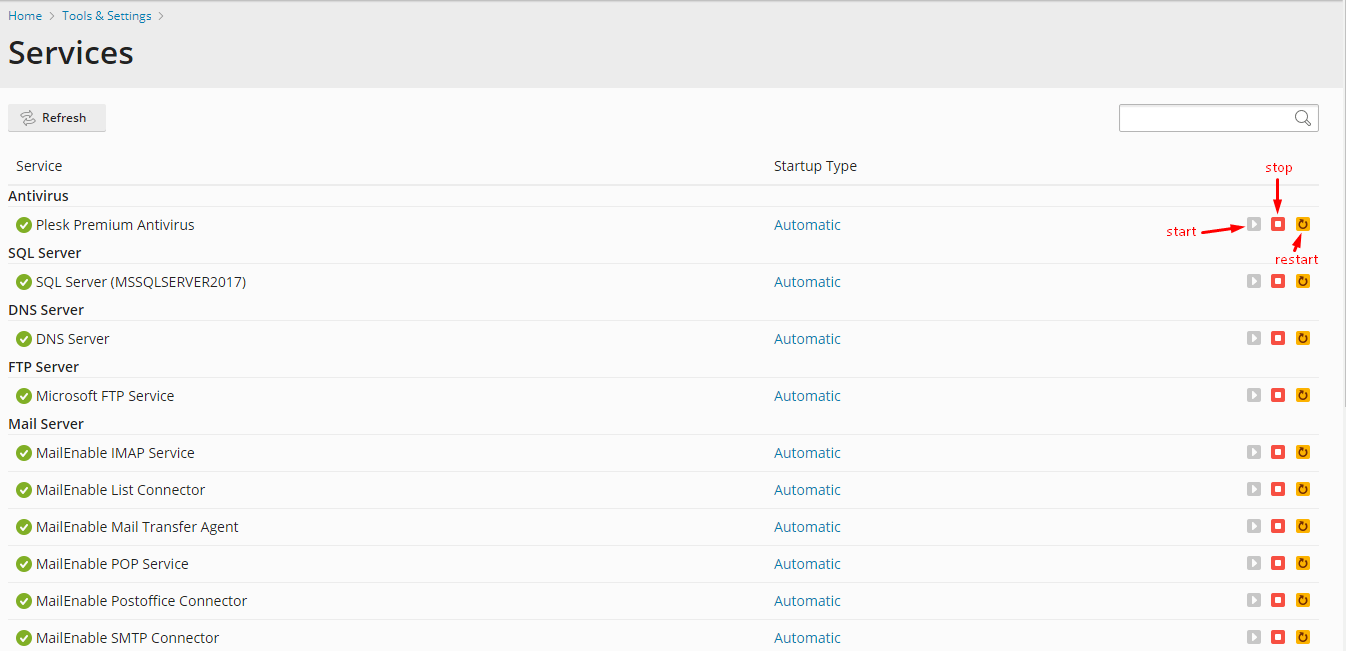
- You see a list of services. A green icon means it is running. A red or grey icon means it is stopped.
- To restart one, click the restart icon next to its name.
- To stop one, click the stop icon.
- To start a stopped one, click the start icon.
- Wait a few seconds, then reload the page to see the new status.
Start services at boot
Each service has a tick box called Run on boot or similar. When it is ticked, the service starts by itself when the server restarts. Keep it ticked for important services.
Common services
- Web server (Apache or nginx): shows your websites.
- DNS server: tells browsers where your domains live.
- Mail server: sends and receives email.
- MySQL or MariaDB: the database server.
- FTP server: lets you upload files.
Tip: If a service will not start, check the logs under Tools & Settings and then Logs. You can also open a support ticket with the error text.
Quick recap
- Services are background programs that do one job each.
- Go to Tools & Settings, then Services Management.
- Use the icons to start, stop or restart.
- Do not stop services without a reason.