

Why check?
After an upgrade, your plan should show new limits, such as more space or more accounts. A quick check tells you that the change worked. Reseller hosting is a plan where you rent space and sell it to your own customers.
The upgrade can take a short while to finish. Check once the payment shows as paid.
Check in the client area
- Log in at https://secure.hostvento.com/clientarea.php.
- Click Billing, then Invoices. Check that the upgrade invoice says Paid. An unpaid invoice stops the upgrade.
- Click Services, then My Services.
- Click your reseller plan.
- Read the product name and details. They should match the plan you bought.
- Check that the status says Active.
Check in WHM
WHM is the control panel for resellers. A control panel is a web page where you manage hosting.
- Log in to WHM. Your welcome email has the link.
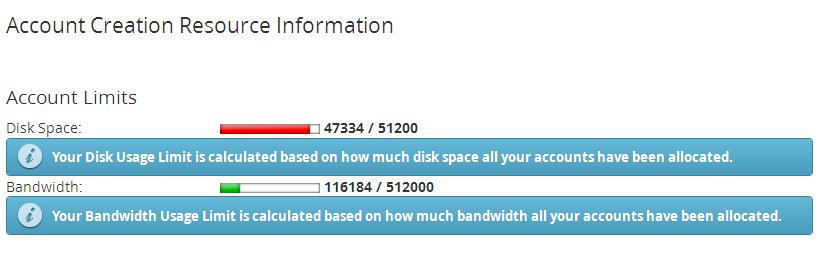
- Look at the main page or the account summary for your limits.
- Search for "Resource Usage" or "Account Information" to see disk space and bandwidth.
- Compare the numbers to your new plan.
Bandwidth is how much data your sites send to visitors.
If the numbers did not change
- Wait a short time and refresh the page. Log out and in again.
- Check that the invoice is paid.
- Save a screenshot of the invoice and the current limits.
- Open a support ticket and include the invoice number.
Tip: Do not buy the upgrade a second time. Always check your invoices first.
Quick recap
- Check that the upgrade invoice is paid.
- Open your plan under Services and check the name and status.
- Check the limits in WHM.
- Wait a little, then refresh.
- Contact support with your invoice number if it still looks old.