

What are these tools?
WHMCS is software for selling hosting. It handles orders, invoices and support. cPanel is a control panel, which is a web page where you manage hosting. Softaculous is an auto-installer inside cPanel. It sets up apps with a few clicks.
WHMCS is a paid product. You need your own licence from the WHMCS company, and Softaculous may not list WHMCS on every plan. Ask Hostvento support whether Softaculous is on your plan.
Before you start
- Choose a domain or subdomain for it, such as
billing.yourdomain.com. - Have a valid WHMCS licence ready.
- Install SSL on the domain first. Billing pages must be secure.
Steps
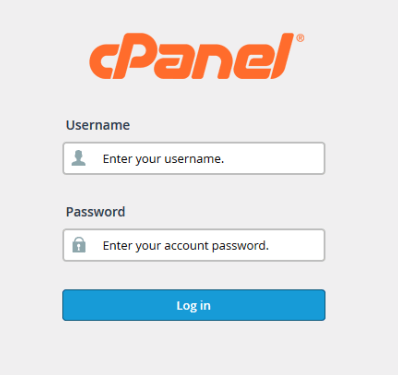
- Log in to cPanel.
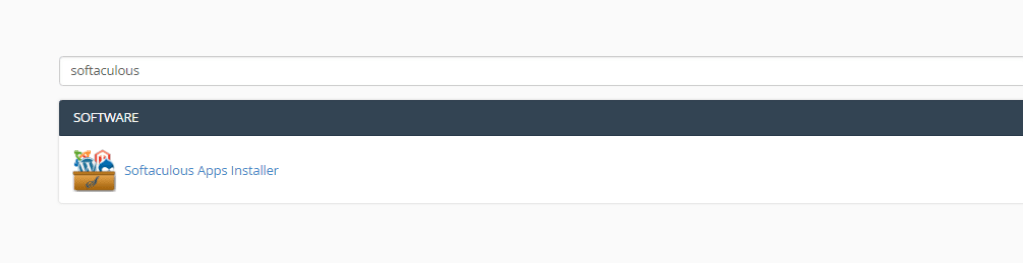
- Find Softaculous Apps Installer and click it.
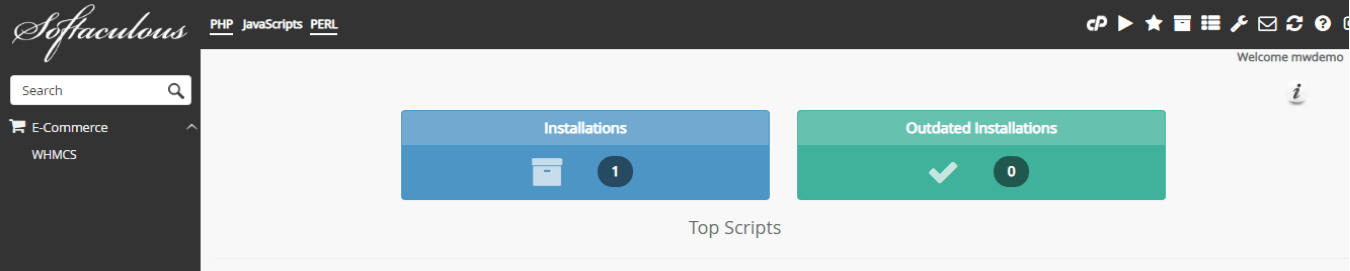
- Search for "WHMCS" in the search box. If it is not listed, you must install it by hand with the files from your WHMCS account.
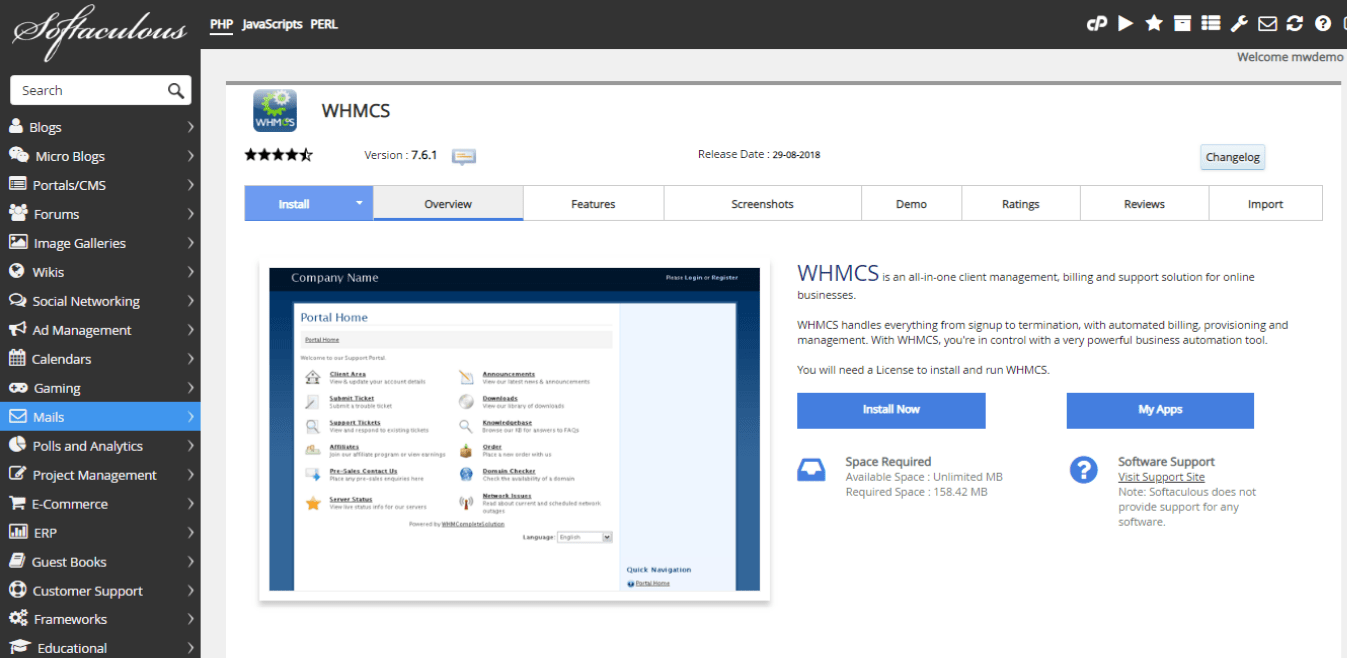
- Click the WHMCS result, then click Install Now.
- Choose the protocol. Pick
https://if you have SSL.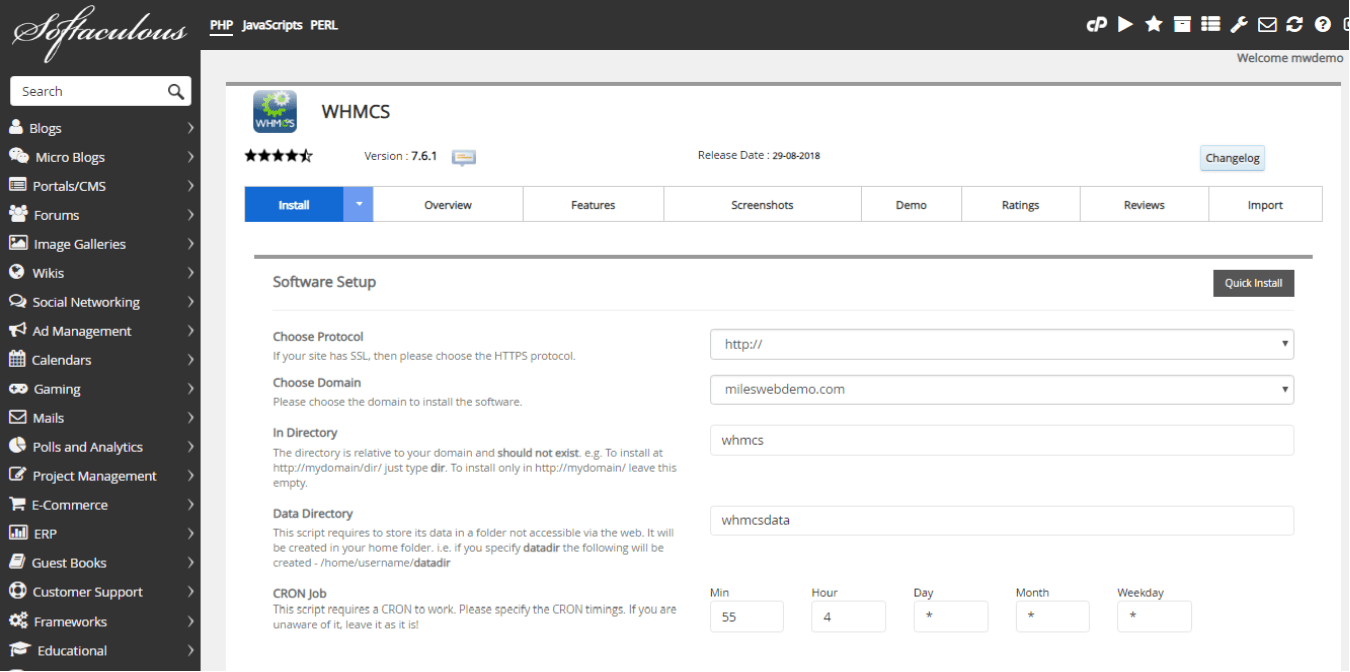
- Choose the domain.
- Type the folder in In Directory. Leave it empty to install at the main address.
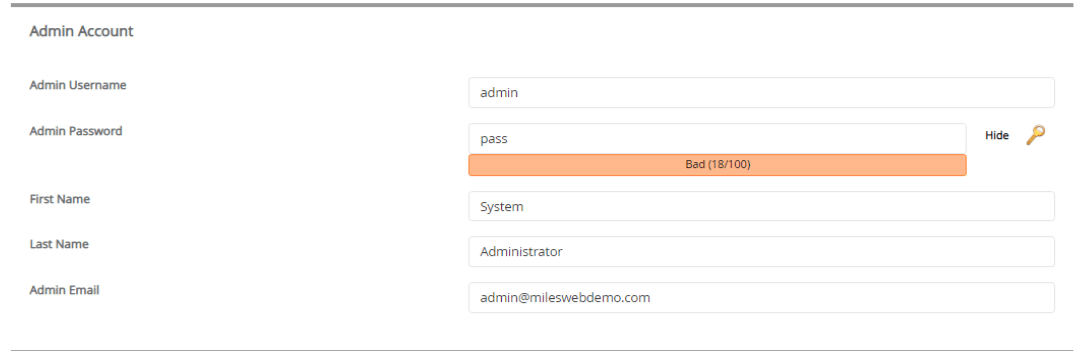
- Set an admin username and a strong password. Save them.
- Type your admin email address.
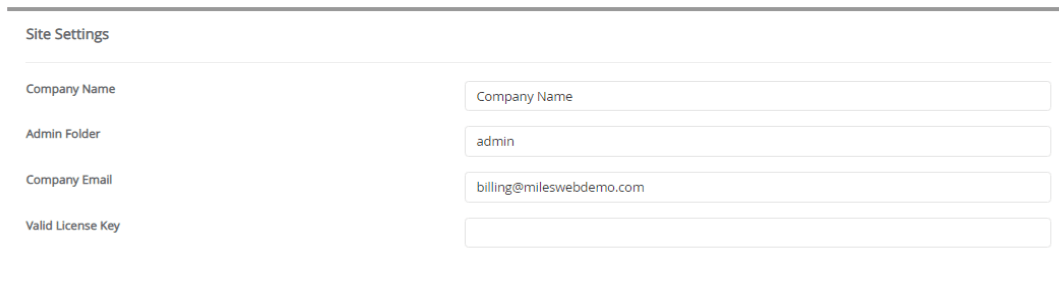
- Enter the licence key if asked.
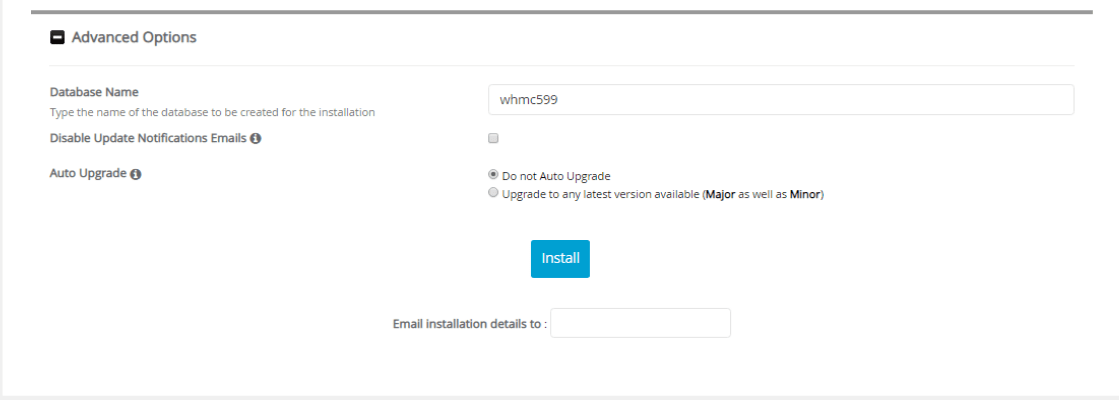
- Click Install.
- Wait for the success message with your links.
After the install
- Open the admin link. It often ends in
/admin. - Log in with the details you set.
- Follow the setup screens inside WHMCS.
Tip: Warning: do not install over a folder with another live site. Take a backup first. WHMCS holds customer data, so use a strong password and keep it updated.
Need help? Open a support ticket.
Quick recap
- Softaculous is an installer in cPanel.
- WHMCS needs a licence you buy separately.

- Search for WHMCS and click Install Now.
- Use SSL and a strong admin password.
- Back up before installing on a used folder.