

What is a backup?
A backup is a spare copy of your website files, databases and emails. It is like a photo of your site on a certain day. If something breaks, you can go back to the photo. A reseller is a person who rents hosting and sells it on to their own customers. As a reseller, you look after many accounts, so backups matter even more.
Two ways to make a backup
- Automatic backups. The server makes these on a schedule. Ask Hostvento support how often they run on your plan and how long they are kept.
- Manual backups. You make these yourself, any time you like. Do this before big changes.
Make a manual backup in WHM
WHM is the Web Host Manager. It is the main panel for resellers.
- Log in to WHM from your reseller service in the client area.
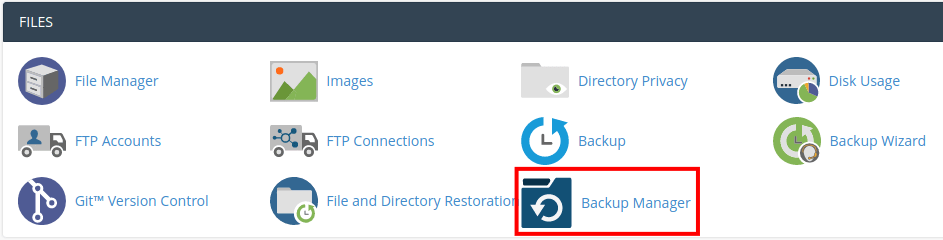
- Type Backup in the search box on the left.
- Look for a backup tool such as Backup Configuration or Backup Restoration. Which tools you see depends on your plan.
- If you only see limited tools, open the customer's cPanel instead (see below).
Make a backup in a customer's cPanel
- In WHM, open List Accounts.
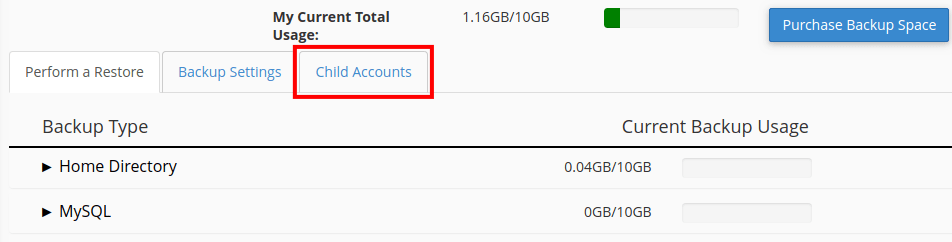
- Click the cPanel icon next to the customer.
- Open Backup or Backup Wizard.
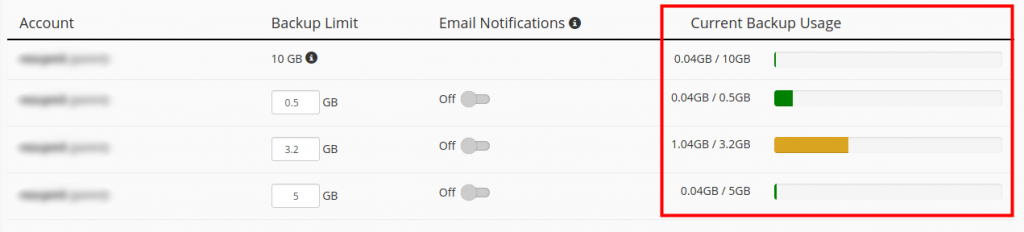
- Choose Back Up, then Full Backup.
- Pick where to save it, then click Generate Backup.
- Wait for the file to be ready. Download it to your own computer.
Restore a backup
Warning: restoring replaces the current files with the older copy. Anything new since the backup is lost. Take a fresh backup first.
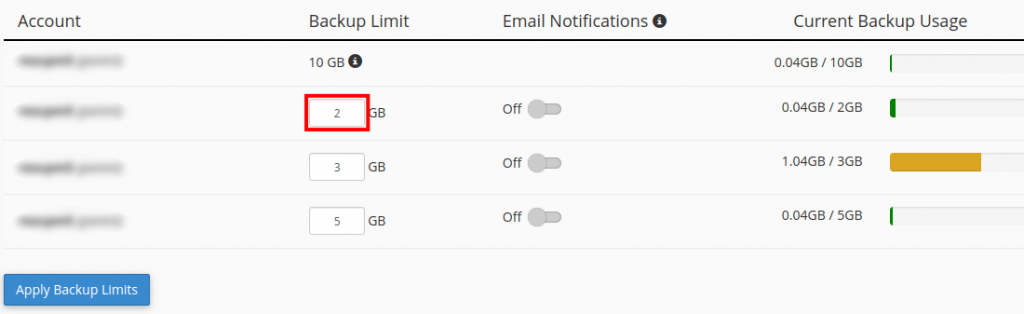
- Open Backup Wizard in the customer's cPanel.
- Click Restore.
- Choose what to restore: home directory, a database, or emails.
- Upload the backup file and confirm.
Tip: Keep a copy of important backups away from the server, on your own computer or in cloud storage. Then one problem cannot take both the site and its backup.
If you cannot find a backup you need, open a ticket at https://secure.hostvento.com/submitticket.php.
Quick recap
- A backup is a spare copy you can go back to.
- Make a manual backup before any big change.

- Use WHM backup tools or each customer's cPanel Backup Wizard.
- Restoring overwrites newer data, so back up first.
- Store a copy somewhere safe, away from the server.