

What do these words mean?
The CPU is the brain of a server. It does all the thinking. When your site gets busy, it uses more CPU. If it uses too much, the site can slow down.
A concurrent connection is a visitor or request connected to your site at the same moment. If many people open your site at once, you have many concurrent connections. Think of people standing in a queue at a shop door.
Shared hosting means many websites sit on one server. Each account has limits so one site does not slow down the others. Ask Hostvento support what the limits are on your plan.
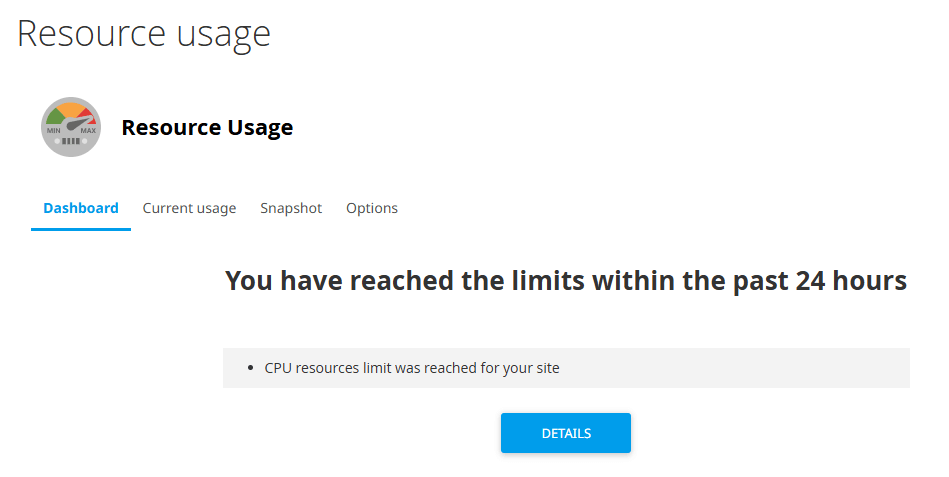
Steps
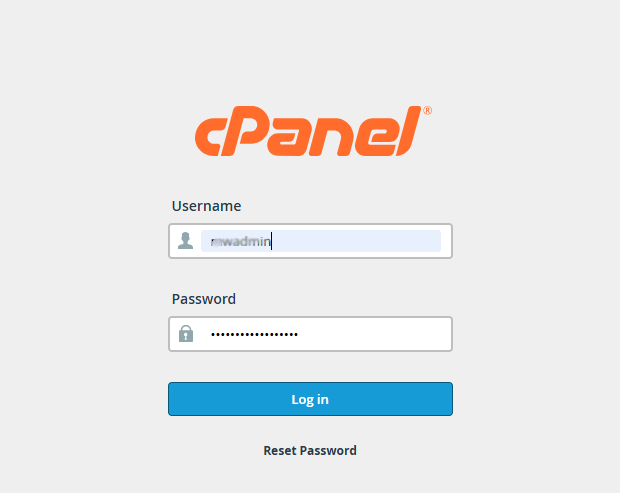
- Log in to your Hostvento client area at https://secure.hostvento.com/clientarea.php.
- Open Services, choose your hosting plan and log in to cPanel.
- Look at the right side of the cPanel home page. You may see a Statistics panel. Click Server Information or Resource Usage if it is shown.
- If you do not see it, type
Resourcein the search box at the top. Click Resource Usage. In some setups it is named CPU and Concurrent Connection Usage.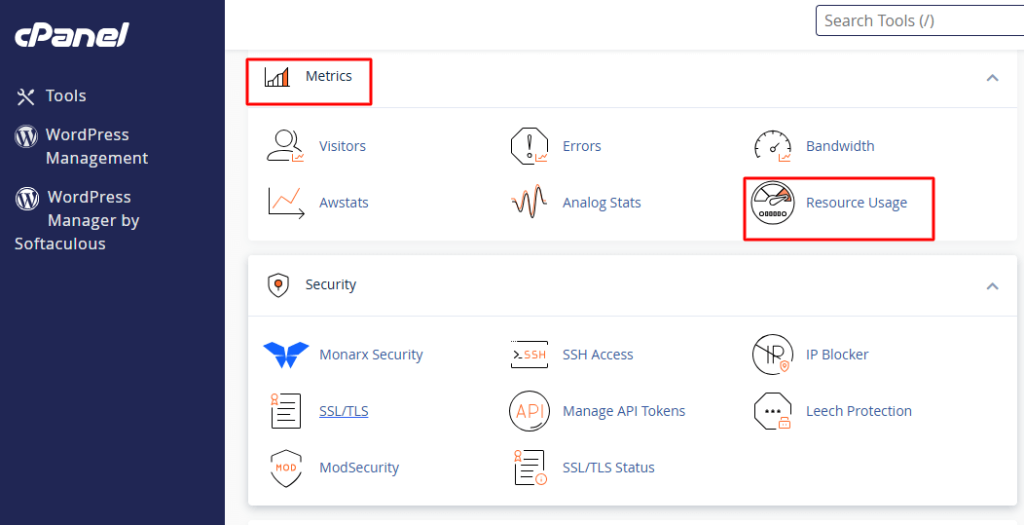
- Look at the page that opens. It shows a table or a graph with these items:
- CPU usage
- Memory usage
- Number of processes
- Entry processes, which are connections to your site
- Input and output usage
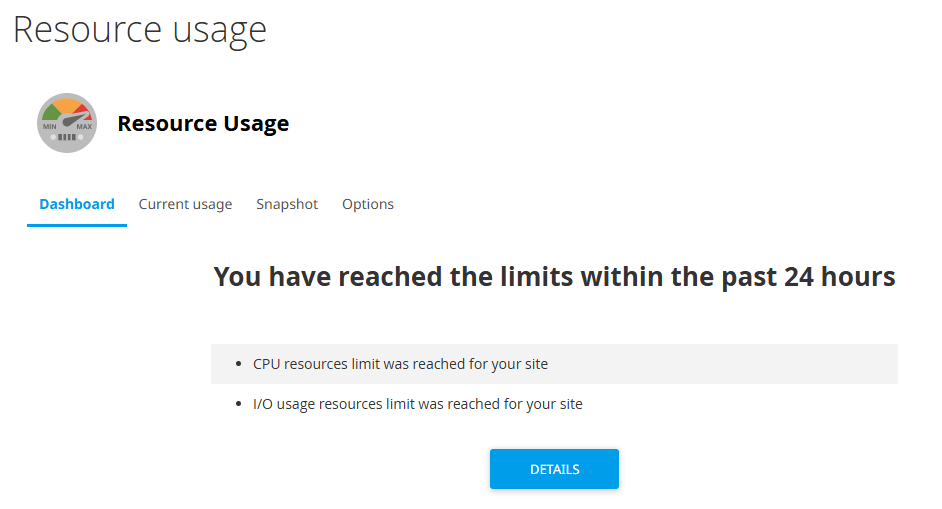
- Click Details on the page to see more. You can often view graphs for the last day or other time periods.
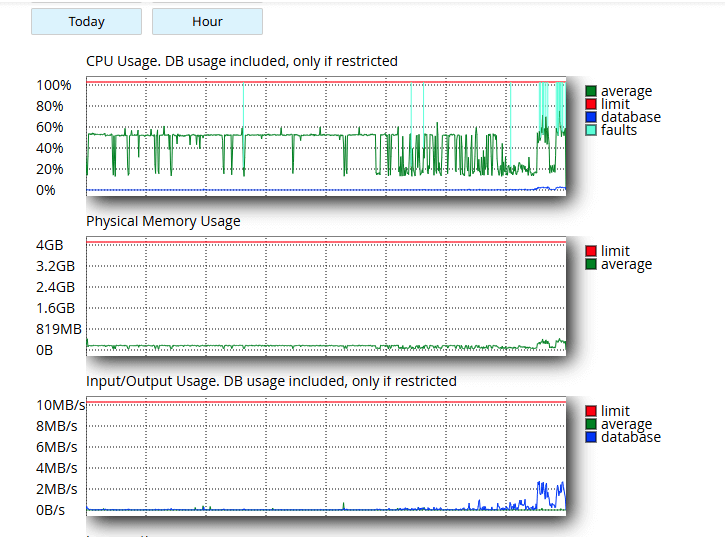
- Look for the times when a line reaches its limit. This shows when your site was too busy.
What to do if usage is high
- Turn on caching. A cache keeps saved copies of pages, so the server does less work.
- Remove plugins and scripts you do not use.
- Check your traffic stats for strange spikes. Bots can cause them.
- Update your apps.
- Think about a bigger plan or a VPS if your site keeps growing. Ask Hostvento support for advice.
Tip: Check the page once a week. You will learn what a normal day looks like. Then odd days stand out.
The exact name of this page can change between cPanel versions. If you cannot find it, open a support ticket at https://secure.hostvento.com/submitticket.php.
Quick recap
- CPU is the server's brain. Connections are visitors at the same moment.
- Open Resource Usage in cPanel.
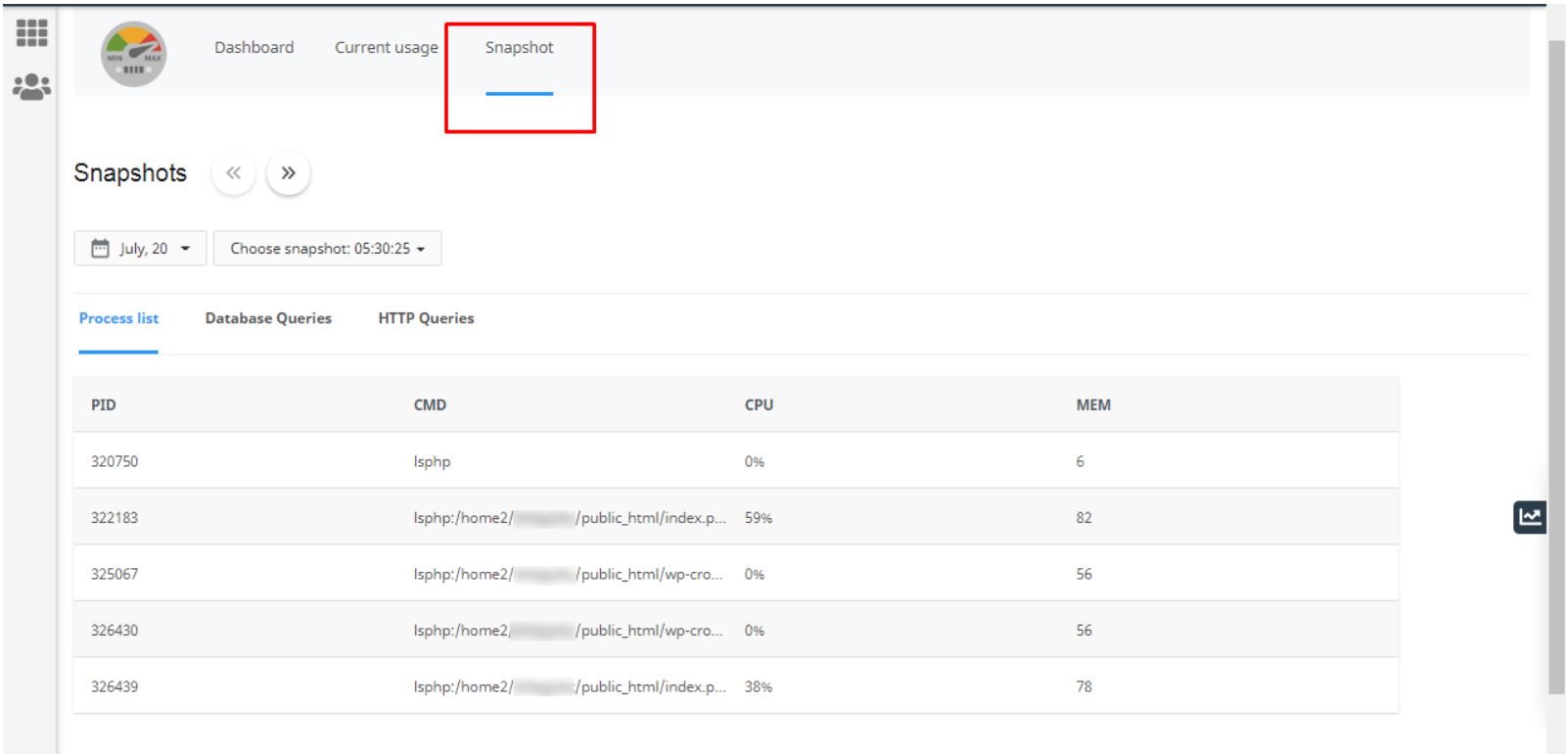
- Look at the numbers and graphs.
- If a limit is reached often, use caching and clean up your site.
- Ask support if you need a bigger plan.