

What is disk space?
Disk space is the room your account has to keep files. Website files, pictures, emails, backups and databases all use it. Think of it as a cupboard. When it is full, you cannot add more. Your site or email may then stop working properly.
cPanel is the control panel where you manage your hosting. You can check the space there in a few clicks.
Steps
- Log in to your Hostvento client area at https://secure.hostvento.com/clientarea.php.
- Open Services, choose your hosting plan and log in to cPanel.
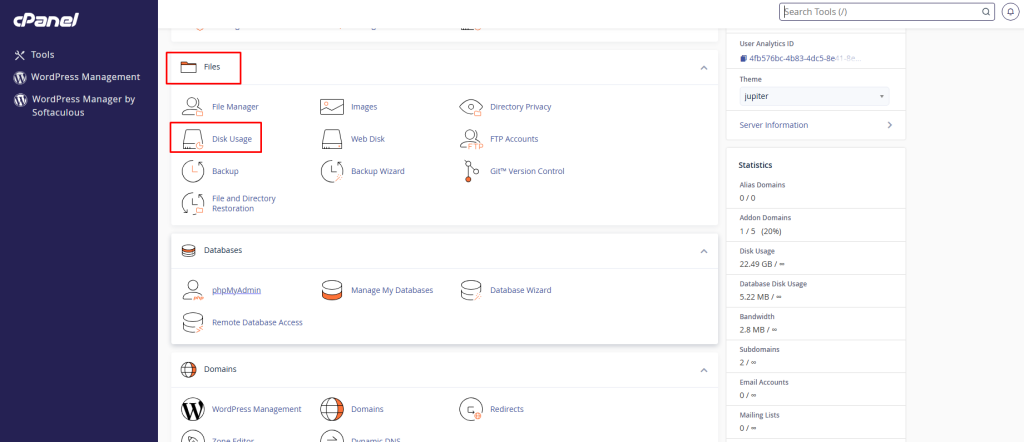
- Look at the right side of the cPanel home page. The Statistics panel shows Disk Usage. You will see the amount used and your limit.
- For more detail, find the Disk Usage icon in the Files section. Click it.
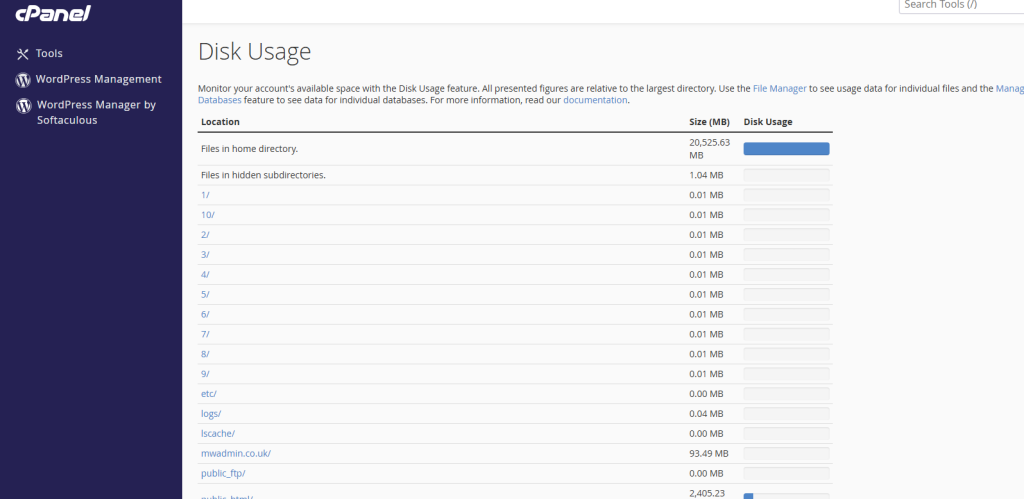
- Wait while cPanel counts your files.
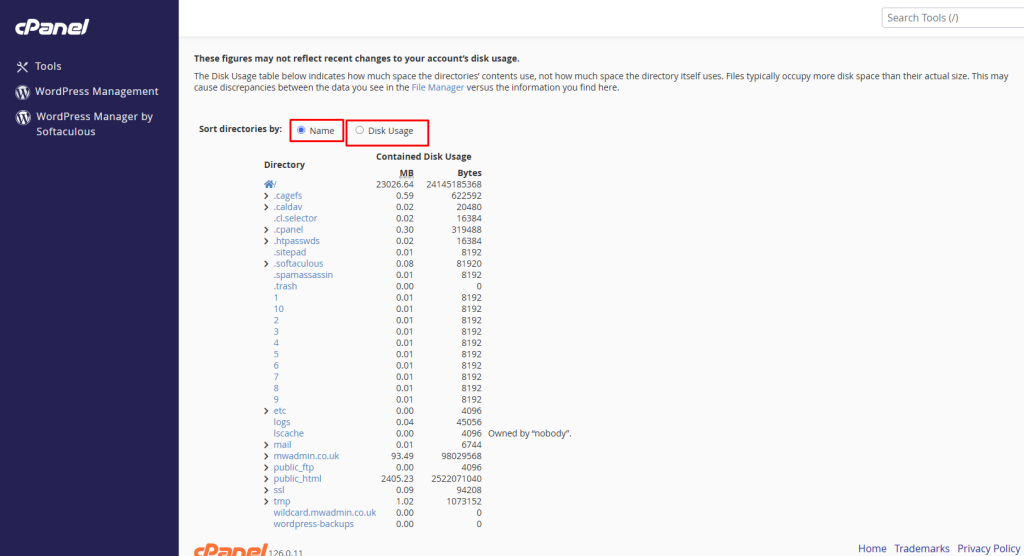
- Read the table. It lists your folders and their sizes. The biggest ones are at the top when you sort by size.
- Click a folder name to look inside it.
Where space usually goes
- Email: Old messages and attachments add up.
- Backups: Full backup files can be very large.
- Website files: Large images and videos take a lot.
- Logs and old test sites: People forget these.
How to free some space
- Open File Manager in cPanel.
- Find big files you do not need, such as old zip files.
- Download a copy of anything you may want later.
- Delete the files you do not need.
- Open Email Accounts and clean out old mail.
Warning: Deleted files cannot always be brought back. Never delete files you do not understand, especially in the website folders. Ask Hostvento support first.
The numbers may not update at once. Sometimes cPanel takes a while to refresh them. If the numbers look wrong, open a support ticket at https://secure.hostvento.com/submitticket.php.
Quick recap
- Disk space is your account's storage.
- See the total in the Statistics panel in cPanel.
- Use the Disk Usage tool to find big folders.
- Delete only what you are sure you do not need.
- Ask support if you need more space.