

What do these words mean?
Disk space is the room your account has to store files. Pictures, pages, emails and databases all use it. Think of it as the size of your cupboard.
Bandwidth is the amount of data that moves in and out of your site. Each time someone visits, files travel from the server to them. More visitors and bigger pages mean more bandwidth used. Think of it as water running through a pipe.
Your plan sets limits for both. If you pass a limit, your site or email may have problems.
Steps to check in the client area
- Log in to your Hostvento client area at https://secure.hostvento.com/clientarea.php.
- Open Services and click My Services.
- Click your hosting plan.
- Look for a section about usage. In a standard WHMCS client area, it often shows disk usage and bandwidth usage with a bar. The layout can vary.
Steps to check in cPanel
- From the plan page, click the button to log in to cPanel.
- Look at the right column on the home page. Find the Statistics panel.
- Find Disk Usage to see how much space you have used.
- Find Bandwidth to see how much traffic has been used this month.
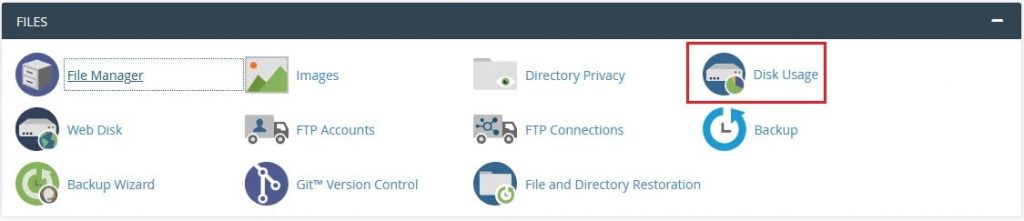
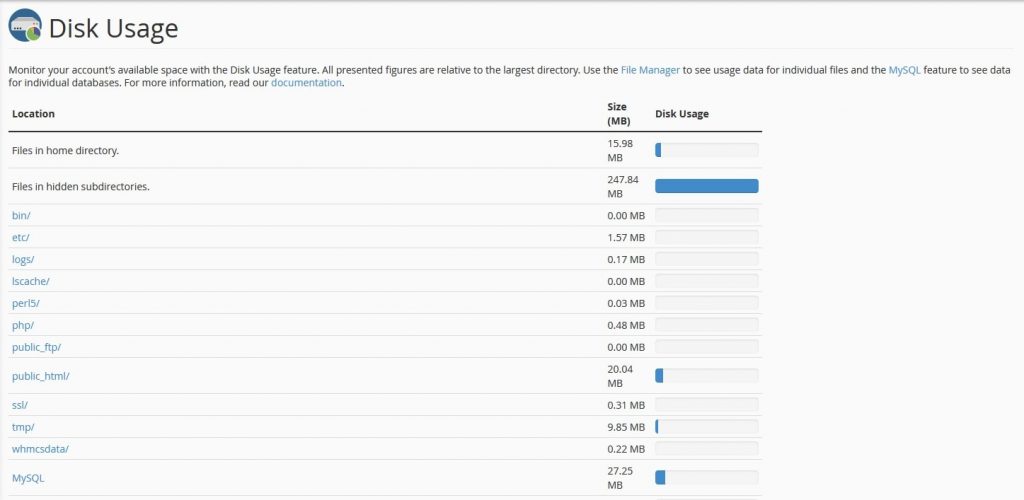
- For more detail, click the Disk Usage icon in the Files section. It shows which folders are the biggest.
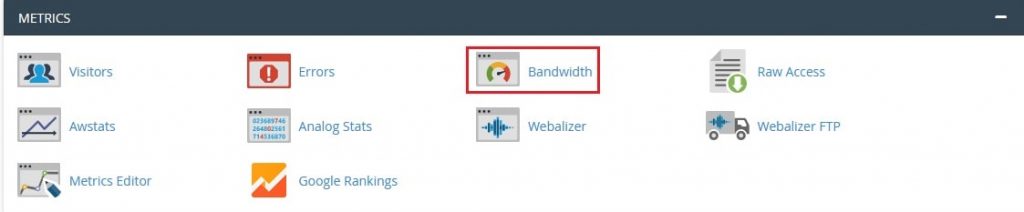
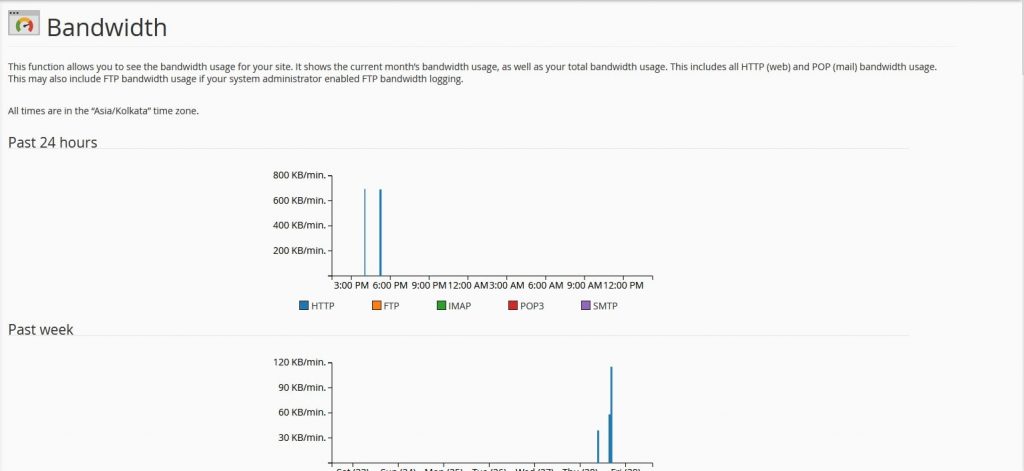
- Click the Bandwidth icon in the Metrics section. It shows which domains and services use traffic.
If usage is high
- Delete old backups, zip files and test sites you no longer need. Be careful. Take a copy of anything important first.
- Clean out old emails.
- Make images smaller before you upload them.
- Use a free CDN such as Cloudflare. A CDN keeps copies of your files in many places, so your server sends less data.
- Ask Hostvento support if you need a bigger plan.
Tip: Look at your numbers once a month. A sudden jump can mean a problem, such as a hacked site or heavy bot traffic.
Quick recap
- Disk space is storage. Bandwidth is traffic.
- Check both in the client area or in cPanel.
- Use the Disk Usage tool to find big folders.
- Clean up files you do not need, with a backup first.
- Contact support if you need more room.