

What is Cloudflare?
Cloudflare is a service that sits between your visitors and your website. It keeps copies of your files in many places around the world, which makes your site load faster. It also helps block some attacks. Think of it as a friendly guard and a fast delivery service in one.
Some cPanel accounts have a Cloudflare icon. It lets you sign up and connect without leaving cPanel. Not every plan has it. Ask Hostvento support if you do not see it.
Before you start
- Your domain must point to your Hostvento hosting.
- Have an email address ready for the Cloudflare account.
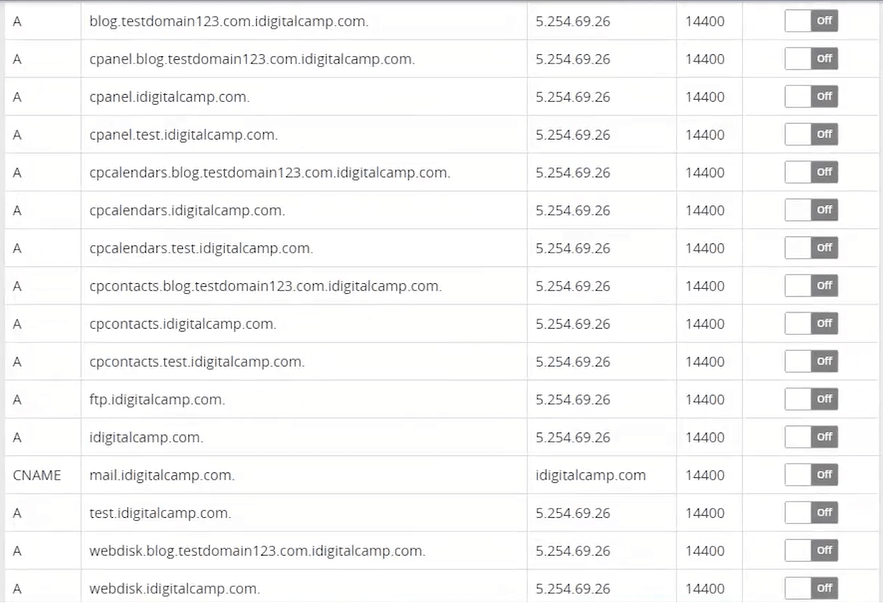
- Write down your current DNS records if you can. DNS is like a phone book for the internet. It turns a website name into a number that computers understand.
Steps
- Log in to your Hostvento client area at https://secure.hostvento.com/clientarea.php.
- Open Services, choose your hosting plan and log in to cPanel.
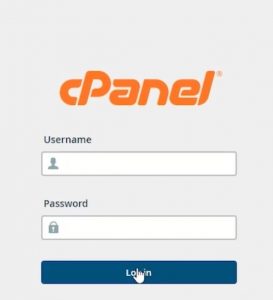
- Find the Cloudflare icon. It is often in the Software or Domains area. You can also type
Cloudflarein the search box.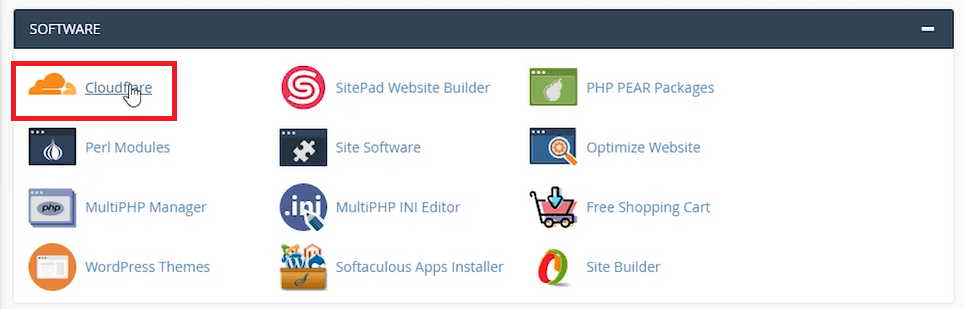
- Click the icon.
- If you are new, fill in the sign up form with your email address and a password. Then click Sign Up. If you already have an account, use the login option.
- After you log in, you will see your domains.
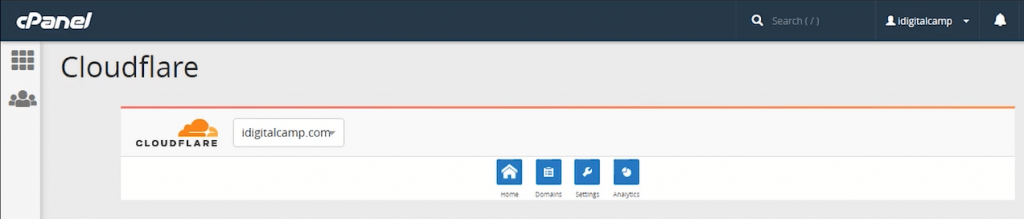
- Find the domain you want to speed up.
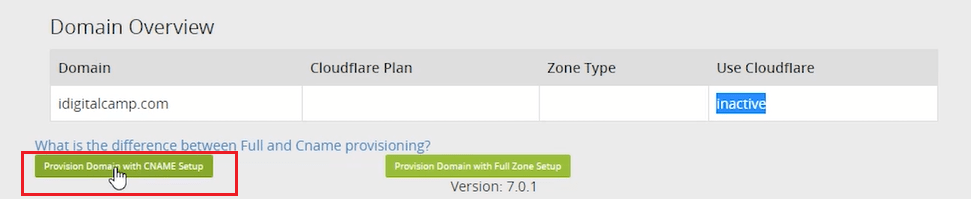
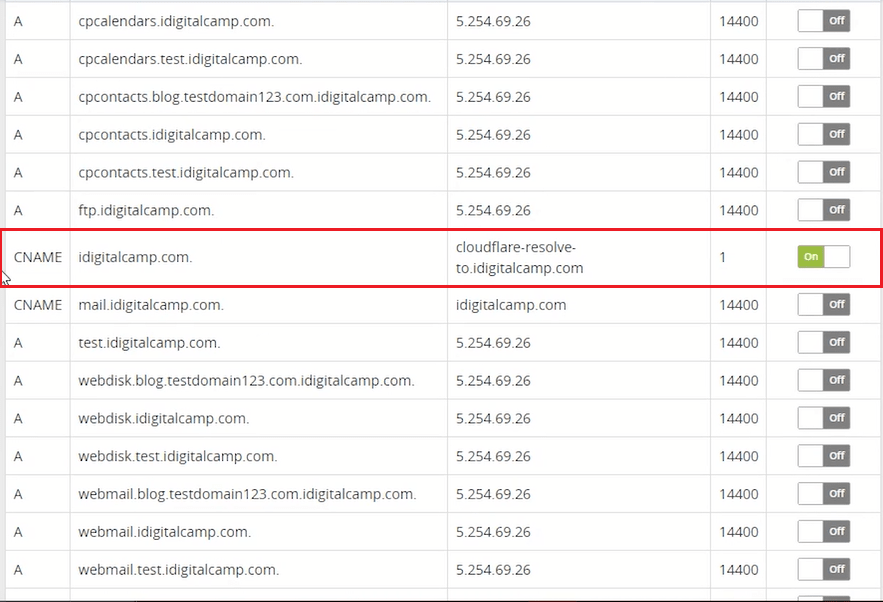
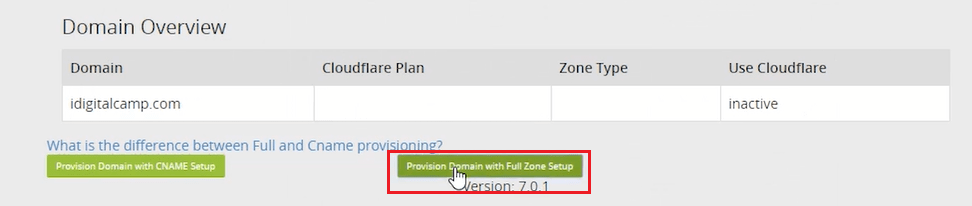
- Click the cloud icon or the Enable switch next to the domain. The cloud turns orange when Cloudflare is on.
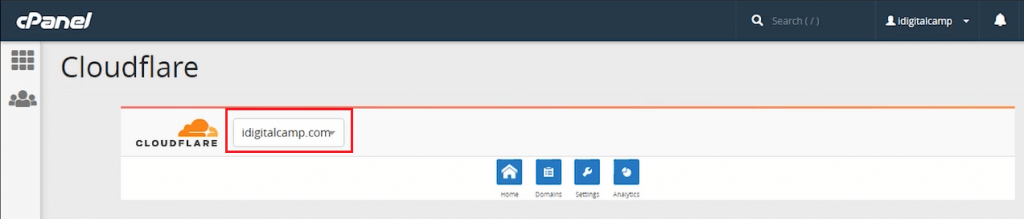

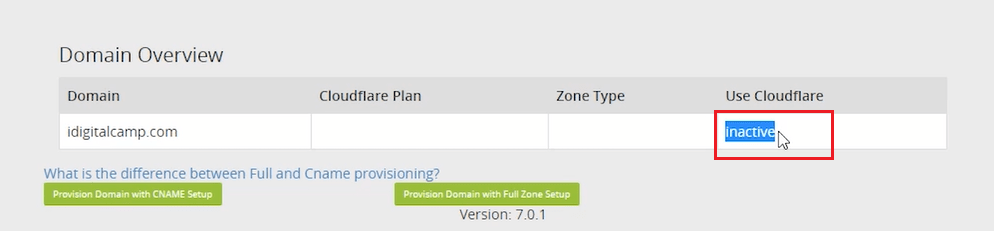
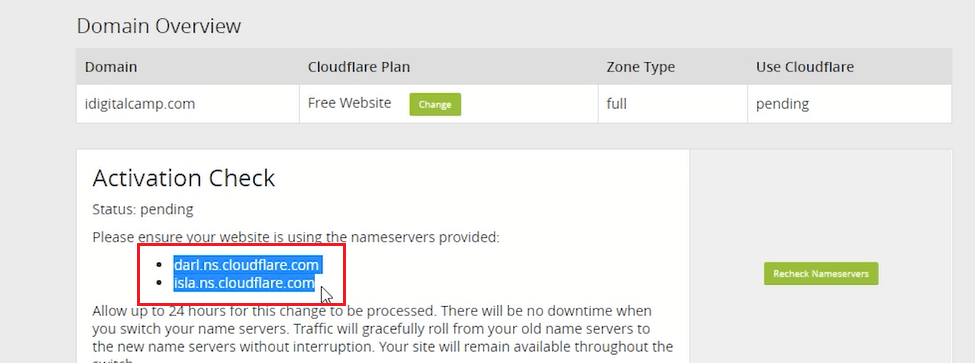
- Wait a few minutes. DNS changes can take time to spread.
Check that it works
- Visit your website in a new browser tab.
- Check that it loads as normal.
- Go back to the Cloudflare page in cPanel. The domain should show as active.
Tip: If your site looks old after the change, clear the cache in your browser. Also clear any cache plugin on your site.
If something goes wrong, turn the cloud off again. The site returns to normal. If you still have trouble, open a support ticket at https://secure.hostvento.com/submitticket.php.
Quick recap
- Cloudflare makes sites faster and safer.
- Open the Cloudflare icon in cPanel if your plan has it.

- Sign up or log in, then enable your domain.
- Wait a few minutes and test your site.
- Turn the cloud off if something breaks.