

Why do sites get slow?
A WordPress site is built from many parts. There are themes, plugins, pictures and a database. A theme is the design of the site. A plugin is a small add-on that gives extra features. A database is where the site keeps its text. Too many parts, or parts that are too big, make the site slow.
Warning: Take a full backup before you change anything. Some steps remove things that cannot be brought back easily.
Steps
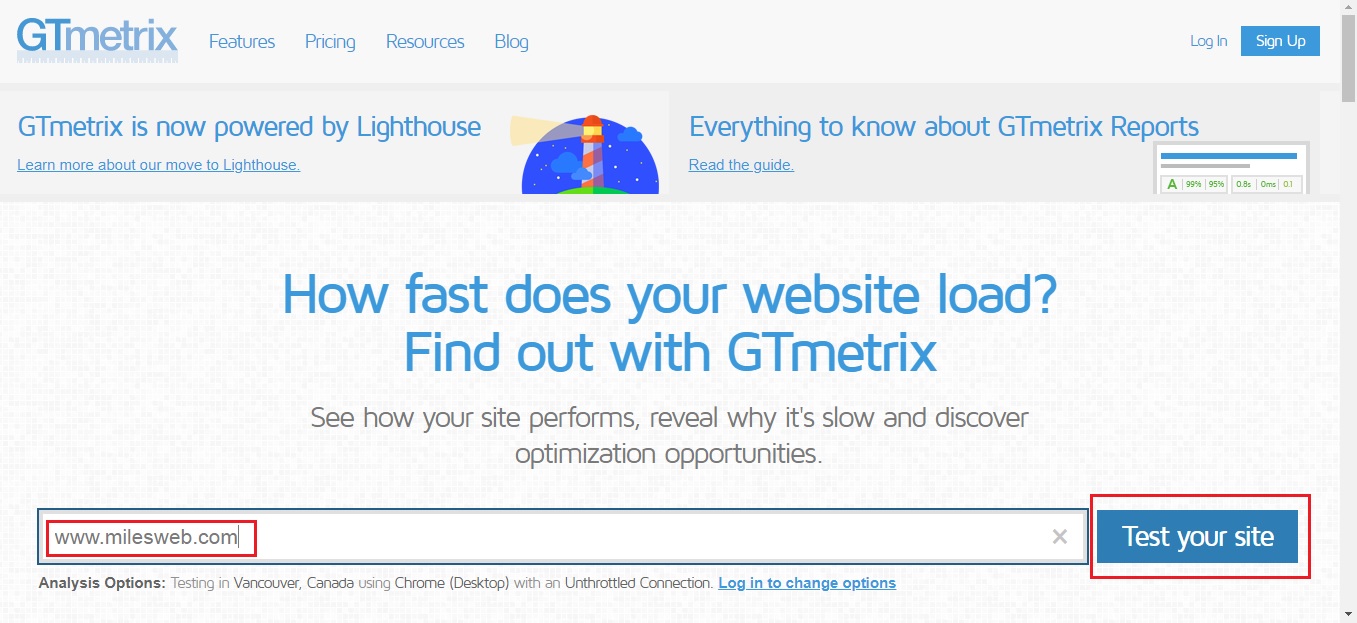
- Measure first. Run your address through a free online speed test. Write down the result so you can compare later.
- Update everything. In the dashboard, open Dashboard and then Updates. Update WordPress, themes and plugins.
- Remove plugins you do not use. Go to Plugins, then Installed Plugins. Click Deactivate and then Delete on the ones you do not need.
- Check for a slow plugin. Turn plugins off one at a time. Test your speed after each one. If the site gets faster, you found the cause.
- Add a caching plugin. Caching saves ready pages so the server does less work. Use only one caching plugin.
- Make images smaller. Large photos are a top cause of slow pages. Shrink them before upload, or use an image plugin that compresses them.
- Use a light theme. Heavy themes with many effects slow things down. Try a simple theme to test.
- Turn on GZIP compression. It shrinks files on their way to the visitor, like zipping a folder before you send it.
- Use a CDN. A CDN keeps copies of your files in many places, so they travel a shorter way. Cloudflare is one popular choice.
- Clean the database. Remove old post revisions, spam comments and trash. A cleanup plugin can help. Back up first.
- Check your PHP version. PHP is the language WordPress runs on. In cPanel, look for Select PHP Version or MultiPHP Manager. Newer versions are often faster, if your plugins support them.
- Check your resource use. In cPanel, open Resource Usage. If you reach the limits often, ask Hostvento support about a bigger plan.
Test again
- Clear your caches.
- Run the same speed test.
- Compare the new result with your first one.
If your site is still slow, open a support ticket at https://secure.hostvento.com/submitticket.php. Tell us what you tried.
Quick recap
- Measure your speed before and after.
- Update everything and remove unused plugins.
- Add caching, shrink images and use a CDN.
- Clean the database and use a current PHP version.
- Back up first, and ask support if needed.