

What is an IP address?
An IP address is a number that identifies a device on the internet. It works like the house number on your street. If one address keeps sending spam or trying to hack you, you can block it. cPanel is the control panel where you manage your hosting. Find the login link in your client area or your welcome email.
Find the address first
- In cPanel, open Metrics and click Raw Access to download your access log. This file lists who visited your site.
- Open the log in a text editor. The addresses are at the start of each line.
- Look for an address that appears again and again, or that visits odd pages.
Steps to block
- In cPanel, go to the Security section.
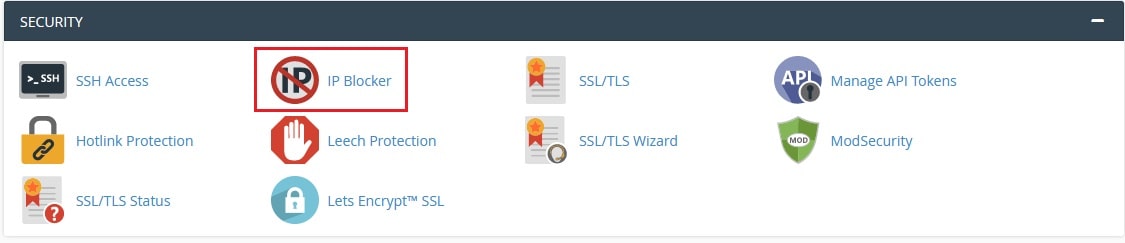
- Click IP Blocker.
- In the Add an IP or Range box, type the address.
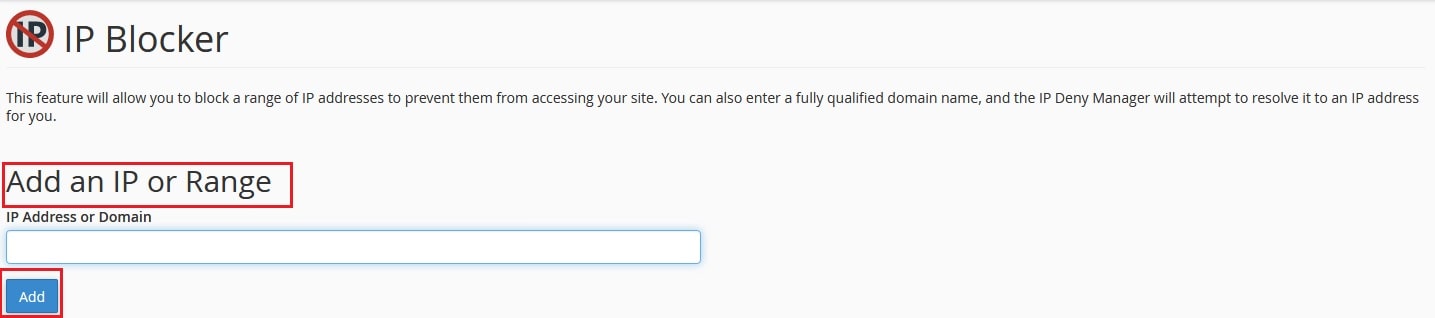
- Click Add.
- Look at the green success message. The address shows in the list of currently blocked addresses.
To block many addresses at once, use a range. For example, 203.0.113.1-203.0.113.50 blocks every address between those two. You can also use a CIDR block like 203.0.113.0/24. These examples are made-up demo numbers.
Steps to unblock
- Open IP Blocker.
- Look at the list under Currently-Blocked IP Addresses.

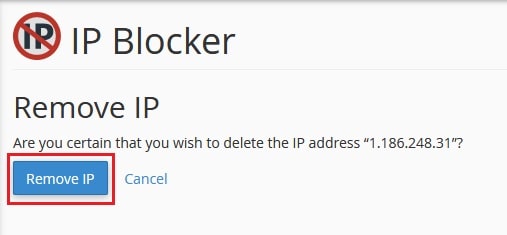
- Click Delete next to the address.
- Confirm the action.
What the blocked person sees
The visitor sees an error page that says access is forbidden. The block affects only your website, not other sites on the server.
Warnings
- Do not block your own address, or you may lose access to your website.
- If your site uses a service like Cloudflare, the address that you see in logs may belong to the service. Check first, because blocking it may cut off all visitors.
- Many people share one address, such as an office. A block can stop real customers.
Tip: If you block yourself by mistake, ask Hostvento support for help with a support ticket.
Quick recap
- Find the bad address in your raw access logs.
- Use IP Blocker in Security to add it.
- Use Delete to unblock.
- Never block your own address.