

Why block a country?
Some sites get many fake visits or spam from places where they have no real customers. Blocking those places can reduce spam and server load. Be careful. Real visitors, and tools such as search engines, may also come from those places.
What is .htaccess?
.htaccess is a small settings file for your website. The server reads it before it shows a page. You can put rules there, such as "do not let this address in".
cPanel has no simple country button. You block a country by blocking its IP address ranges. An IP address is a number that identifies a computer on the internet. Country lists of IP ranges are published by several websites. Search for "country IP ranges" to get the list you need.
Steps
- Log in to cPanel.
- Open File Manager.
- Go to
public_html. Click Settings at the top right and tick Show Hidden Files (dotfiles). Click Save. - Right-click
.htaccessand choose Download to keep a backup copy. - Right-click
.htaccessagain and choose Edit. - Add your rules at the end of the file. Example for two ranges:
<RequireAll>
Require all granted
Require not ip 203.0.113.0/24
Require not ip 198.51.100.0/24
</RequireAll>
These lines allow everyone except the listed IP ranges. The numbers shown are only examples. Replace them with the real ranges.
- Click Save Changes.
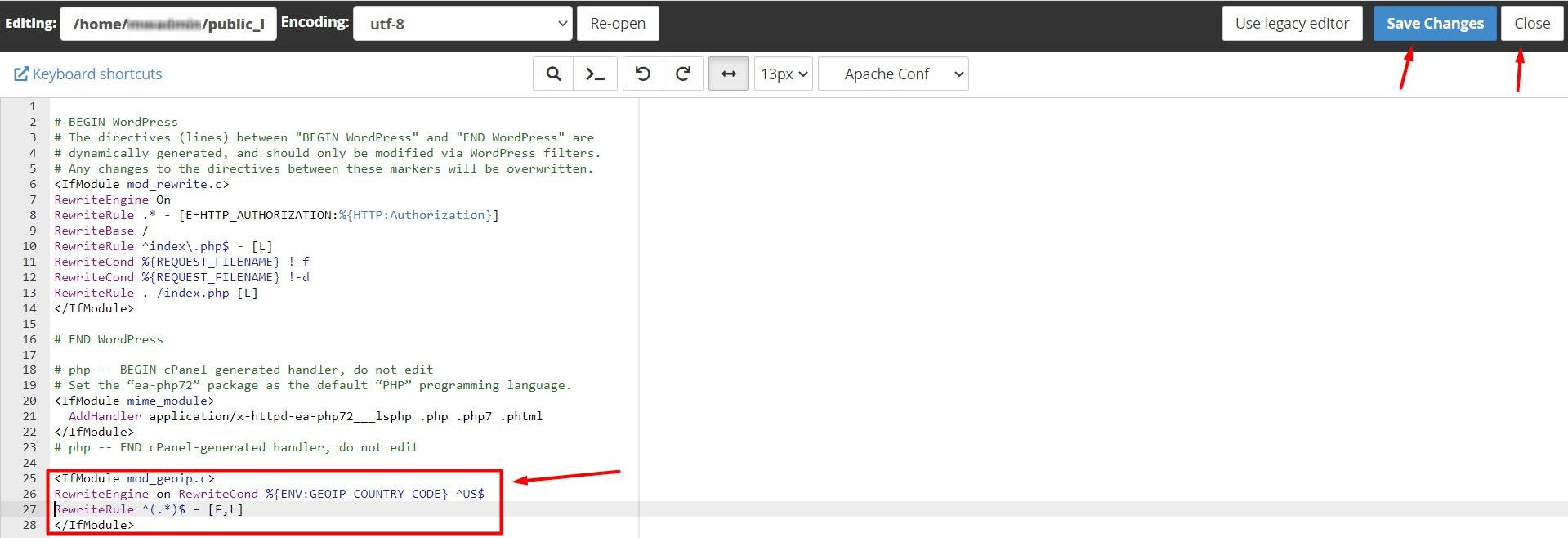
- Open your site to check that it still loads.
Warning: a typing mistake in .htaccess can cause a "500 error" and take the site down. If that happens, restore your backup copy.
Other options
- Open IP Blocker in cPanel to block single addresses or ranges.
- Use Cloudflare or a security plugin that blocks by country. Ask Hostvento support whether these fit your plan.
Quick recap
- Blocking a country means blocking its IP ranges.
- Back up .htaccess before you edit it.
- Add the rules in File Manager and save.
- Test your site right after.
- Remember that real visitors may be blocked too.