

What is Webuzo?
A control panel is a web page where you manage your hosting. Webuzo is one such panel. An SSL certificate is a digital badge that makes your site safe, so it loads over HTTPS and shows a padlock. Webuzo can make a free certificate for you, or you can add one you bought.
Menu names can differ a little between Webuzo versions. Look for the closest match.
Option 1: Get a free Let's Encrypt certificate
Let's Encrypt is a service that gives out free certificates.
- Log in to Webuzo. Your login details are in your welcome email.
- Use the search box or the menu to find SSL. It can be listed under a section for security.
- Choose Let's Encrypt or a similar item.
- Select your domain from the list.
- Click the button to issue or install the certificate, such as Issue.

- Wait a short time for the success message.
- Visit
https://yourdomain.comand look for the padlock.
Your domain must already point to the server. Otherwise the check fails.
Option 2: Install a paid certificate
You need three items from your certificate company: the certificate, the private key and the CA bundle. The CA bundle links your certificate to a trusted company. Keep your private key secret.
- Log in to Webuzo.
- Open the SSL page.
- Choose to add or install a custom certificate.
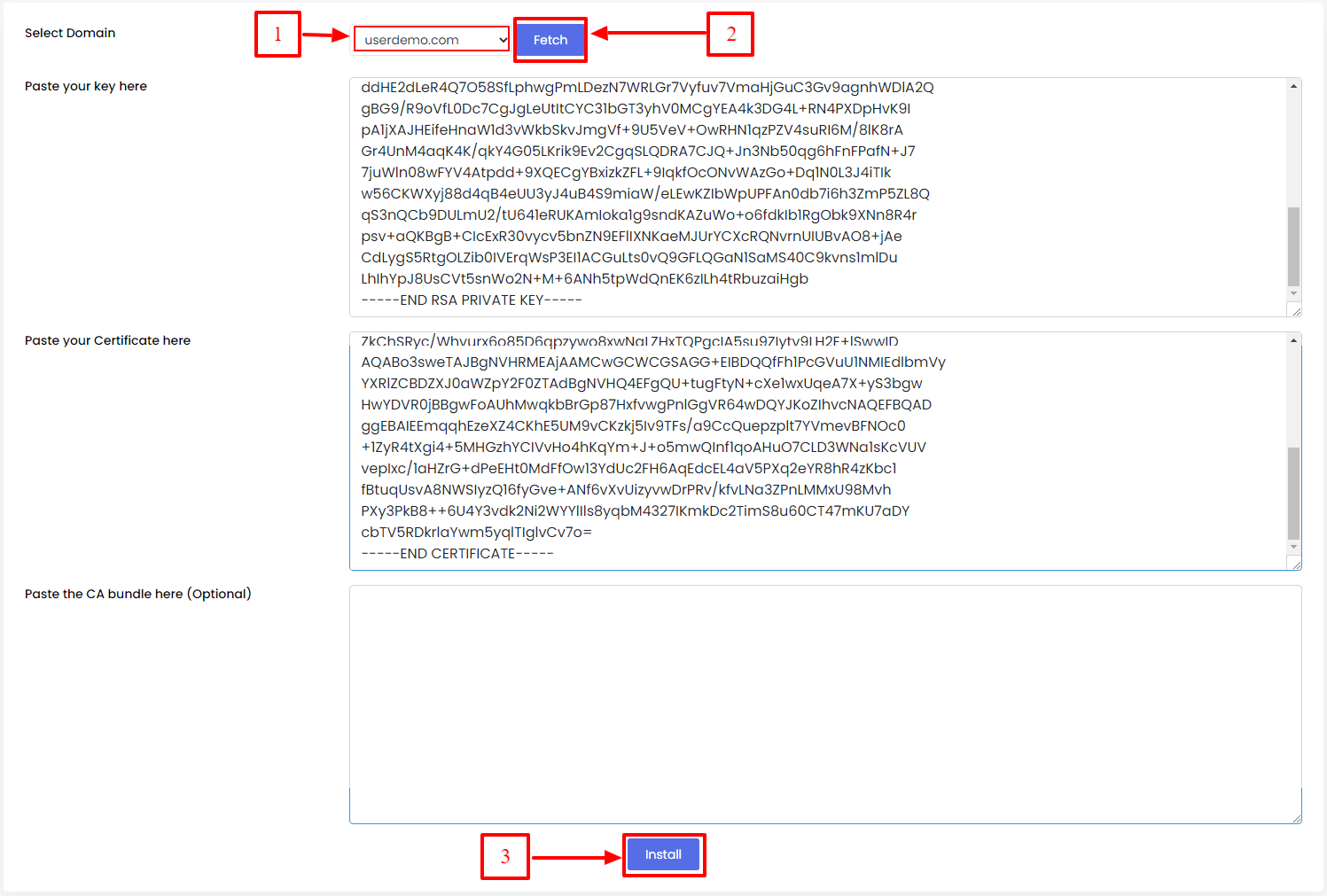
- Pick your domain.
- Paste your certificate text into the certificate box.
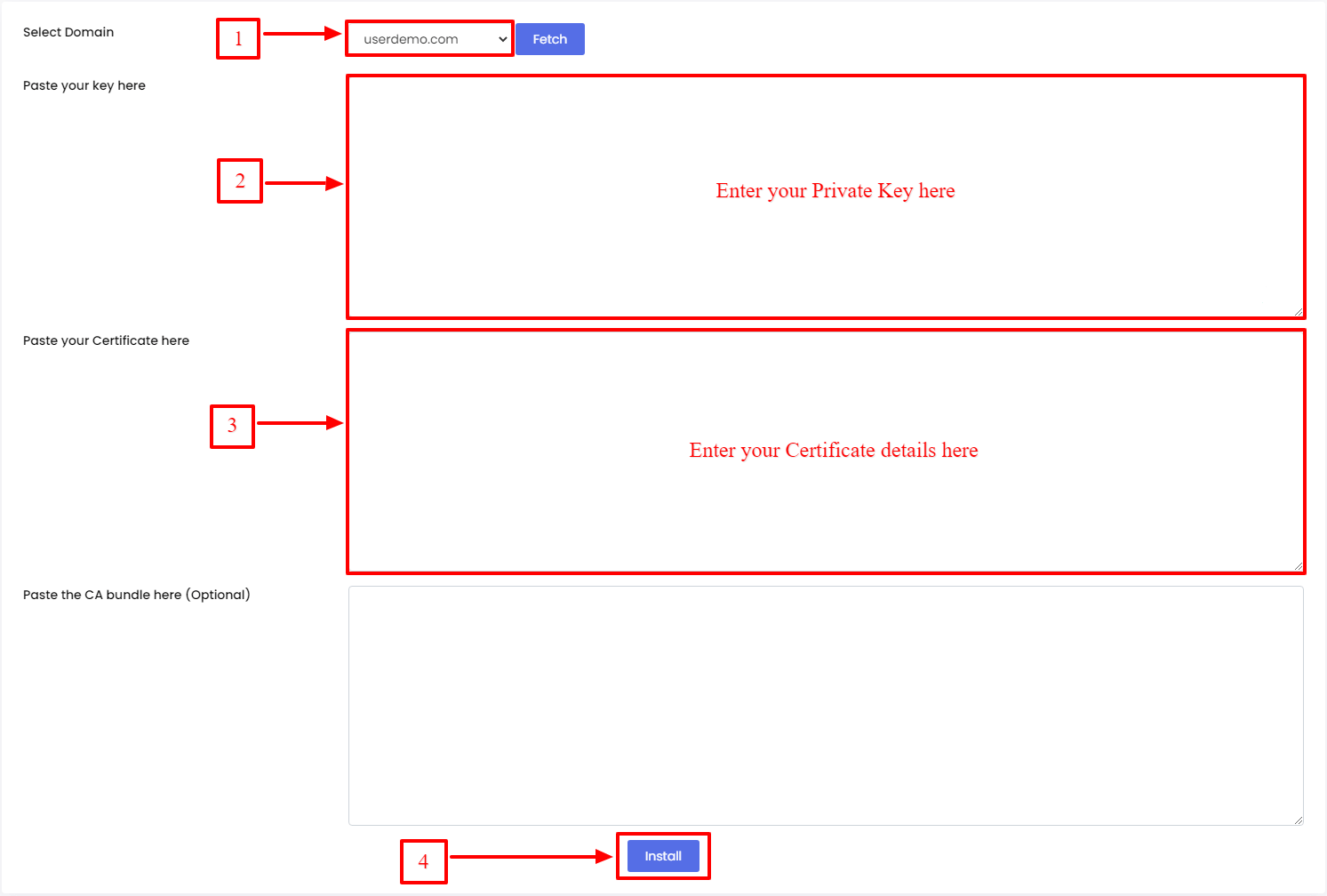
- Paste your private key into the key box.
- Paste the CA bundle into its box.
- Click Submit or Install.
- Open your site with
https://to test.
If something goes wrong
- Check that the domain points to your server.
- Check that the key matches the certificate.
- Check that you copied the full text, including the BEGIN and END lines.
- Clear your browser cache and try again.
Tip: If you still need help, open a support ticket and tell us which step failed.
Quick recap
- Webuzo can issue a free Let's Encrypt certificate.
- You can also paste in a paid certificate, key and CA bundle.
- Point your domain to the server first.
- Test with HTTPS afterwards.