

What is AutoSSL?
An SSL certificate is a digital badge that makes your website safe and adds a padlock. AutoSSL is a cPanel feature that gets these certificates for your domains for free and renews them before they run out. You do not have to do the work yourself. cPanel is the control panel where you manage your hosting.
The server owner must turn AutoSSL on. Ask Hostvento support if it is on for your plan.
Steps to install
- Log in to cPanel. You can find the link in your client area or in your welcome email.
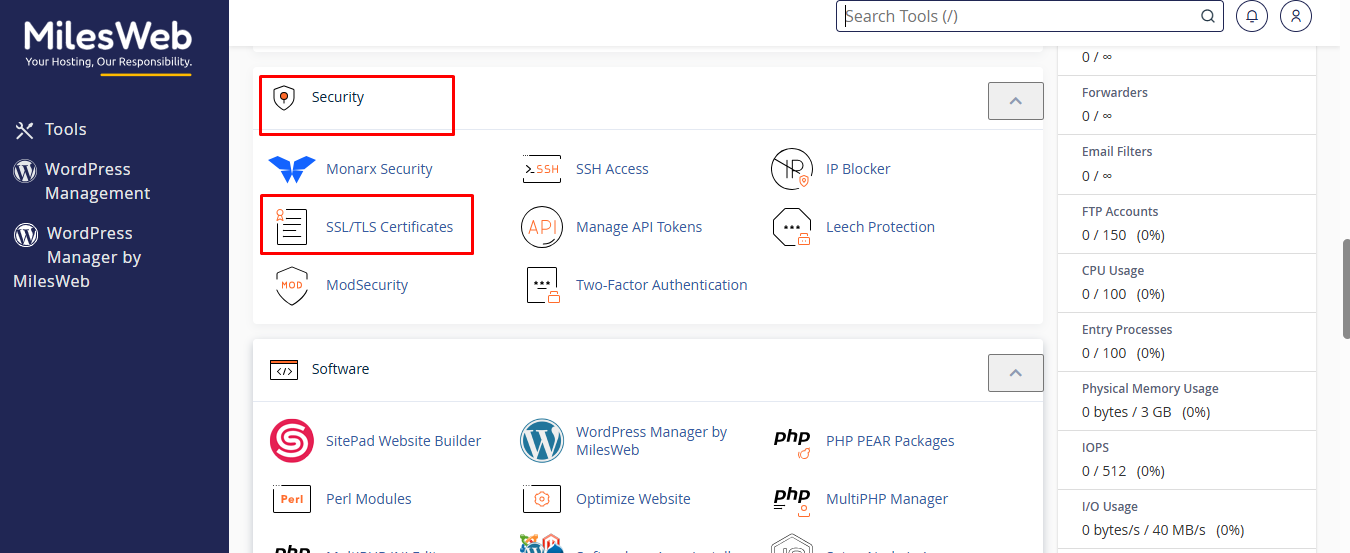
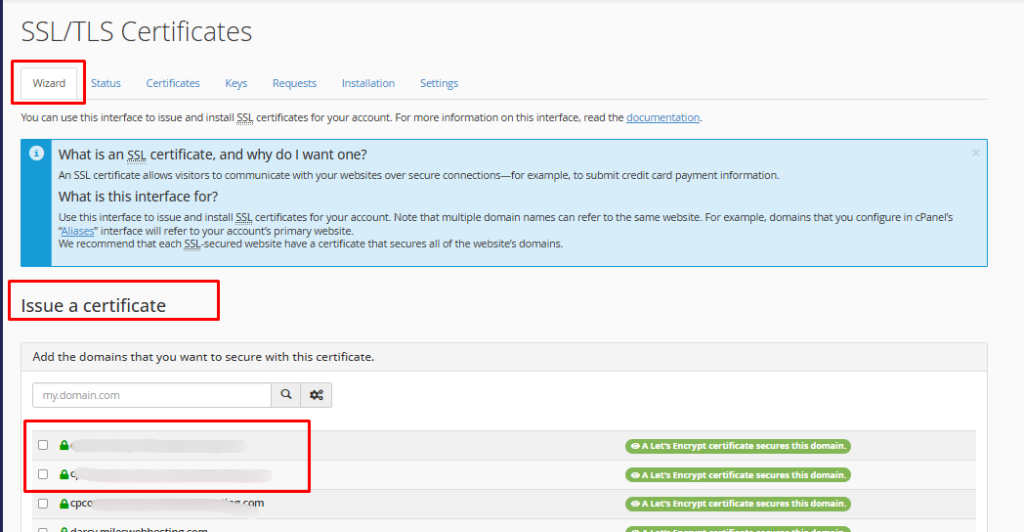
- In the Security section, click SSL/TLS Status.
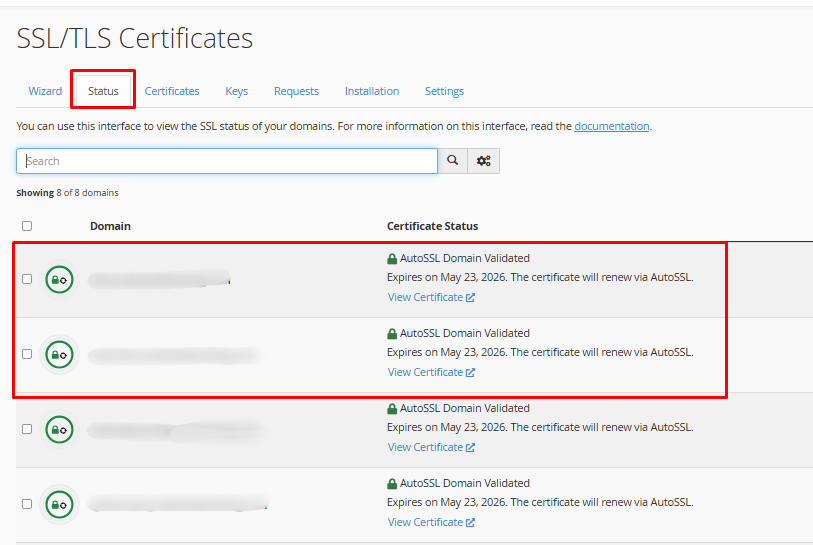
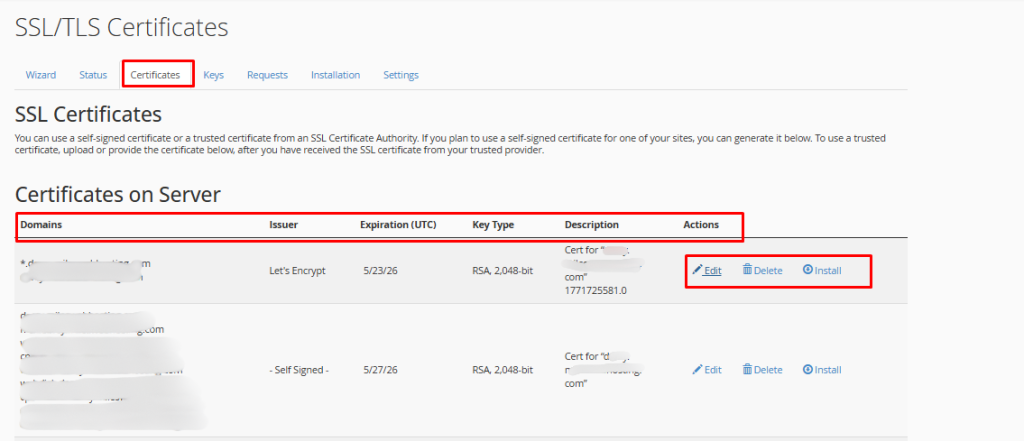
- You will see a list of your domains. A red or crossed icon means no valid certificate. A green padlock means it is secure.
- Tick the boxes beside the domains you want to secure.
- Click Run AutoSSL.
- Wait a few minutes. The check can take a while.
- Refresh the page. The padlock should turn green.
- Open your site with
https://to check.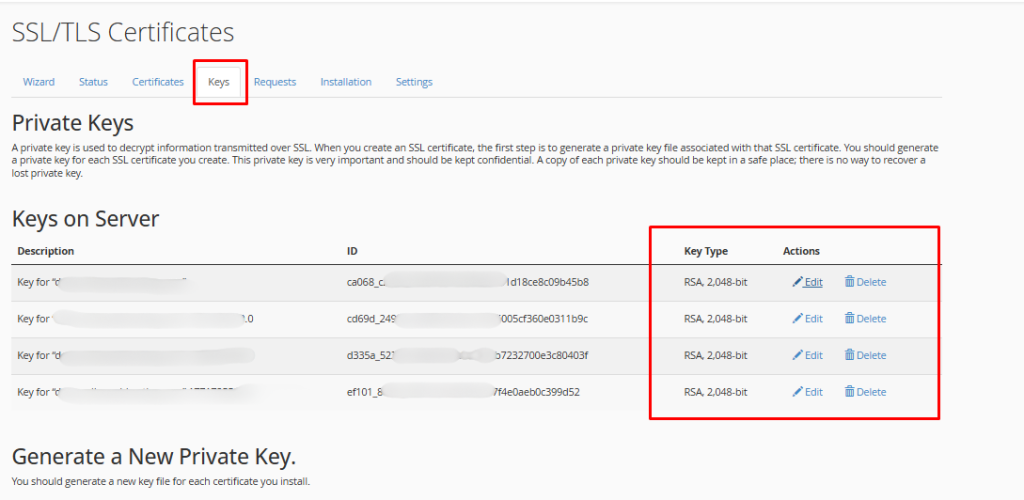
Why it can fail
AutoSSL first proves you control the domain. It does this by placing a small file on your site and checking it from outside. If the check cannot reach that file, it fails. Common reasons are:
- The domain points elsewhere. The DNS must point to your hosting. DNS is the phone book of the internet. Changes can take some hours to spread.
- A redirect blocks the check. Rules in your
.htaccessfile may send every request somewhere else. The.htaccessfile holds extra rules for your site.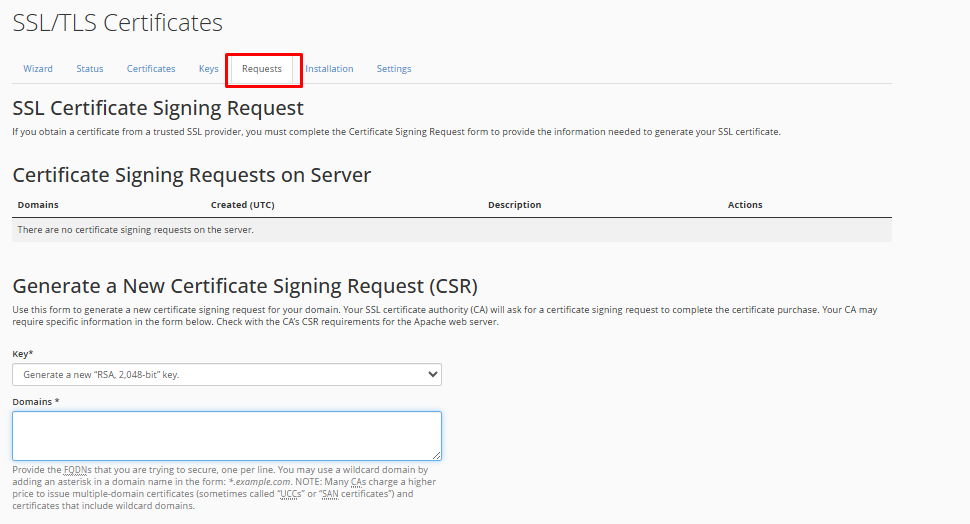
- A firewall or security rule blocks the check.
- Cloudflare or another proxy is in front of the domain.
- The domain is a new one and not ready yet.
How to fix it
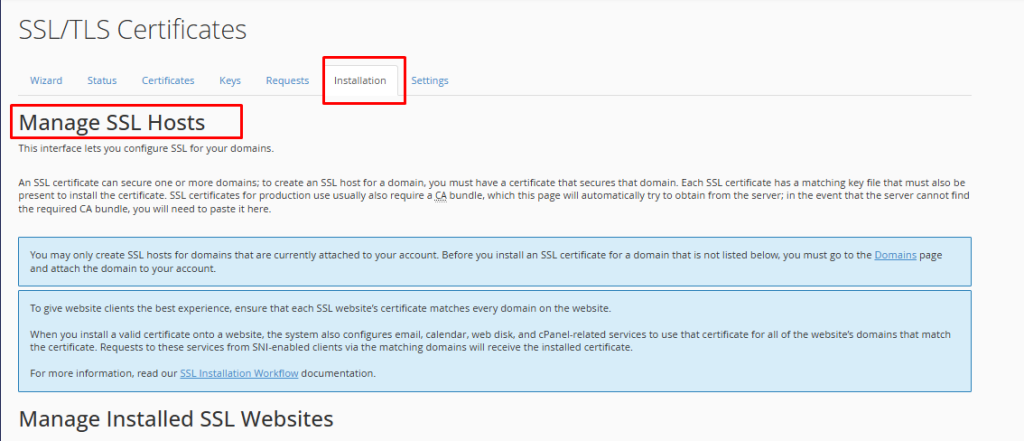
- On the SSL/TLS Status page, click the domain to see the error message. It tells you the reason.
- Fix the cause. For example, correct your DNS or remove a rule that blocks the path
/.well-known/. - Click Run AutoSSL again.
Tip: If you cannot find the cause, open a support ticket and include the error text from the status page.
Quick recap
- AutoSSL gives free certificates and renews them for you.
- Open SSL/TLS Status and click Run AutoSSL.
- Failures usually come from DNS, redirects or firewalls.
- Read the error and run it again after the fix.