What are IIS and Win-ACME?
IIS is the web server program that comes with Windows Server. It shows your websites to visitors. An SSL certificate is a file that puts a padlock on your site and scrambles the data.
Win-ACME is a free, third-party tool. It talks to Let's Encrypt, a service that gives free certificates. Win-ACME gets the certificate, installs it in IIS, and renews it for you. Ask Hostvento support whether you may use it on your plan.
Before you start
- Your domain must point to your server.
- Your site must be set up in IIS with a binding for your domain on port 80. A binding links a domain name to a site.
- Port 80 must be open in the firewall, because Let's Encrypt checks your site over it.
Steps
- Log in to the server with Remote Desktop.
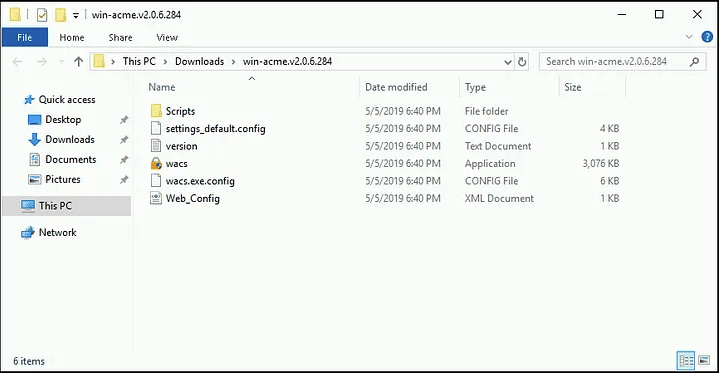
- Download the Win-ACME zip from the official Win-ACME site.
- Right-click the zip and choose Extract All. Put it in a folder such as
C:\win-acme. - Right-click
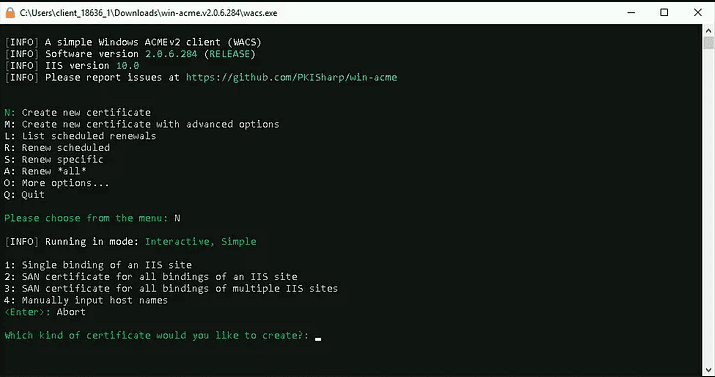
wacs.exeand choose Run as administrator. - Press N to create a certificate with default settings.
- Choose to pick from a list of IIS bindings. Press the key shown for that choice.
- Select your site from the list.
- Choose to create a certificate for all bindings, or only the one you pick.
- Accept the terms of service when asked.
- Enter your email address when asked. Let's Encrypt uses it for notices.
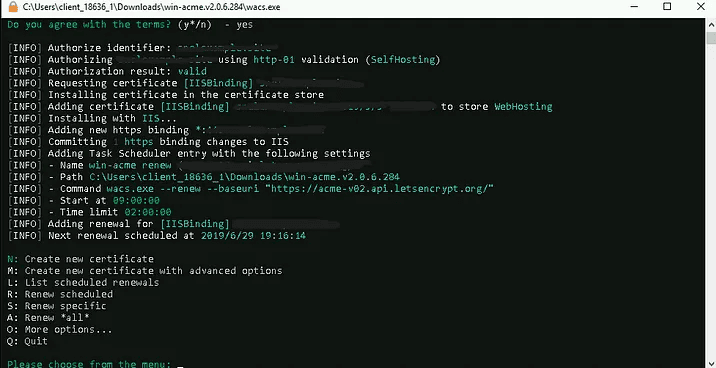
- Wait for Win-ACME to finish. It checks your domain, gets the certificate and adds an https binding in IIS.
- Open your site with
https://in a browser and check the padlock.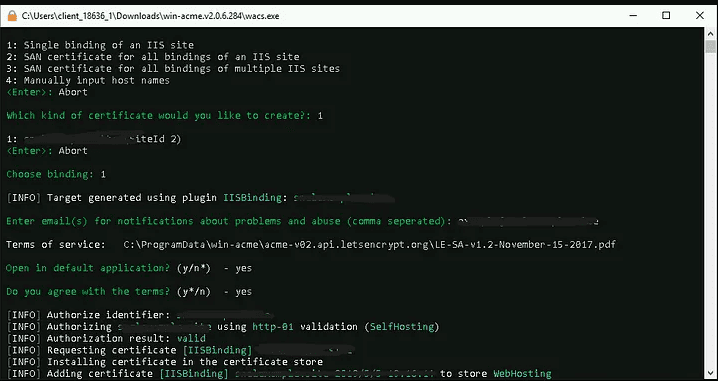
Renewals
Free certificates last a short time. Win-ACME makes a scheduled task in Windows that renews it for you. You can check it in Task Scheduler.
Tip: If it fails, check that your domain points to this server and that port 80 is open. Read the log files in the Win-ACME folder.
Quick recap
- Win-ACME gets free certificates for IIS.
- Run
wacs.exeas administrator and follow the menu. - Your domain and port 80 must be reachable.
- Renewal happens automatically through a scheduled task.